
Appearance
Understanding the Interface
Two things are always on screen: the bar across the top, and the panels round the map. This page covers the bar, which follows you everywhere. The panels are covered in the Application Guide.
The bar across the top
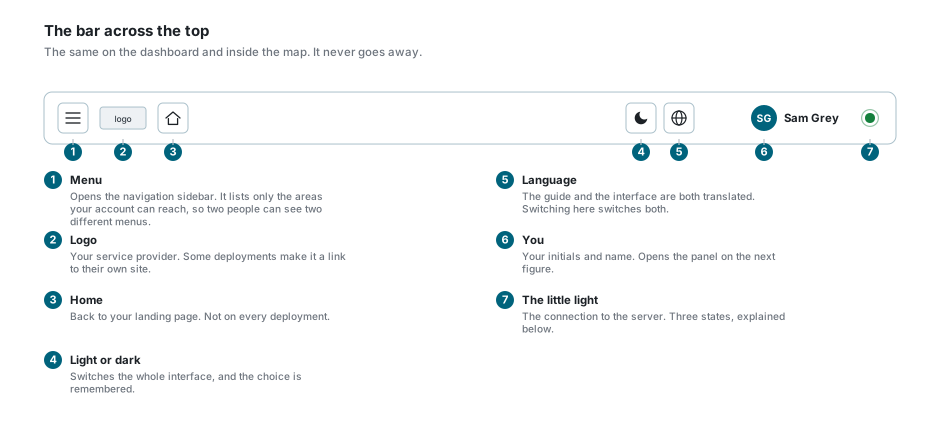
| Item | What it does |
|---|---|
| Menu | Opens the navigation sidebar. It lists only the areas your account can reach, so two people can quite correctly see two different menus. |
| Logo | Your service provider. Some deployments make it a link to their own site. |
| Home | Back to your landing page. Not on every deployment. |
| Light or dark | Switches the whole interface between the light and dark theme. The choice is remembered. |
| Language | The interface and this guide are both translated. Switching here switches both. |
| Your initials and name | Opens the panel described below. |
| The little light | The connection to the server. See below. |
The panel behind your avatar
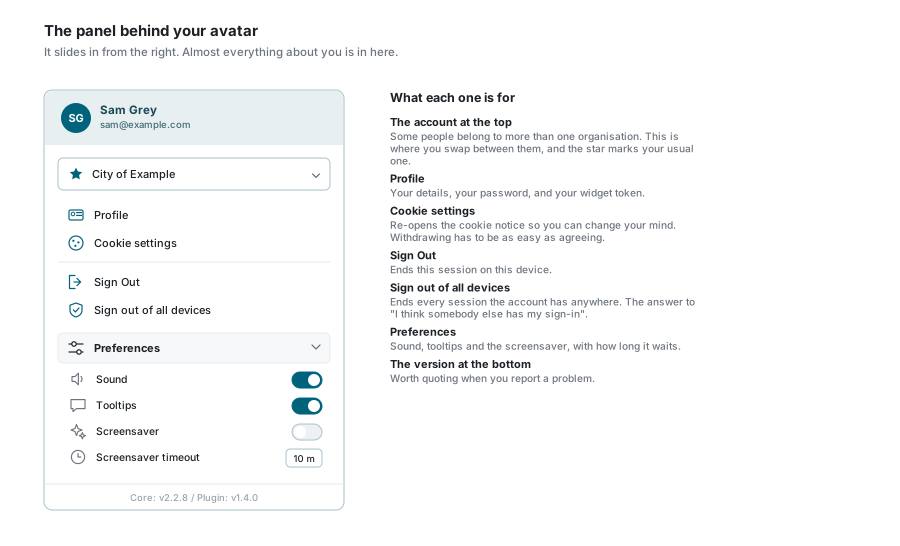
Click your initials and a panel slides in from the right.
| Item | What it is |
|---|---|
| The account at the top | Some people belong to more than one organisation. This is where you swap between them, and the star marks your usual one. |
| Profile | Your details, your password and your widget token. See Profile Settings. |
| Cookie settings | Re-opens the cookie notice so you can change your mind. Withdrawing has to be as easy as agreeing. |
| Sign Out | Ends this session, on this device. |
| Sign out of all devices | Ends every session the account has, anywhere. This is the answer to "I think somebody else has my sign-in". |
| Preferences | Sound, tooltips, and the screensaver with how long it waits. |
| The version at the bottom | Worth quoting when you report a problem. |
Turn the tooltips off once you know your way around
Every button explains itself when you hover it, which is exactly what you want on day one and exactly what you do not want on day fifty. The Tooltips switch under Preferences turns them off.
The little light
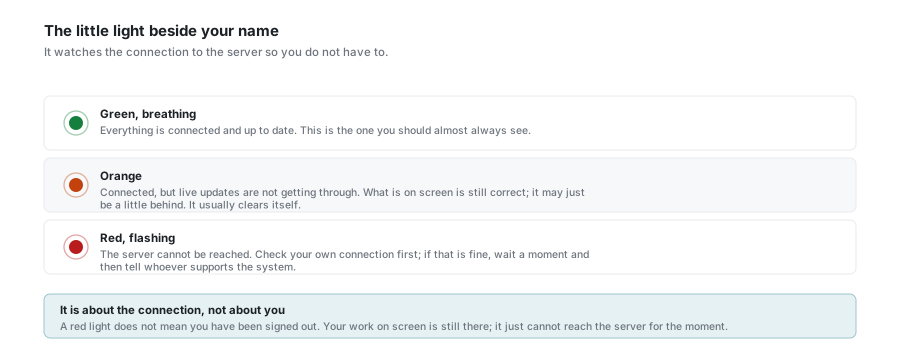
The dot beside your name watches the connection to the server.
| It looks like | It means |
|---|---|
| Green, breathing | Connected and up to date. This is what you should almost always see. |
| Orange | Connected, but live updates are not getting through. What is on screen is still correct, it may just be a little behind. It usually clears itself. |
| Red, flashing | The server cannot be reached. Check your own connection first; if that is fine, wait a moment, then tell whoever supports the system. |
A red light does not mean you have been signed out
Your work on screen is still there. The app simply cannot reach the server for the moment. Do not close the tab if you have unsaved work - wait for green and then save.
The panels round the map
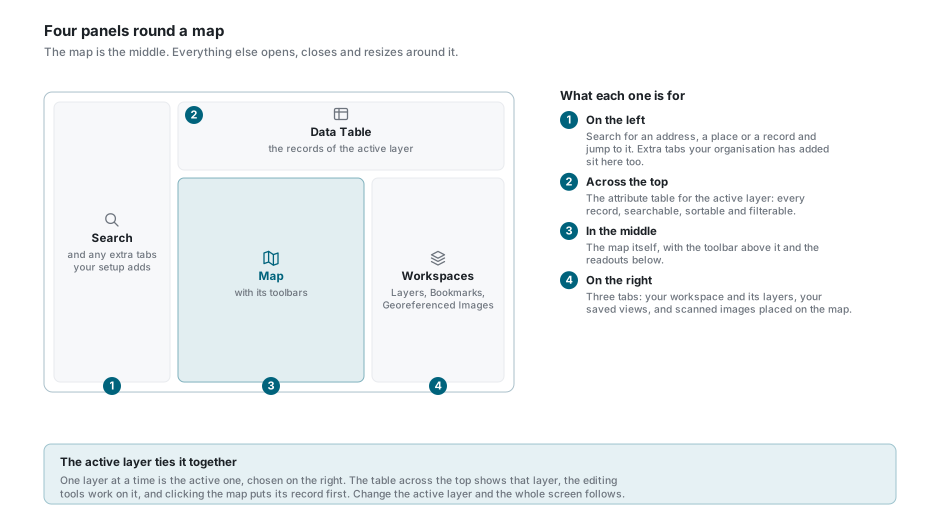
Inside an application the screen is four panels round a map. They are covered properly in the Application Guide, which also explains the tabs on either side and what happens on a phone. In short:
| Panel | What it is for |
|---|---|
| Left | Search for an address, a place or a record. |
| Top | The Data Table for the active layer. |
| Middle | The map, its toolbar and its readouts. |
| Right | Workspaces and Layers, bookmarks, and georeferenced images. |
Moving them about
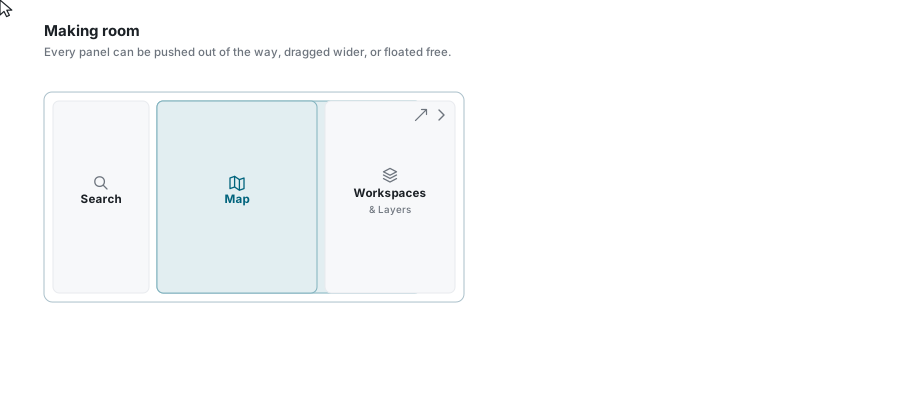
- The caret in a panel's header folds it down to a narrow strip that still shows its name. Click the strip to bring it back.
- Drag the bar between two panels to give one of them more room.
- The diagonal arrow in a header lifts the panel out into a window you can move and resize. Available on the Data Table and on each of the right-hand tabs, on a wide screen.
The two toolbars round the map
| Toolbar | What is on it |
|---|---|
| Above the map | The tools: pointer, magnifier, elevation, measuring, reports, print, record, export, import, street view. See Map Tools. |
| Under the map | Snapshot, your location, zoom to coordinates, the calculator, and the Lat/Lon, Scale and Units readouts. See Map Navigation. |
See also
- Application Guide - the panels in full
- Profile Settings - what is behind the Profile entry
- Sign In - sessions, and when they end
- Support - the in-app tours