
Appearance
Workspaces
A workspace is a saved set of layers together with how they are shown - which are visible, how transparent, what order they sit in, and which one is active. Switching workspace swaps the whole arrangement in one go, instead of adding and removing layers by hand every time.
The workspace panel
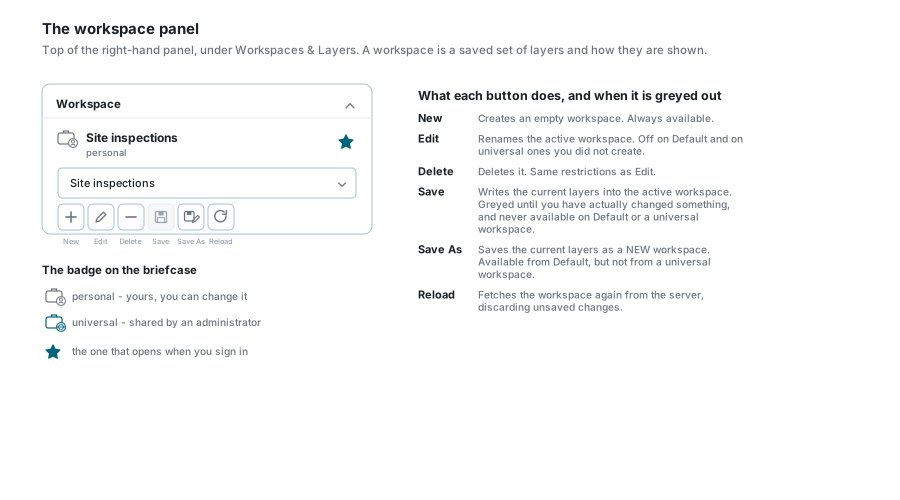
The panel sits at the top of the right-hand (East) panel, under Workspaces & Layers. The whole panel is an accordion - click a heading to open or close it - and can be undocked from the right-hand side.
It shows:
- the active workspace name, with a badge saying whether it is personal () or universal ();
- a star if this is the workspace that opens when you sign in;
- a dropdown to switch to another one;
- the toolbar.
Switching workspace
- Open the workspace section if it is collapsed.
- Click the dropdown.
- Scroll, or type in the box with the magnifying glass to filter by name.
- Click one. The map reloads with that workspace's layers.
Each row in the list shows a briefcase with its badge, the name and description, and a star if it is your startup workspace.
Switching throws away unsaved changes
There is no prompt. If you have added or moved layers and not saved, switching loses that work.
The toolbar
| Button | What it does | Greyed out when |
|---|---|---|
| New | Creates an empty workspace | Never |
| Edit | Renames the workspace and edits its description | On Default, and on a universal workspace you did not create |
| Delete | Deletes the workspace | The same as Edit |
| Save | Writes the current layers into the active workspace | Until you have actually changed something, and always on Default and on universal workspaces |
| Save As | Saves the current layers as a new workspace | On a universal workspace. It is available from Default |
| Reload | Fetches the workspace again from the server | Never - but it discards unsaved changes |
Save is greyed out - is that a bug?
No. Save only lights up once the workspace has been modified in this session. If it is grey, there is nothing to save.
Saving changes
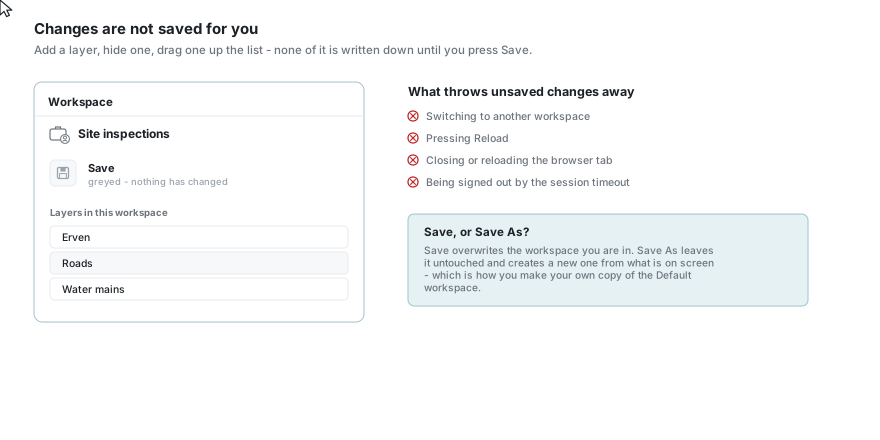
Adding, removing, hiding, reordering or re-styling layers changes the workspace on screen only. Nothing is written down until you press a save button.
- Save overwrites the workspace you are in.
- Save As leaves it untouched and creates a new workspace from what is currently on screen. This is how you make your own copy of Default, or a personal copy of somebody's universal workspace's layout.
These throw unsaved changes away, without warning:
- switching to another workspace;
- pressing Reload;
- closing or reloading the browser tab;
- being signed out by the session timeout.
Creating a workspace
- Click New.
- Enter a name (required) and an optional description.
- Optionally tick Startup Workspace to make it the one that opens when you sign in.
- Click Save.
The new workspace is empty - add layers from the Layer Repository, then press Save.
Usually Save As is what you want
If you already have the layers on screen, Save As is quicker than New: it creates the workspace and puts the current layers in it, in one step.
The three kinds, and the star
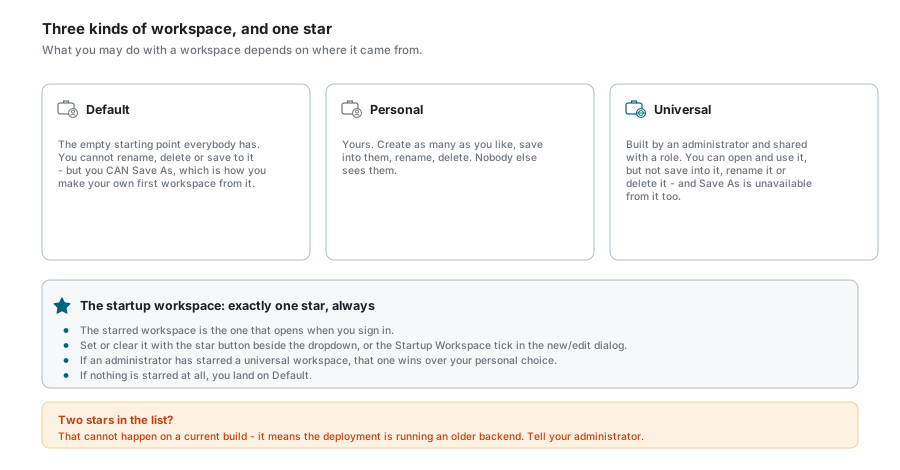
| Kind | Badge | What you may do |
|---|---|---|
| Default | personal | The empty starting point everybody has. Cannot be renamed, deleted or saved into - but Save As works, which is how you make your first real workspace from it. |
| Personal | personal | Yours. Create as many as you like, save into them, rename and delete them. Nobody else sees them. |
| Universal | universal | Built by an administrator and shared with a role. You can open and use it, but not save into it, rename it or delete it - and Save As is unavailable from it. |
The startup workspace
One workspace opens automatically when you sign in, and it carries a star.
- Set or clear it with the star button beside the dropdown, or with the Startup Workspace tick in the New / Edit dialog.
- There is only ever one star. If an administrator has starred a universal workspace, that takes precedence over your personal choice.
- If nothing is starred at all, you land on Default.
Two stars in the list
That cannot happen on a current build. If you see it, the deployment is running an older backend - tell your administrator.
Universal workspaces, for administrators
If you have the permission, the workspace dialog gains extra options when you create or edit a universal workspace:
- Universal Role - which role sees it.
- Universal Accounts - which accounts it reaches.
- Base Layers and a Default Base Layer, with opacity.
- A layer list with per-layer visibility, opacity, which layer is active, and drag-and-drop ordering.
A universal workspace can also be flagged as the startup workspace; the star button is hidden for it, but the tick in the dialog does the job.
If something looks wrong
| What you see | What it means |
|---|---|
| Save is greyed out | Nothing has changed yet, or you are on Default or a universal workspace. |
| Save As is greyed out | You are on a universal workspace. Copy the layers into a personal one by adding them from the Layer Repository instead. |
| Edit and Delete are greyed out | You are on Default, or on a universal workspace somebody else created. |
| Your layer changes vanished | They were never saved. See Saving changes. |
| The wrong workspace opens at sign-in | Check which one carries the star. A universal star overrides your personal one. |
| A workspace you made is gone | Only you and an administrator can delete a personal workspace. If you deleted it, it is not recoverable from the app. |
| A layer's edit template or filter reverted | Saved selections are per workspace; re-pick it and save the workspace again. |
See also
- Layer Repository - adding layers to a workspace
- Layer Control - visibility, opacity and ordering
- Bookmarks - saving a map view rather than a layer set
- Dashboard - the Workspaces counter on the activity strip