
Appearance
Searching
The Search panel is down the left-hand side of the map. Type an address, pick it out of the list, and the map goes there.
The panel
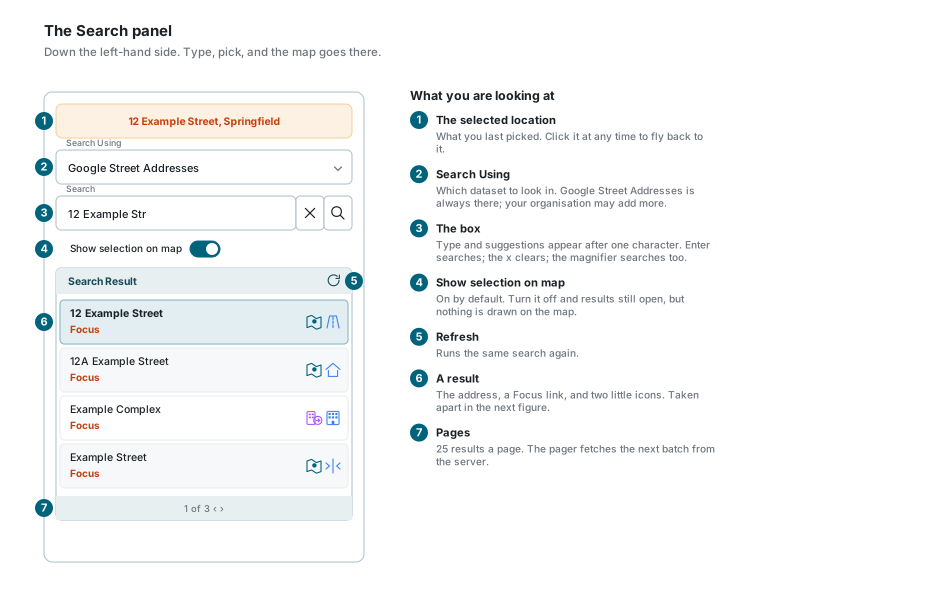
| Part | What it is for |
|---|---|
| The card at the top | The location you last picked. Click it at any time to fly back to it. |
| Search Using | Which dataset to look in. |
| The search box | What you are looking for. Suggestions appear as you type. |
| Show selection on map | Whether the result is drawn on the map. On by default. |
| The list | What came back, 25 to a page. |
Choosing where to look
Search Using picks the dataset. Google Street Addresses is always there and searches the Google address index.
Your organisation may have added more: its own address data, suburbs, farms, stand numbers, and so on. Those are set up for you and documented in their own pages, not here.
Some search types add extra boxes
Pick a search type that needs more than one thing to identify a place and extra fields appear underneath the search box - a number, a portion, a municipality. Fill in the ones that apply and search as usual; the optional ones say so in their labels.
Typing and picking
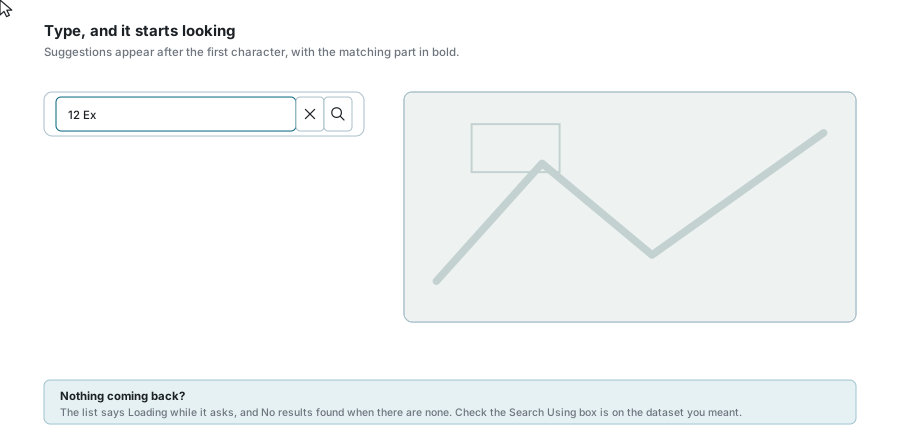
- Start typing. After the first character the panel starts looking, and a list drops down.
- The part of each suggestion that matched what you typed is in bold, so you can see why it is on the list.
- Pick one and the map flies to it, or press Enter to search for exactly what you typed.
| Control | What it does |
|---|---|
| Enter | Runs the search on what is in the box. |
| The magnifier | The same thing, for a mouse. |
| The x, or Escape | Clears the box. |
| Refresh, in the list header | Runs the same search again. |
Nothing coming back?
The dropdown says Loading while it is asking and No results found when there is nothing. If you were expecting a match, check that Search Using is on the dataset you meant - the same text can find plenty in one dataset and nothing in another.
Reading a result
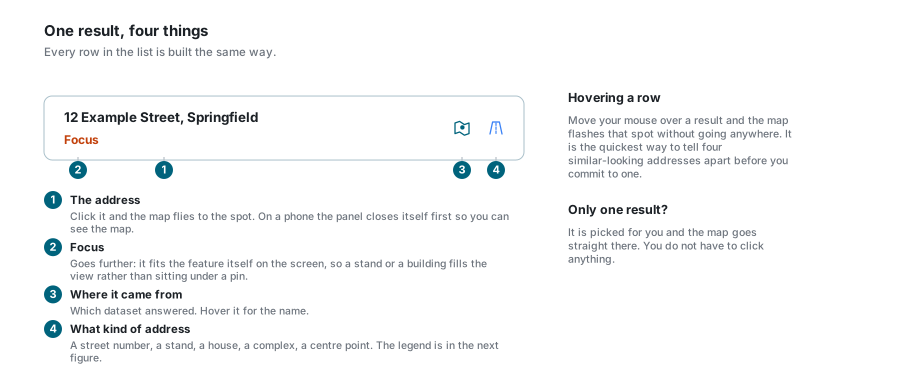
| Part | What it does |
|---|---|
| The address | Click it and the map flies to the spot. |
| Focus | Goes further: it fits the thing itself on the screen. |
| The first icon | Which dataset the result came from. Hover it for the name. |
| The second icon | What kind of address it is. See the legend below. |
Two things that are easy to miss:
- Hovering a result flashes it on the map without going anywhere. It is the quickest way to tell four similar-looking addresses apart before committing to one.
- If there is exactly one result it is picked for you and the map goes straight there. You do not have to click anything.
The two little icons
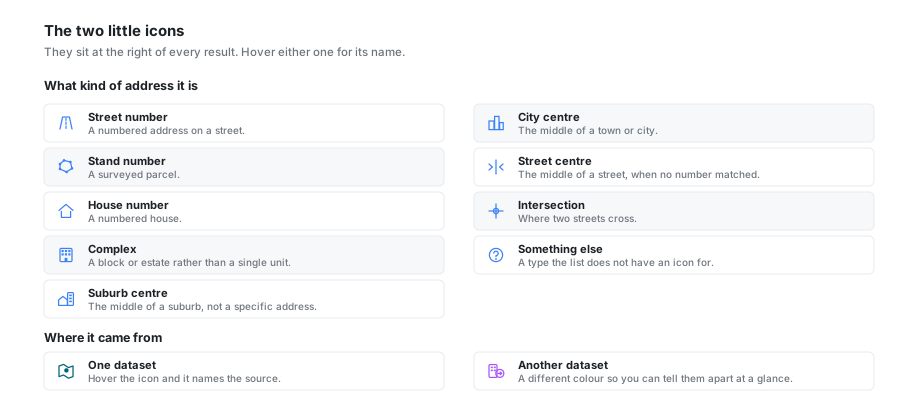
| Icon | What kind of address |
|---|---|
| Street number | A numbered address on a street. |
| Stand number | A surveyed parcel. |
| House number | A numbered house. |
| Complex | A block or estate rather than a single unit. |
| Suburb centre | The middle of a suburb, not a specific address. |
| City centre | The middle of a town or city. |
| Street centre | The middle of a street, when no number matched. |
| Intersection | Where two streets cross. |
| A question mark | A type the list does not have an icon for. |
The other icon says which dataset answered, in its own colour so you can tell two sources apart at a glance. Hover it for the name.
A centre point is not a wrong answer
If you search for a street with no number, or a suburb, the best the dataset can do is the middle of it. The icon is telling you that, so you know why the marker is not on a doorstep.
Click, or Focus
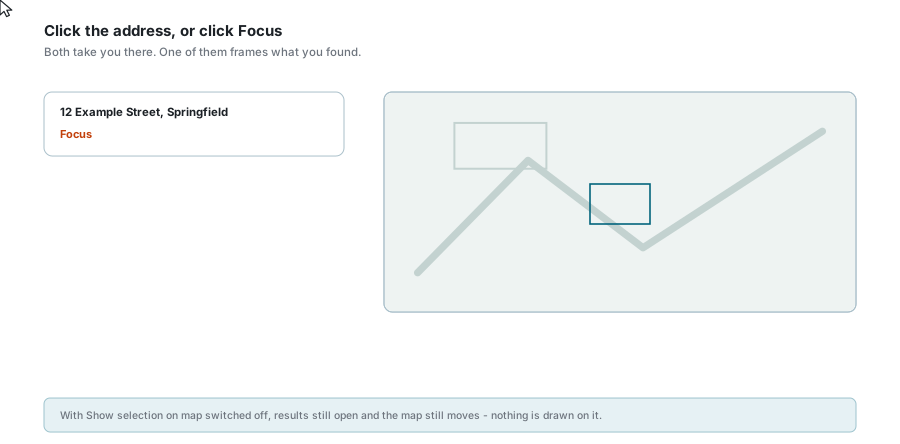
| You click | What happens |
|---|---|
| The address | The map flies to the spot and marks it. |
| Focus | The map flies there and then fits the feature itself, so a stand or a building fills the view instead of sitting under a marker. |
Where a result has a boundary - a suburb, a town, an area - the outline is drawn and the whole shape is fitted, with no marker in the middle of it.
On a phone
The panel closes itself after you pick a result, so the map is not hidden behind it. Open it again from the magnifier button on the map.
Show selection on map
The toggle above the list decides whether anything is drawn. Leave it on and every result you pick is marked or outlined. Turn it off and results still open and the map still moves; it just stays clean.
Useful when you are working through a long list of addresses and do not want a marker left behind at each one.
If something looks wrong
| What you see | What it means |
|---|---|
| No suggestions at all | The panel needs one character before it starts. If you have typed and nothing comes, check Search Using. |
| The list says No results found | Nothing in that dataset matched. Try a shorter or simpler form of the address, or another search type. |
| The marker is in the middle of a street or suburb | The result is a centre point, not a numbered address. The second icon on the row says so. |
| A result opens but nothing is drawn | Show selection on map is off. |
| Clicking a result barely moves the map | You were already close to it. Use Focus to frame the feature itself. |
| The panel keeps closing after a search | That is deliberate on a narrow screen, so you can see the map. |
| The card at the top says no address selected | Nothing has been picked yet. Search for something, or click a result. |
| The suggestions vanish while you are typing quickly | Keep typing. The panel is dropping older requests as newer ones arrive, and settles on the last one. |
See also
- Feature Selection - clicking the map instead of searching for it
- Map Navigation - moving around once you are there, and copying coordinates
- Bookmarks - saving a place you will come back to
- Column Filters - finding records inside a layer rather than places on a map