
Appearance
Map Navigation
The map fills the middle of the screen. This page is about getting around it: moving, zooming, turning, and the readouts that tell you where you are.
The buttons on the map
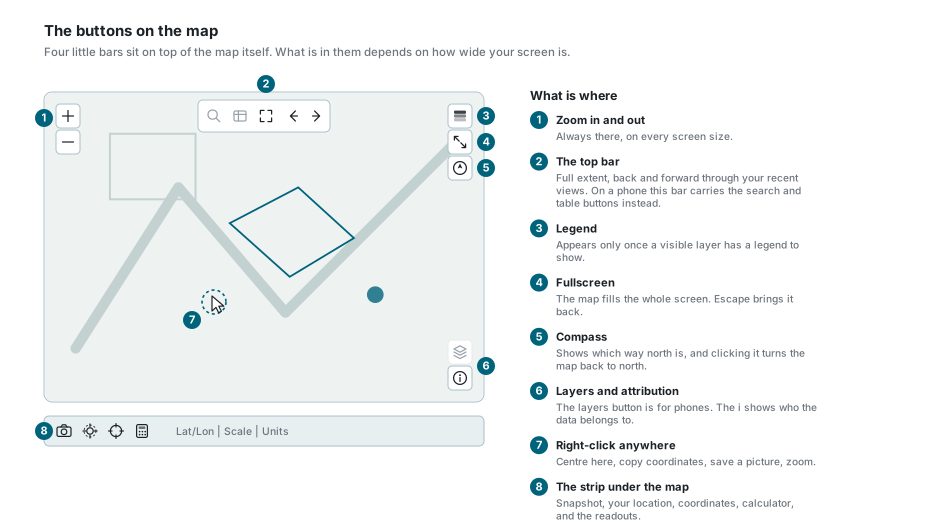
| Where | What is in it |
|---|---|
| Top left | Zoom in and zoom out. Always there. |
| Along the top | Full extent, and the back and forward arrows through your recent views. On a phone this bar carries the search and table buttons instead. |
| Top right | Legend, fullscreen, and the compass. |
| Bottom right | The layers button (phones only) and the i, which shows who the data belongs to. |
| Under the map | Snapshot, your location, coordinates, calculator, and the readouts. |
Moving around
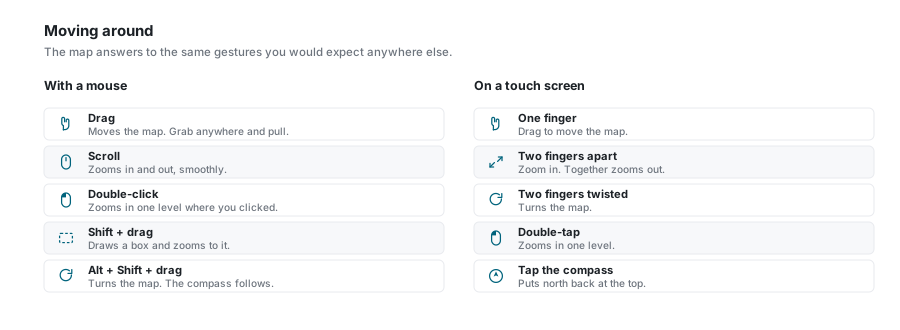
With a mouse
| Gesture | What happens |
|---|---|
| Drag | Moves the map. Grab anywhere and pull. |
| Scroll | Zooms in and out. |
| Double-click | Zooms in one level on the spot you clicked. |
| Shift + drag | Draws a box and zooms to exactly that box. |
| Alt + Shift + drag | Turns the map. |
On a touch screen
| Gesture | What happens |
|---|---|
| One finger | Drag to move the map. |
| Two fingers apart | Zoom in. Together zooms out. |
| Two fingers twisted | Turns the map. |
| Double-tap | Zooms in one level. |
The map turned and you did not mean to
Alt + Shift + drag, or a twist of two fingers, rotates the map. Nothing is broken. The compass at the top right always points north, and clicking it puts north back at the top of the screen.
Zooming
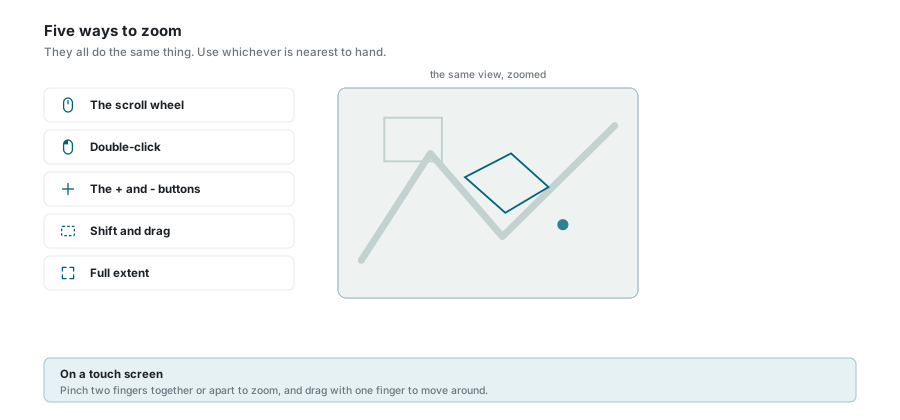
| Way | What it does |
|---|---|
| The scroll wheel | Roll forward to go in, back to go out. |
| Double-click | In one level, on the spot you clicked. |
| The + and - buttons | One level at a time, centred on the middle of the view. |
| Shift + drag | Draws a box and fills the screen with it. The quickest way to zoom to one street. |
| Full extent | The button in the bar along the top zooms all the way out. |
Two small things worth knowing:
- The wheel zooms smoothly, not in whole steps, so you can stop between two zoom levels. The buttons and double-click move a whole level at a time.
- Holding Shift or Ctrl while you double-click does not zoom, because those keys mean "add to the selection". See Feature Selection.
Back and forward through your views
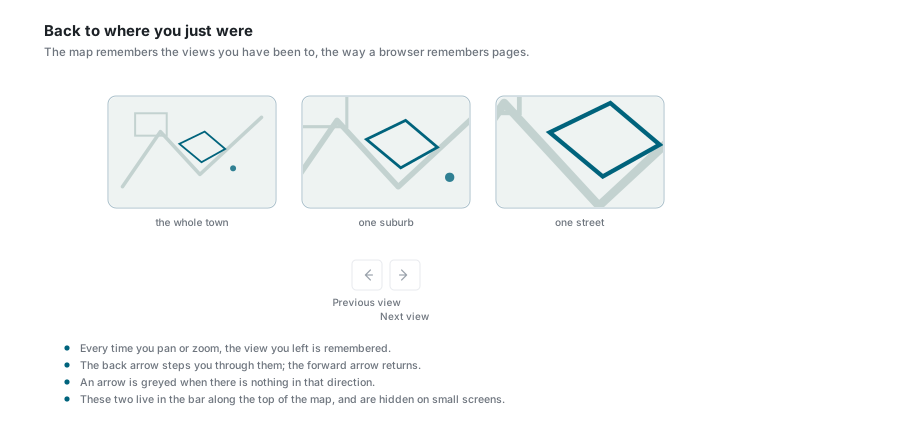
Every time you pan or zoom, the view you left is remembered. The two arrows in the bar along the top step you back and forward through them, the way a browser moves through pages.
An arrow is greyed out when there is nothing in that direction. Both arrows are hidden on small screens.
Fullscreen
The fullscreen button at the top right makes the map fill the whole screen, hiding everything else. Press it again, or press Escape, to come back.
The right-click menu
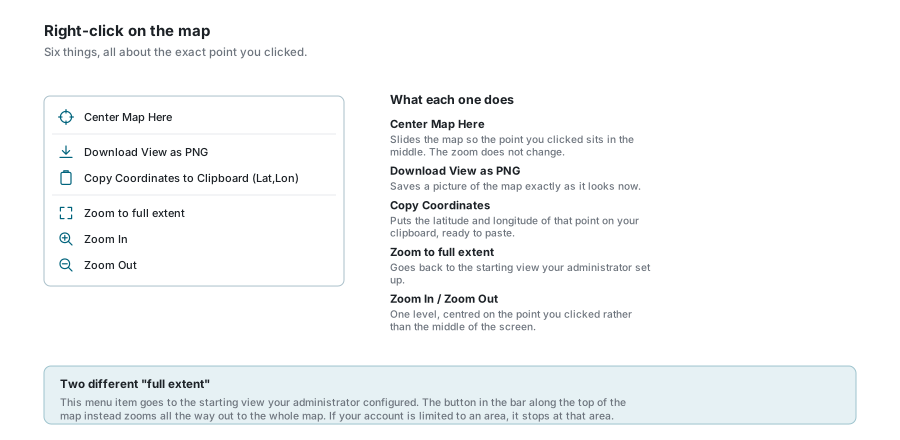
| Item | What it does |
|---|---|
| Center Map Here | Slides the map so the point you clicked sits in the middle. The zoom does not change. |
| Download View as PNG | Saves a picture of the map exactly as it looks now. |
| Copy Coordinates to Clipboard (Lat,Lon) | Puts that point's latitude and longitude on your clipboard, ready to paste. |
| Zoom to full extent | Goes back to the starting view your administrator set up. |
| Zoom In / Zoom Out | One level, centred on the point you clicked rather than the middle of the screen. |
Two different "full extent"
The menu item goes to the starting view your administrator configured. The button in the bar along the top instead zooms all the way out to the whole map. If your account is limited to an area, it stops at that area.
The strip under the map
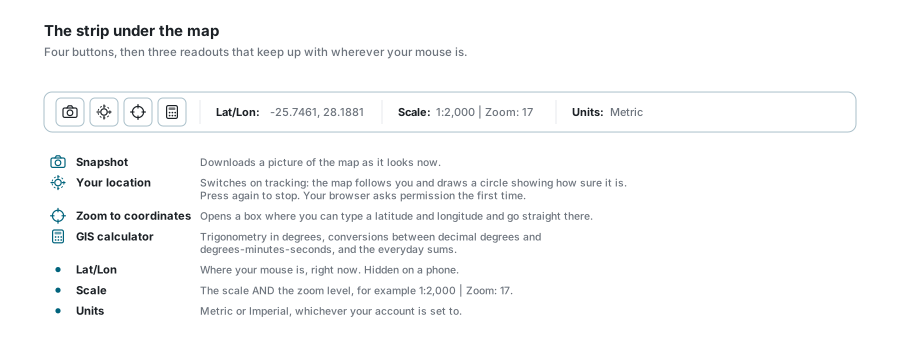
| Button | What it does |
|---|---|
| Snapshot | Downloads a picture of the map as it looks now. |
| Your location | Switches on tracking. |
| Zoom to coordinates | Opens a box where you type a latitude and longitude. |
| GIS calculator | Trigonometry in degrees, conversions between decimal degrees and degrees-minutes-seconds, and the everyday sums. |
| Readout | What it shows |
|---|---|
| Lat/Lon | Where your mouse is, right now. Hidden on a phone. |
| Scale | The scale and the zoom level, for example 1:2,000 | Zoom: 17. |
| Units | Metric or Imperial, whichever your account is set to. |
Your location
The location button does not just centre the map once. It tracks you: a marker follows you, with a circle around it showing how sure the browser is of the position. Press it again to stop.
Your browser asks permission the first time, and it will refuse outright on an insecure connection. Accuracy depends entirely on the device: a phone with GPS gets within metres, a desktop working from its network address can be out by kilometres. That is what the circle is telling you.
Zoom to coordinates
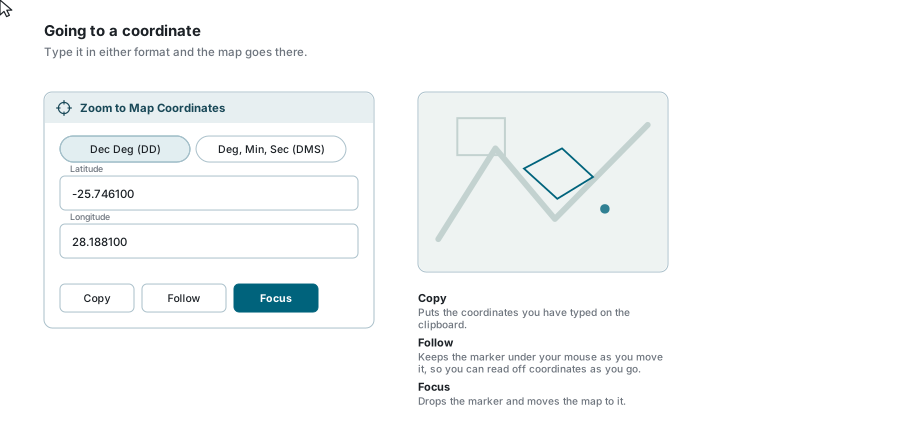
Type a position and go straight there. Two formats:
- Dec Deg (DD) - one number each for latitude and longitude, for example
-25.7461and28.1881. - Deg, Min, Sec (DMS) - degrees, minutes and seconds in separate boxes, with N/S and E/W beside them.
Switch between the two at any time and the numbers convert themselves.
| Button | What it does |
|---|---|
| Copy | Puts the coordinates you have typed on the clipboard. |
| Follow | Keeps the marker under your mouse as you move it, so you can read positions straight off the map. |
| Focus | Drops the marker and moves the map to it. |
The legend
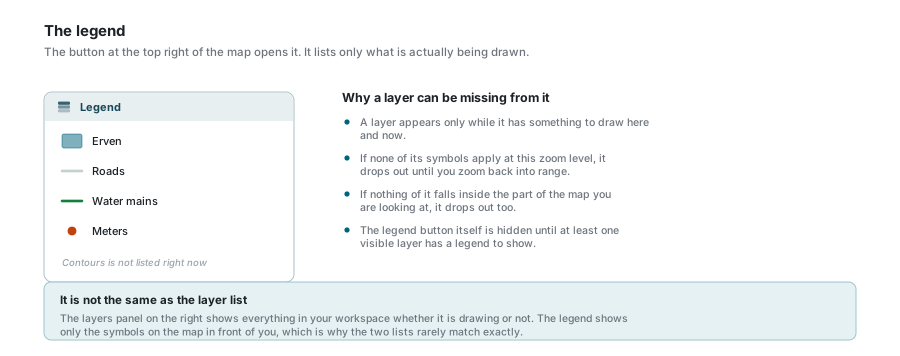
The legend button at the top right opens a panel showing the symbols and colours for what is on the map.
A layer is listed only while it has something to draw. If none of its symbols apply at this zoom level, or nothing of it falls inside the part of the map you are looking at, it is left out until you move back into range. The legend button itself stays hidden until at least one visible layer has a legend to show.
It is not the same as the layer list
The Layers panel shows everything in your workspace whether it is drawing or not. The legend shows only the symbols on the map in front of you, which is why the two lists rarely match exactly.
If your account is limited to an area
Some accounts are set up so that only one area is theirs to work in. When that is the case:
- everything outside the area is covered by a soft mask, so you can see where your boundary is;
- depending on the setting, the map may refuse to pan or zoom past it at all;
- full extent stops at that area rather than zooming out to the whole world.
None of that is a fault, and there is nothing to switch off. If you need a wider area, ask your administrator.
If something looks wrong
| What you see | What it means |
|---|---|
| The map is at an angle | It has been rotated. Click the compass at the top right to put north back at the top. |
| Scrolling zooms the page instead of the map | Your pointer is off the map. Move it over the map and try again. |
| Double-clicking selects instead of zooming | You are holding Shift or Ctrl. Those are the selection keys. |
| Double-clicking does nothing for a moment | The map is still looking up what you clicked on. It works again as soon as that finishes. |
| The back and forward arrows are missing | They are hidden on small screens. |
| The legend button is missing | Nothing visible has a legend to show at the moment. |
| A layer vanished from the legend | It has nothing to draw at this zoom or in this part of the map. It comes back. |
| The location button does nothing | Your browser has refused or has not been asked. Check the permission prompt, and note it will not work at all on an insecure connection. |
| Your location is wildly wrong | The device is guessing from the network rather than from GPS. The circle around the marker shows how rough the guess is. |
| The map will not pan any further | Your account is limited to an area. |
| Lat/Lon has disappeared | It is hidden on narrow screens to make room. |
See also
- Search - finding a place or a record by name
- Feature Selection - clicking features, and what Shift and Ctrl do
- Map Tools - measuring, the magnifier, Street View, printing
- Layer Control - what is drawn, in what order
- Bookmarks - saving a view you want to come back to
- Keyboard Shortcuts - the full list