
Appearance
Attachments
A record can carry files: photographs from the field, a scanned plan, a signed consent form, a voice note. They sit beside the record rather than inside it, and the Attachments dialog is where you look at them, add to them and take them away.
Opening the dialog
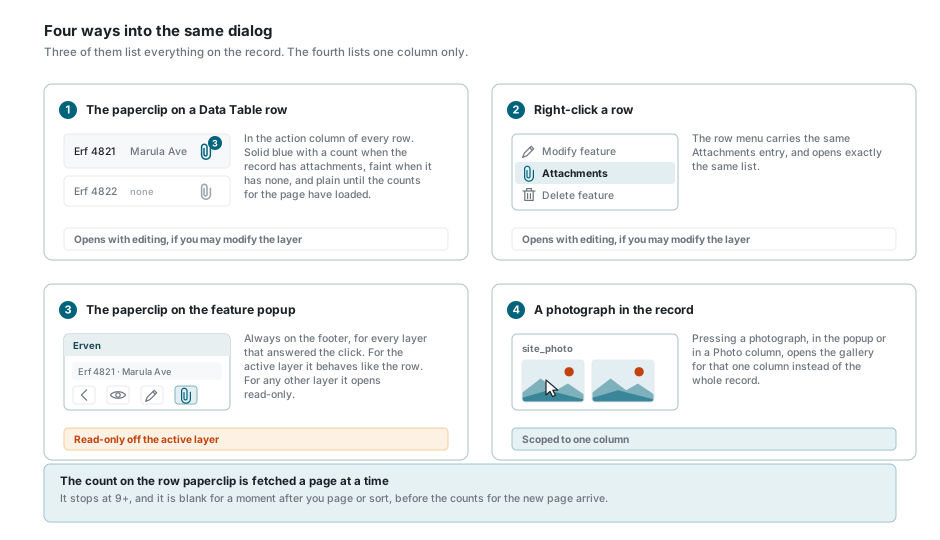
| Where | What it opens |
|---|---|
| The paperclip on a Data Table row | The whole record. You may change things if you may change the layer. |
| Right-click a row | The same thing. The row menu carries an Attachments entry. |
| The paperclip on the feature popup | The whole record - but read-only whenever the popup is showing a layer that is not the active one. |
| A photograph in the record | Only the column that photograph belongs to. See one column at a time. |
The paperclip on a row also tells you whether there is anything to look at before you press it. It is solid and blue with a count beside it when the record has attachments, and faint when it has none. The counts are fetched a page at a time, so just after you page or sort there is a moment where the paperclip is plain and says nothing either way.
The dialog does not block the map
It is not modal. You can drag it, resize it from any edge, maximise it, and leave it open while you carry on clicking the map. The pin in its header keeps it above every other dialog, so opening a record window cannot bury it.
What you are looking at
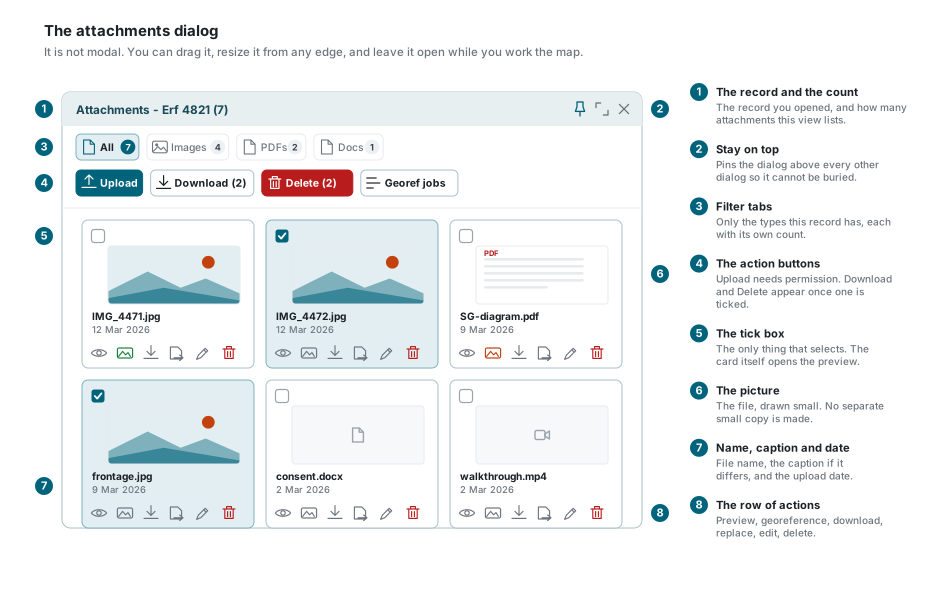
The header names the record and counts what this view is listing. That count follows the view, not the record, so a view scoped to one column shows a smaller number than the record actually holds.
The filter tabs
The tabs across the top narrow the list by type. All is always there. The rest appear only when the record actually holds something of that type, so a record of photographs shows Images and nothing else. Each tab carries its own count.
The tabs are: Images, PDFs, Docs for word processor, spreadsheet and presentation files, Video, Audio, Text for plain text, CSV and JSON, and Other for everything else, archives included.
The tab you are on also decides what the preview can page through. Move to Images and the preview steps between images only.
What a card shows you
A card carries a tick box, a picture, the file name, the caption if it differs from the name, the date it was uploaded, and a row of small buttons.
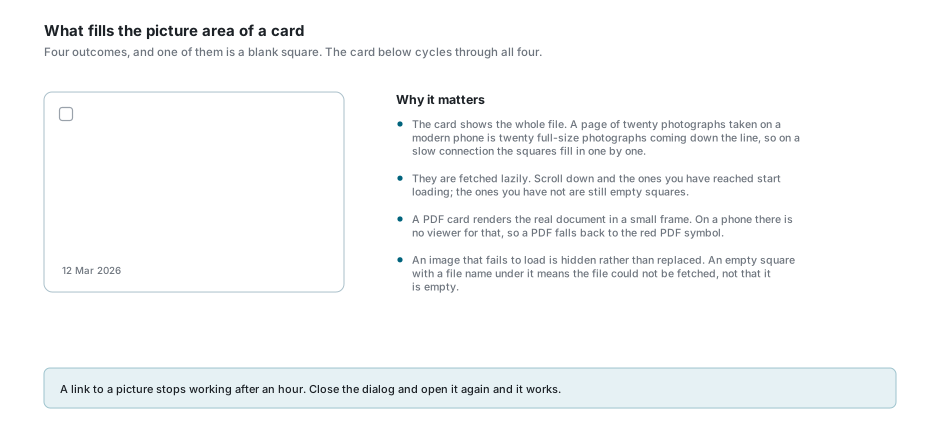
The picture is worth understanding, because the dialog does not make a small copy of anything. An image card shows the file itself, scaled down by your browser, so a page of twenty photographs from a modern phone means twenty full-size photographs coming down the line. They are fetched only once the card has been scrolled into view, which is why the squares fill in as you scroll rather than all at once.
A PDF is different again: the first page is rendered live inside the card. That is a computer-only trick, because phone browsers have no viewer to do it with, so on a phone a PDF card falls back to the red PDF symbol. Everything else gets a symbol for its type.
An empty square is not an empty file
If the browser cannot fetch an image, the card hides the picture rather than putting a symbol in its place. What you get is a blank square with a file name underneath it. Close the dialog and open it again - the links the dialog hands the browser last an hour, and a dialog left open longer than that will stop being able to load anything.
What you are allowed to do
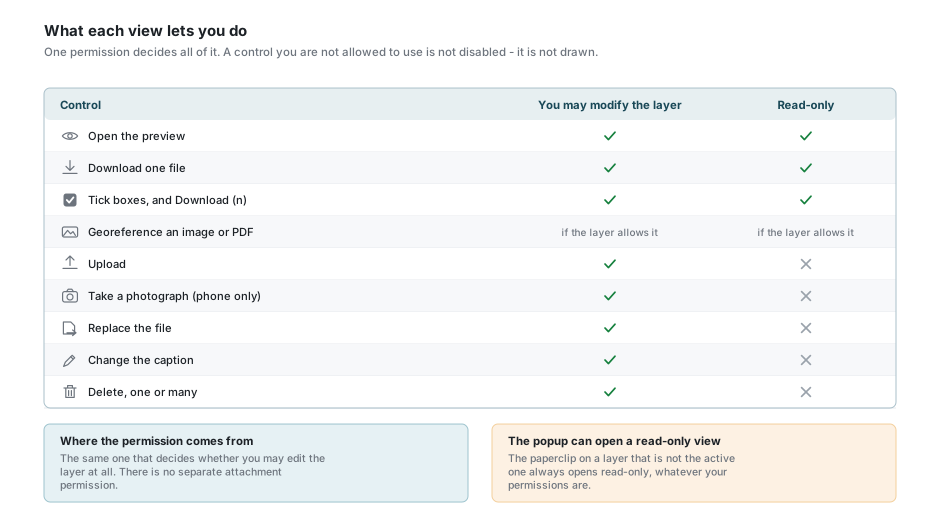
There is no separate attachment permission. Whether you may change a record's attachments is the same question as whether you may change the record, and it is settled before the dialog opens.
A control you are not allowed to use is not greyed out. It is not drawn at all, so a read-only dialog looks like a smaller dialog rather than a disabled one.
The popup's paperclip can open a read-only view
When the popup is showing a layer that is not the active one, its paperclip always opens read-only, whatever your permissions on that layer are. If you need to add or remove something, make that layer active first. See the popup's footer buttons.
Adding files
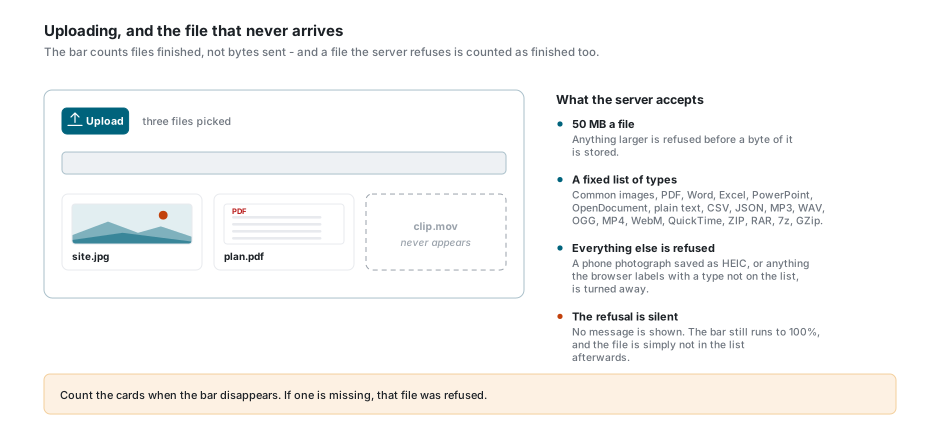
Upload opens your file browser and takes as many files as you pick. On a phone there is a camera button beside it that takes a photograph and attaches it there and then.
The files go up one after another, and the bar across the top counts files finished rather than bytes sent. Three files means the bar moves in three steps, and a large file sits at the same percentage for a long time before jumping.
The server accepts a file up to 50 MB, and only these types: common images, PDF, Word, Excel, PowerPoint, OpenDocument, plain text, CSV, JSON, MP3, WAV, OGG, MP4, WebM, QuickTime, ZIP, RAR, 7z and GZip.
A refused file goes quietly
Nothing tells you when the server turns a file away. The bar still runs to 100%, the dialog reloads, and the file simply is not in the list. Count the cards when the bar disappears. The usual causes are a file over 50 MB and a photograph saved in a format the list does not carry, such as the HEIC that some phones produce by default.
Looking at one attachment
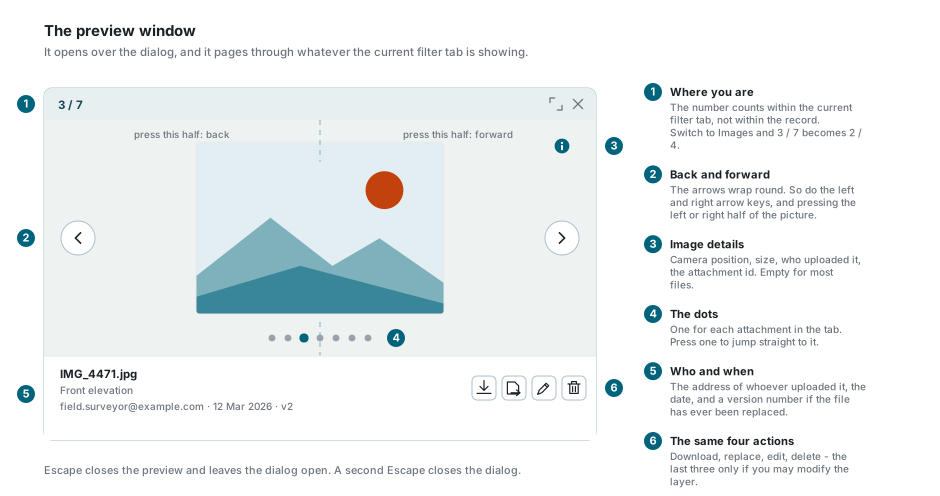
Pressing a card opens it. Images, PDFs, video and audio all play or render in place; anything else offers you a download button instead.
Moving between attachments works four ways, and they all do the same thing: the arrows at either side, the left and right arrow keys, the dots along the bottom, and a press on the left or right half of the picture itself. On a touch screen you can also swipe. All of them wrap around from the last back to the first.
The number in the header counts within the tab you are on, not within the record. On All it might read 3 / 7; move to Images and the same photograph becomes 2 / 4.
The button in the corner opens what the camera recorded: the position it was standing in, the height, the direction it was pointing, the size of the image, who uploaded it and when. Most files have none of this, and the panel says so.
Escape closes the preview and leaves the dialog open behind it. A second Escape closes the dialog.
Replacing, editing and deleting
Each card carries the same four buttons, and each needs permission to change the layer.
| Button | What it does |
|---|---|
| Replace | Swaps the file for a new one, keeping the same attachment and the same place in the record. The version number goes up by one. |
| Edit | Opens a small form for the caption and the description. |
| Delete | Removes the attachment, after a confirmation. |
| Georeference | Places an image or a PDF on the map. See Georeferenced Images. |
Replacing and deleting are both permanent
A replaced file is deleted from storage as the new one lands. The version number tells you it happened, but there is no way back to the old file. A deleted attachment is removed from storage and from the record together, and nothing is kept. Neither can be undone.
The caption is yours to write and shows on the card underneath the file name. The description is only sometimes yours: when an attachment belongs to a Photo column, the description is what records which column, so the box is locked and says so.
Downloading
The download button on a card saves that one file under its own name. Tick several cards and a Download (n) button appears at the top, which saves them one after another under the same names.
Your browser may ask about several files at once
A batch download is a run of ordinary single downloads, so a browser that queries a site saving more than one file will ask you once and then carry on. Allow it, or download the files a few at a time.
One column at a time
A Photo or MultiPhoto column does not hold a picture. It holds the identifiers of attachments, and pressing one of those pictures - in the popup, or in the record - opens the dialog showing that column alone.
That view is honest about what it is hiding. A bar along the bottom says how many more the record has, and Show all widens it back out to everything.
Uploading into a scoped view does two things: it attaches the file to the record, and it adds it to that column. Deleting from a scoped view takes it out of the column again.
Why the paperclip sometimes seems not to work
For about two seconds after you press a photograph, the paperclip is ignored. Pressing a photograph also selects the row and wakes the popup, and both of those try to reopen the dialog for the whole record a moment later; the column you actually asked for has to win. Press the paperclip again and it works, or use Show all, which is never refused.
If something looks wrong
| What you see | What it means |
|---|---|
| No Upload button | You do not have permission to change this layer, or the popup opened the dialog read-only for a layer that is not the active one. |
| No delete, replace or edit on a card | The same thing. Controls you may not use are not drawn. |
| A blank square with a file name under it | The picture could not be fetched. Close the dialog and open it again. |
| Every picture went blank after a while | The dialog has been open more than an hour and its links have expired. Close it and open it again. |
| A PDF card shows a red symbol instead of the page | You are on a phone. Phone browsers cannot render a PDF inside a card. |
| The upload finished but a file is missing | The server refused it. Check that it is under 50 MB and of an accepted type. |
| The count in the header is smaller than you expect | The view is scoped to one column. Look for the bar along the bottom and press Show all. |
| The paperclip does nothing | You pressed a photograph within the last two seconds. Press it again, or use Show all. |
| A tab you were using has gone | Tabs only exist while the record holds that type. Delete the last video and the Video tab goes with it. |
| Only some attachments can be paged through in the preview | The preview stays inside the tab you are on. Move to All. |
| The batch download stopped after the first file | Your browser blocked the rest. Allow multiple downloads for the site, or take them a few at a time. |
See also
- Data Table - the row paperclip, its count, and the row menu
- Feature Selection & Popup - the paperclip on the popup footer
- Georeferenced Images - putting an attached image or plan on the map
- Editing Records & Spatial Data - the permission that decides all of the above
- Layer Control - making a layer the active one