
Appearance
Bookmarks
A bookmark is a place on the map you can come back to. It remembers where you were looking, how far in you were zoomed, and which layers were on at the time. Press one and the map goes back to that view.
Bookmarks are yours. They are not shared, and there is no way to send one to somebody else.
The panel
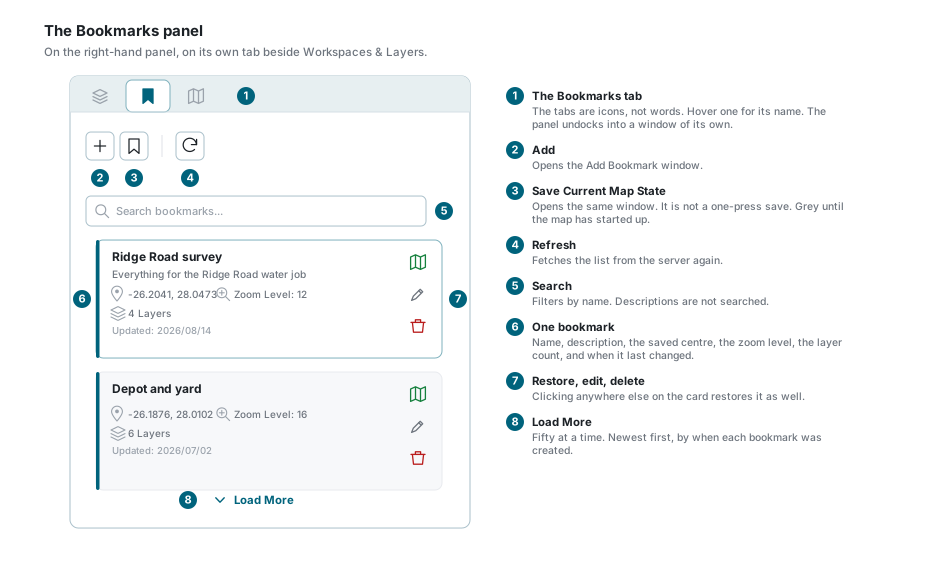
Bookmarks live on the right-hand (East) panel, on their own tab beside Workspaces & Layers. The tabs are icons rather than words, so hover one to see its name. The panel can be undocked into a window of its own, the same way the Layers panel can.
| Button | What it does |
|---|---|
| Add | Opens the Add Bookmark window. |
| Save Current Map State | Opens the same window. It is not a one-press save, whatever the name suggests. It is greyed out until the map has finished starting up. |
| Refresh | Fetches the list from the server again. |
The search box filters the list by name. It does not look inside descriptions. It waits until you stop typing and then asks the server, so the list refreshes a moment after the last keystroke.
Fifty bookmarks are fetched at a time. If you have more, a Load More button appears at the bottom.
Bookmarks belong to you and to one account
Nobody else can see your bookmarks, and there is no sharing button anywhere. They are also tied to the account you were signed in to when you made them: switch account and the list changes to that account's bookmarks. There is no limit on how many you can keep.
What a card shows
Each bookmark is a card carrying its name, its description, the saved centre as latitude and longitude, the saved zoom level, how many layers it holds, and the date it was last changed.
Down the right of the card are three buttons: restore, edit and delete. Clicking anywhere else on the card restores it as well, so take care when you only meant to read it.
The list is ordered newest first, by when each bookmark was created. Editing a bookmark does not move it to the top, even though the card shows an Updated date.
What a bookmark saves
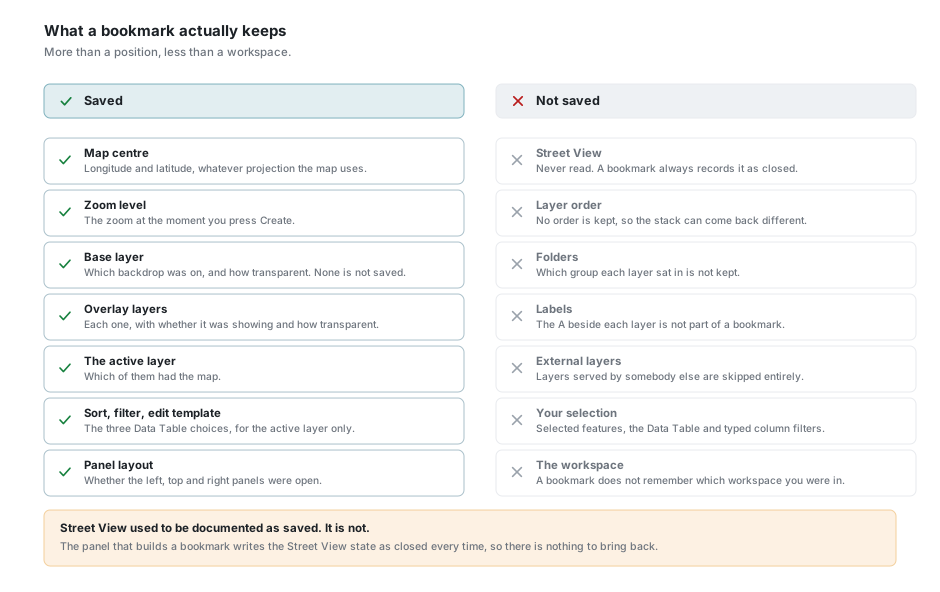
This is the part people get wrong. A bookmark is more than a position and less than a workspace.
| Saved | Detail |
|---|---|
| Map centre | As longitude and latitude, whatever projection your map is drawn in. |
| Zoom level | The zoom at the moment you save. |
| Base layer | Which backdrop was on, and how transparent it was. None is not saved, because it is not really a layer. |
| Overlay layers | Every layer in your workspace, each with whether it was showing and how transparent it was. |
| The active layer | Which one of them had the map. |
| Sort, filter and edit template | The three choices in the Data Table toolbar, for the active layer only. |
| Panel layout | Whether the left, top and right panels were open. This is measured from the screen as you save, not from a setting. |
| Not saved | Why |
|---|---|
| Street View | The panel never reads it. Whatever Street View is doing, a bookmark records it as closed. Older versions of this page said otherwise; they were wrong. |
| Layer order | A bookmark keeps a flat list of layers with no order in it, so a restored map can stack them differently from how you left them. |
| Folders | Which group or folder each layer sat in is not kept either. |
| Labels | The A beside each layer, showing and hiding its labels, is not part of a bookmark. |
| External layers | Layers served by somebody else's site are skipped entirely and do not come back. |
| Your selection | Selected features, the Data Table contents and anything you typed into a column filter are not saved. |
| The workspace | A bookmark does not remember which workspace you were in. See Restoring a bookmark for why that matters. |
Making a bookmark
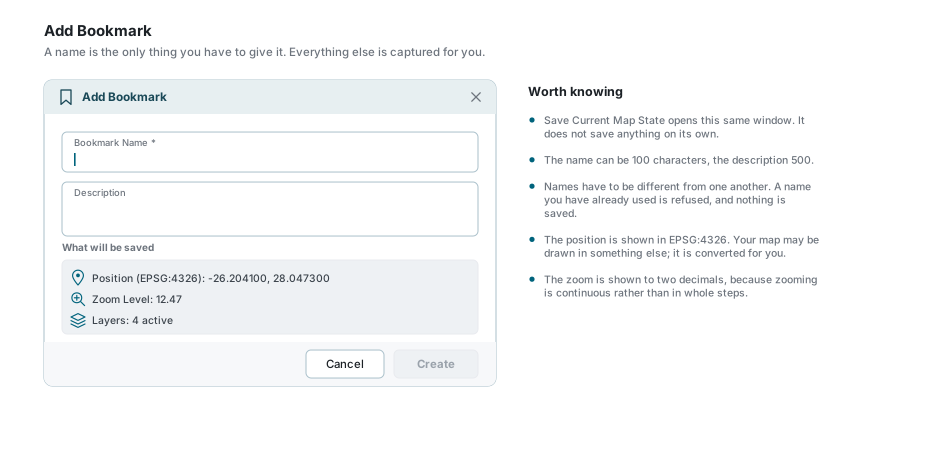
- Set the map up the way you want to keep it: position, zoom, layers.
- Press Add, or Save Current Map State. Both open the same window.
- Give it a name. This is the only required field, up to 100 characters.
- Add a description if it helps. Optional, up to 500 characters.
- The grey What will be saved panel below shows the position, the zoom and how many layers are going in. It is a preview, not something you can change.
- Press Create.
Create stays greyed out until there is something in the name box.
Names have to be different from one another. If you already have a bookmark of that name on this account, the save is refused and nothing is written. Give it another name and try again.
Restoring a bookmark
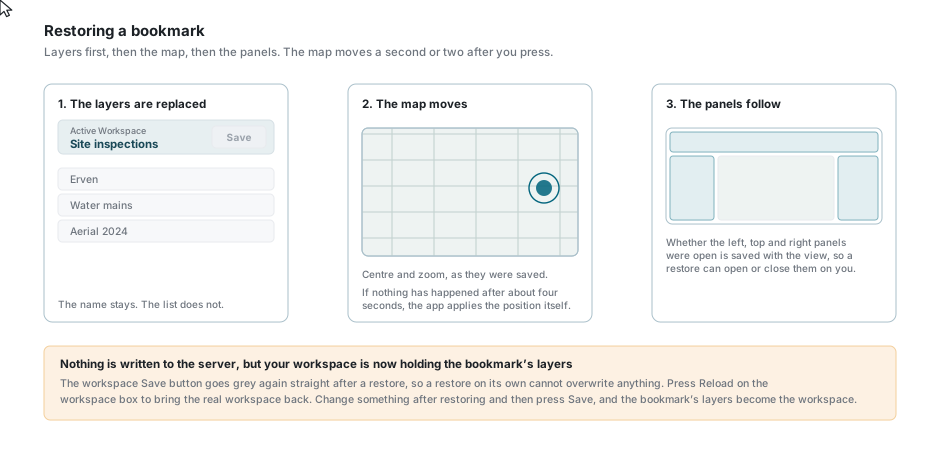
Press the restore button on a card, or click the card itself. Three things then happen, in this order:
- The layers in your workspace are replaced by the bookmark's layers, with the visibility, opacity and active layer it recorded.
- The map moves to the saved centre and zoom.
- The three panels open or close to match what was saved.
Because the layers are rebuilt first, the map moves a second or two after you press. That is normal. If the position has still not been applied after about four seconds, the app applies it directly rather than leave you where you were.
A restore rewrites your workspace's layers
The workspace keeps its name, but its layer list is now the bookmark's. Nothing has been written to the server: the workspace's Save button goes grey again straight after a restore, and pressing Reload on the workspace box brings the real workspace back. But if you change something afterwards and then press Save, you will save the bookmark's layers over your workspace. Save any work you care about before restoring.
If your account is limited to an area, the map is held inside that area. A bookmark saved outside it will not take you there; you land at the nearest point the restriction allows.
Editing a bookmark
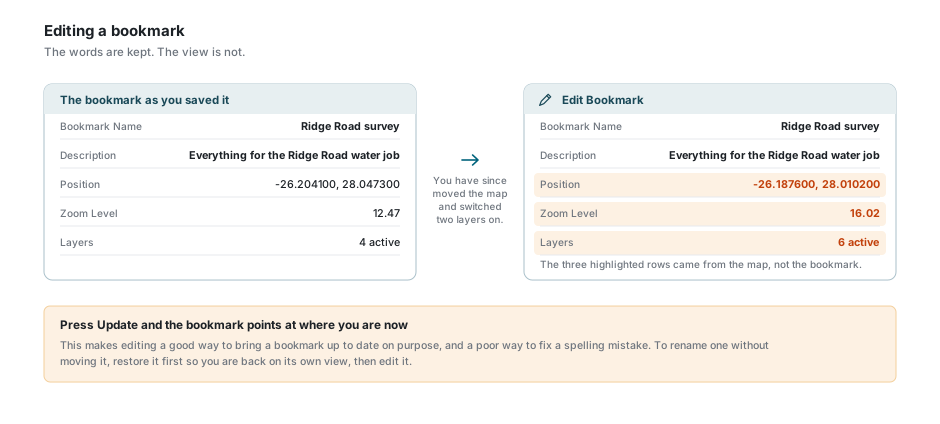
The edit button reopens the window with the bookmark's name and description already in it. Change either, then press Update.
Editing moves the bookmark
The position, zoom and layers in the window are taken from where you are now, not from the bookmark. Press Update and the bookmark stops pointing at the view you saved and points at your current one instead. This makes editing a good way to update a bookmark deliberately, and a bad way to fix a spelling mistake. To rename one without moving it, restore it first, then edit it.
Deleting a bookmark
The delete button asks you to confirm, then removes the bookmark and its layers for good. There is no undo and nothing goes to a recycle bin.
If something looks wrong
| What you see | What it means |
|---|---|
| The list is not in the order you expected | It is newest first, by when each bookmark was created. Editing one does not move it up. |
| A search finds nothing, though the words are in the description | The search only looks at names. |
| Your bookmarks disappeared | You switched account. Bookmarks belong to the account you made them on. Switch back and they are there. |
| "Bookmark name already exists" | You already have a bookmark of that name on this account. Names have to be different. |
| Save Current Map State is grey | The map has not finished starting up. Give it a moment. |
| Create is grey | The name box is empty. It is the one field you have to fill in. |
| You pressed a card and it restored | The whole card restores, not only the map button on it. |
| The map did not move when you restored | The layers are rebuilt first. Wait a few seconds. If it still has not moved, restore it again. |
| You landed somewhere near, but not on, the saved view | Your account is limited to an area and the bookmark was saved outside it. |
| Street View did not come back | It is not saved. Nothing you can do at this end will change that. |
| The layers came back in a different order | Order is not part of a bookmark. Reorder them in the Layers panel. |
| A layer is missing after a restore | External layers are not saved, and neither is a layer that has since been taken off your account. |
| The workspace name is right but the layers are wrong | That is what a restore does. Press Reload on the workspace box to put the workspace back. |
| The workspace Save button went grey after a restore | Deliberate, so a restore cannot be written to the workspace by accident. |
| Editing a bookmark moved it | Editing takes the current view. Restore the bookmark first, then edit it. |
See also
- Workspaces - saving a layer set rather than a view
- Layer Control - the layers a bookmark records
- Map Navigation - getting to a view worth saving
- Data Table - the sort, filter and edit template a bookmark keeps