
Appearance
Reports
A report turns the records behind a layer into a document you can send to somebody: a property information sheet, a valuation extract, a street index. The layout is written once by whoever set your site up. What you do is choose a report, narrow it down, and ask for it.
Nothing is produced in your browser. Asking for a report puts a job on the server, and the server does the work while you carry on. That is why every report you have ever run is still listed under Report Jobs.
Opening Reports
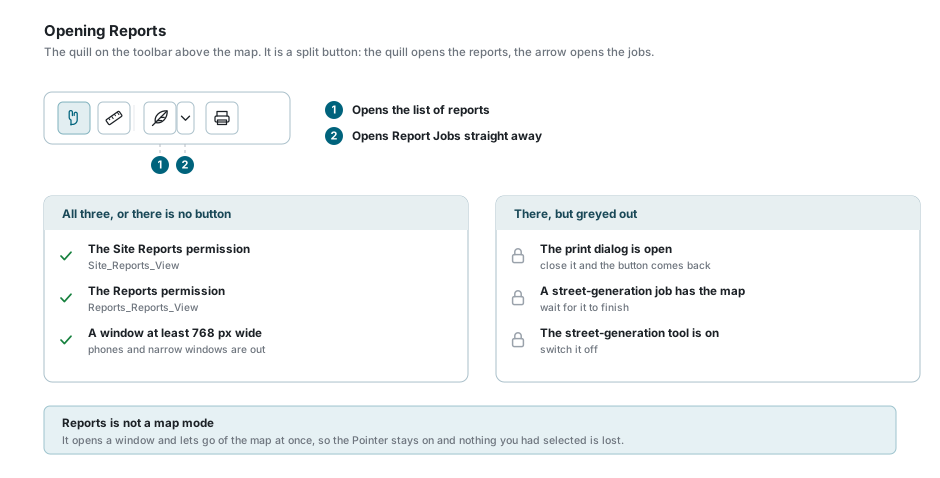
The Reports button on the toolbar above the map is a quill, not a document. It is a split button: pressing the quill opens the list of reports, and pressing the small arrow beside it opens Report Jobs directly.
The button is not there for everybody. It appears only when all three of these are true, and when any one of them is not, the button is simply absent rather than greyed out:
| What is needed | Why |
|---|---|
| The Site Reports permission | Lets you reach reports at all. |
| The Reports permission | Lets you read a report definition, which is what running one needs. |
| A window at least 768 pixels wide | On a phone or a narrow window the button is left off the toolbar. |
The button greys out while the print dialog is open, and while the tool that generates streets is running or switched on. Close or finish whichever it is and it comes back.
Reports is not a map tool
Every other button on that row takes the map over. Reports does not. It opens its window and hands the map straight back, so the Pointer stays on and whatever you had selected stays selected.
The list of reports
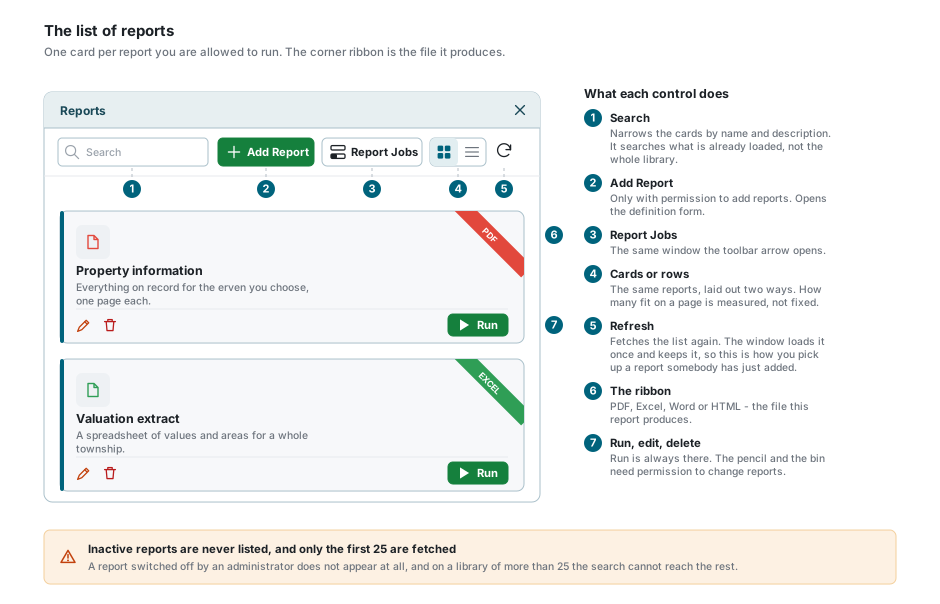
Each report is a card carrying its name, its description, and a corner ribbon naming the file it produces. Press the card anywhere, or its Run button, to open it.
| Control | What it does |
|---|---|
| Search | Narrows the cards by name and description as you type. |
| Add Report | Only appears with permission to add reports. See Defining a report. |
| Report Jobs | The same window the toolbar arrow opens. |
| Cards or rows | The same reports laid out two ways. How many fit on a page is measured from the window, so resizing it changes the page rather than leaving a band of nothing. |
| Refresh | Fetches the list again. |
| Run | Opens the report with its preview. Always there. |
| Pencil and bin | Change or remove the report definition. Each needs its own permission, so you may have one, both or neither. |
Which reports you see is decided for you. A report is listed when it belongs to your account, or you wrote it, or it was published for everybody, and you can see at least one of the layers it runs on. A report whose only layer is one you have no access to is not listed.
Two reasons a report you were told about is missing
A report an administrator has switched off is not listed at all. It does not appear greyed out, so there is nothing on screen to tell you it exists.
The window also fetches only the first 25 reports, ordered the way your administrator arranged them and then by name, and the search box searches what has been fetched. On a site with more than 25 reports the rest cannot be reached from here, and searching will not find them. Ask your administrator to move the one you need higher up the order.
The list is fetched once and then kept, so a report a colleague added a minute ago will not be there until you press Refresh.
Running a report
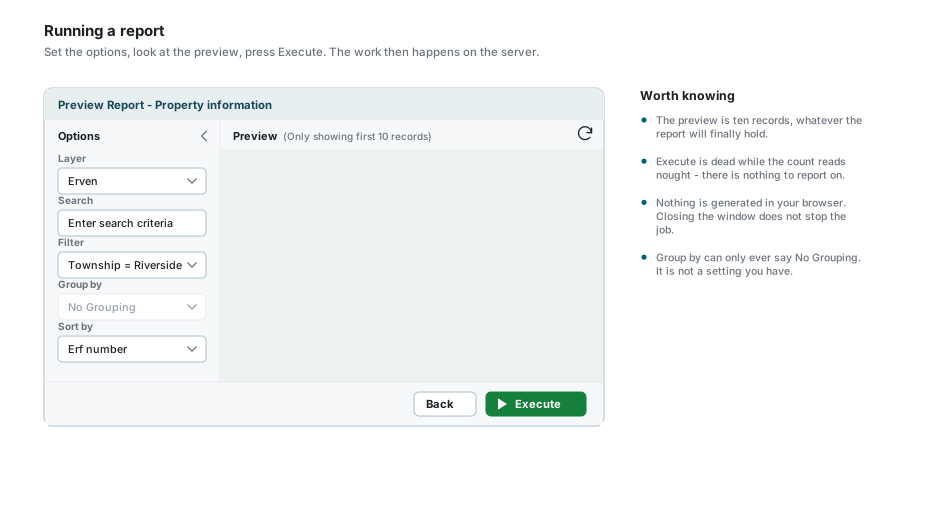
- Press Run on the report you want. The window opens and starts rendering by itself.
- Down the left are the options. Change any of them and the preview is rendered again.
- The preview shows the first ten records, whatever the finished report will hold. The full number of matching records is beside it and along the bottom.
- Press Execute. The whole set is handed to the server as a job, the window closes, and Report Jobs opens on top so you can watch it.
Execute is dead while the count reads nought. There is nothing to report on, so there is nothing to queue.
The preview is a PDF viewer
The preview panel shows the document the way your browser shows a PDF. A report that produces a spreadsheet or a Word file has nothing a viewer can display, so its preview panel comes up empty. The record count beside it is still right, and Execute still works.
The five options
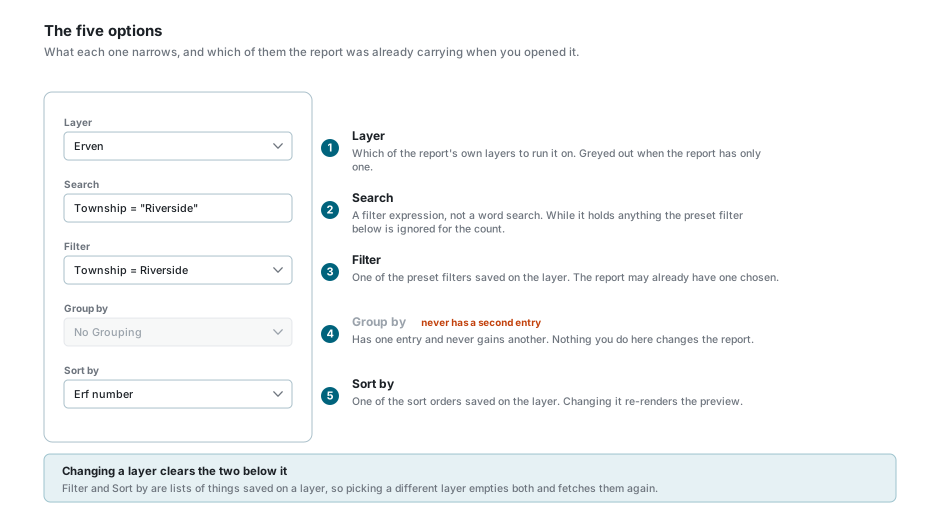
| Option | What it does |
|---|---|
| Layer | Which of the report's own layers to run it on. Greyed out when the report has only one. |
| Search | A filter expression, not a word search. See the note below. |
| Filter | One of the preset filters saved on the layer. The report may already have one chosen. |
| Group by | Has one entry, No Grouping, and never gains another. Nothing you do here changes the report. |
| Sort by | One of the sort orders saved on the layer. The report may already have one chosen. |
Changing the layer empties Filter and Sort by and fetches them again, because both are lists of things saved on a layer rather than on the report.
What the Search box actually is
It takes a filter expression of the kind the Filter Builder writes, not a word to look for. And while it holds anything at all, the record count above the preview is worked out from what you typed and the preset Filter is left out of it. If the count jumps when you type in Search, that is why. Leave Search empty to have the preset filter count on its own.
Report Jobs
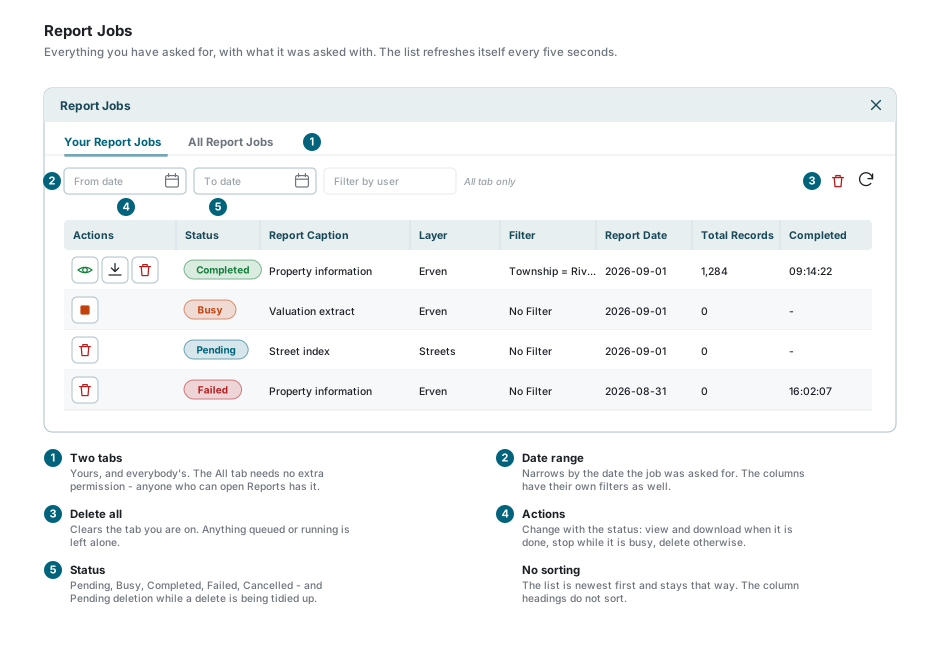
Every report you run is kept here with the settings it was run with, so a job is a record of the question as well as the answer. The window refreshes itself every five seconds, so a job you are watching moves along without you touching anything.
| Column | What it holds |
|---|---|
| Status | Where the job has got to. See What happens to a job. |
| Report Caption | The report that was run, as it was named at the time. |
| Layer, Filter, Sort Order, Search String | The four options you chose, recorded on the job. |
| Report Date | When you asked for it. The list is newest first. |
| Total Records | How many records the finished document covers. |
| Started and Completed | When the server picked the job up, and when it put it down. |
| Limit Records and Limit per Report | The ceilings the job ran under, taken from the report definition. |
Above the grid are a From date and a To date, and on the All tab a box to narrow by user. Each column also has its own filter under its heading, as everywhere else in the application. See Column Filters. Nothing here sorts: the list is newest first and stays that way, and the headings do not respond to a click.
Delete all clears the tab you are looking at. Anything queued or running is left where it is.
The All tab is not an administrator's view
There are two tabs, your jobs and everybody's, and the second one needs no permission beyond the one that put the Reports button on your toolbar. So every colleague who can open Reports can see what you have run, with the search you ran it with, and can download the file it produced. Treat a report you generate as visible to your whole account.
What happens to a job
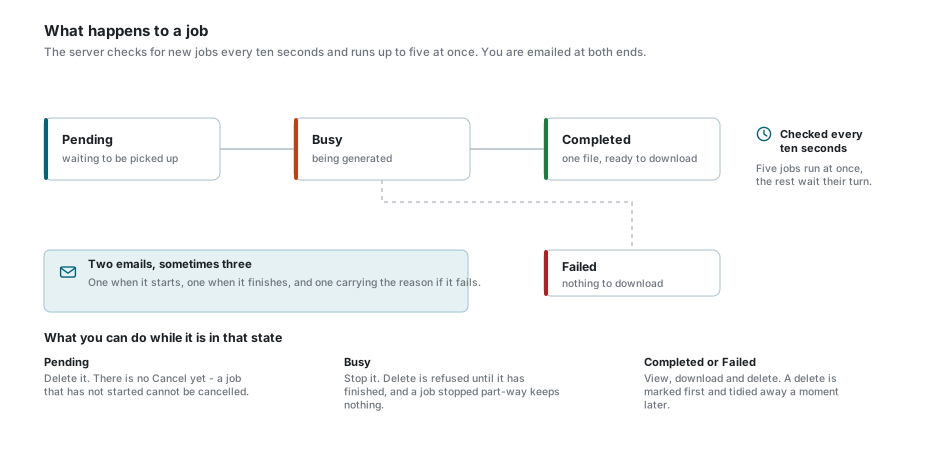
| Status | What it means |
|---|---|
| Pending | Queued. The server looks for new jobs every ten seconds. |
| Busy | Being generated. Five jobs run at once and the rest wait their turn. |
| Completed | Finished. One file, ready to view or download. |
| Failed | The generator gave up. Nothing was saved. |
| Cancelled | Stopped part way. Whatever had been generated is thrown away. |
| Pending deletion | You deleted it and the server is tidying the file away. It disappears on its own within a few seconds. |
What you can do depends on where the job has got to:
- While it is Pending you can delete it, but there is no Cancel. A job that has not started cannot be cancelled, so to stop it you either delete it or wait for it to start and then stop it.
- While it is Busy you can stop it. Delete is refused until it has finished.
- Once it is Completed or Failed you can view it, download it and delete it.
A finished job always holds exactly one file, however many records it covers.
You are emailed at both ends
The server sends you an email when your job starts and another when it finishes, and if it fails the email carries the reason. You do not have to keep the window open. This depends on email being set up for your site.
Defining a report
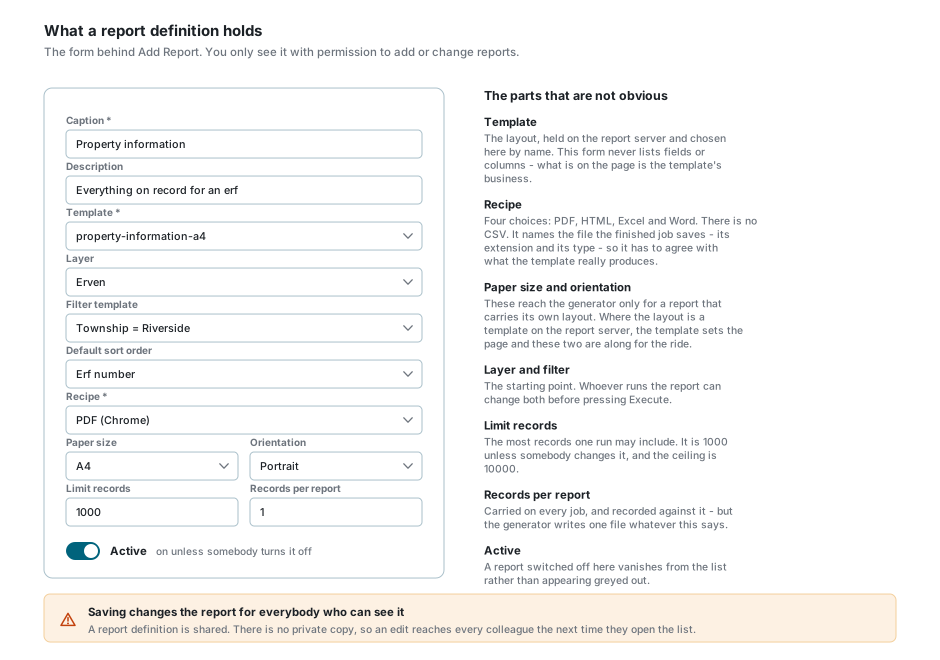
Add Report and the pencil open the definition form. You will only see them with permission to add or change reports, and what you write here is what everybody else sees the next time they open the list.
| Field | What it is |
|---|---|
| Caption and Description | The name and the line of text on the card. Caption is required. |
| Template | The layout, held on the report server and chosen here by name. Required. This form never lists fields or columns: what goes on the page is the template's business. |
| Layer | The layer the report runs on unless whoever runs it picks another. |
| Filter template and Default sort order | What the Filter and Sort by options start on. |
| Recipe | The file to produce. There are four: PDF, HTML, Excel and Word. There is no CSV. |
| Paper size and Orientation | The page. These reach the generator only for a report carrying its own layout. Where the layout is a template on the report server, that template decides the page. |
| Limit records | The most records one run may include. 1000 unless changed, and the ceiling is 10000. |
| Records per report | Recorded against every job, but the generator writes one file whatever this says. |
| Active | Switch this off and the report vanishes from everybody's list. |
The recipe names the file the finished job saves, its extension and its type. Choose one the template does not actually produce and you get a file with the wrong name on it: a spreadsheet extension on a PDF, say, which no program will open cleanly.
Reports that run on their own
A report can also be given a schedule, so the server runs it on its own at a set time and emails the result to a list of addresses. Schedules are set up under Map Settings by somebody with the schedules permission, and they are worth asking for whenever the same report is being run by hand every week.
A scheduled run emails its document and nothing else. It does not create a job, so it never appears in Report Jobs, and there is no copy of it to download later. If you need the file kept, save it out of the email.
Printing a map instead
Looking for a printable map rather than a document of records? That is a different tool. See Printing Maps, which lays out the current view with a title, a scale bar, a north arrow and a legend.
If something looks wrong
| What you see | What it means |
|---|---|
| No quill on the toolbar | You are missing one of the two permissions, or the window is narrower than 768 pixels. |
| The quill is greyed out | The print dialog is open, or the street generator has the map. Close or finish it. |
| A report you were told about is not in the list | It has been switched off, or its only layer is one you cannot see, or it is past the first 25 the window fetches. |
| A colleague's new report is not there | Press Refresh. The list is fetched once and kept. |
| The preview panel is empty | The report produces a spreadsheet or a Word file, which the panel cannot display. The count is still right and Execute still works. |
| The preview says a service is not enabled | The report server is switched off for your site. Nothing can be previewed or generated until it is back. Tell your administrator. |
| Execute will not press | The count is nought. Nothing matches the layer, the filter and the search you have chosen. |
| The count jumped when you typed in Search | The preset filter is left out of the count while Search holds anything. Clear Search to get it back. |
| Group by will not open | It has one entry and never gains another. |
| A job has sat on Pending for a while | Five jobs run at once and yours is waiting its turn. It is checked every ten seconds. |
| No Cancel on a pending job | Cancelling only works once a job has started. Delete it instead, or wait. |
| Delete is refused | The job is queued or running. Stop it first, or wait for it to finish. |
| A job says Pending deletion | The file is being tidied away. The row disappears on its own. |
| A job Failed and the window does not say why | The reason is in the email the server sent you. The window does not show it. |
| A downloaded file will not open | The report's recipe may not match what its template really produces. Tell your administrator which report it was. |
| Somebody else's jobs are in your list | You are on the All tab. The first tab is yours alone. |
See also
- Background Jobs - the same machinery behind imports and exports
- Printing Maps - a picture of the map, rather than a document of records
- Filter Builder - what the Search box expects
- Column Filters - narrowing the job list by column
- Map Tools - the rest of the toolbar above the map