
Appearance
Printing Maps
Print lays the map out on a sheet of paper: a size, a way round, a scale, and up to three things drawn on top of it. From there you can send it to a printer, or take it away as a PDF, a picture, or something to paste.
Opening it
Press Print on the toolbar above the map. The dialog takes over the map area, and the panels around it stay where they are.
To close it again, press Cancel or the close box in the corner. Nothing is saved and nothing is lost: the map goes back to exactly where it was.
Not on a phone
The dialog needs a reasonably wide window. Narrow one far enough and it closes itself; on a phone it is not offered at all.
The dialog
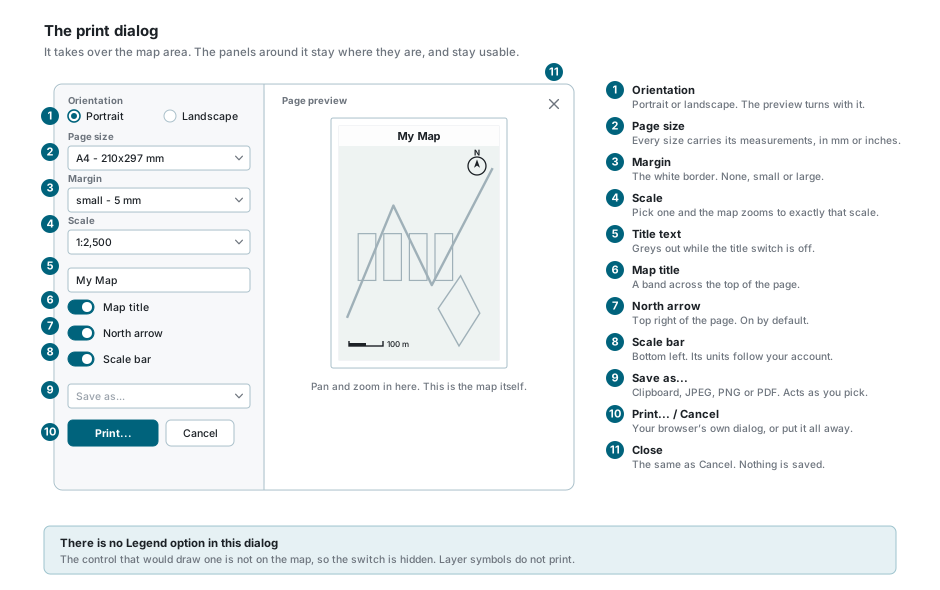
Everything you can change is in the column down the left, and the sheet of paper beside it shows the result as you change it.
There is no Legend option here
Some versions of this dialog have one. Ours does not: the layer symbols are not drawn onto the page.
The page is the map
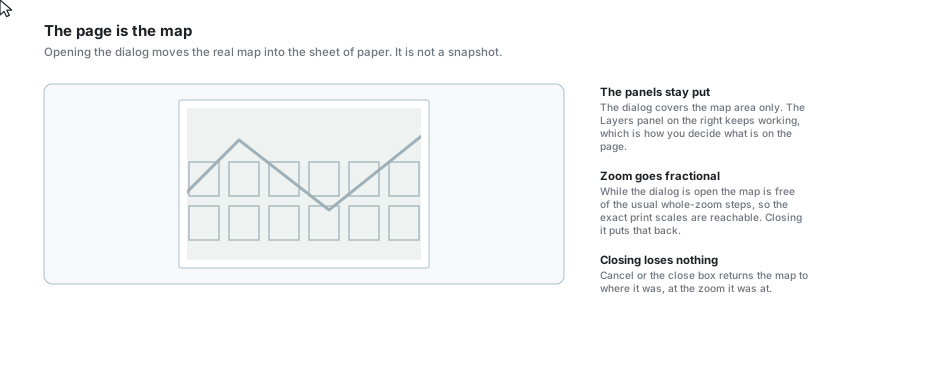
Opening the dialog moves the real map into the sheet of paper. That has two consequences worth knowing:
- Pan and zoom inside the page exactly as you would on the map. Drag it, scroll it, whatever you need to get the right area onto the paper.
- The Layers panel keeps working. Switch layers on and off there and the page follows, which is how you decide what ends up on the print. See Layer Control.
Whatever sits inside the page outline is what comes out. Nothing outside it does.
While the dialog is open the map is also freed from its usual whole-zoom steps, so the exact scales below are reachable. Closing the dialog puts that back.
Paper, the way round, and the border
| Setting | What it does |
|---|---|
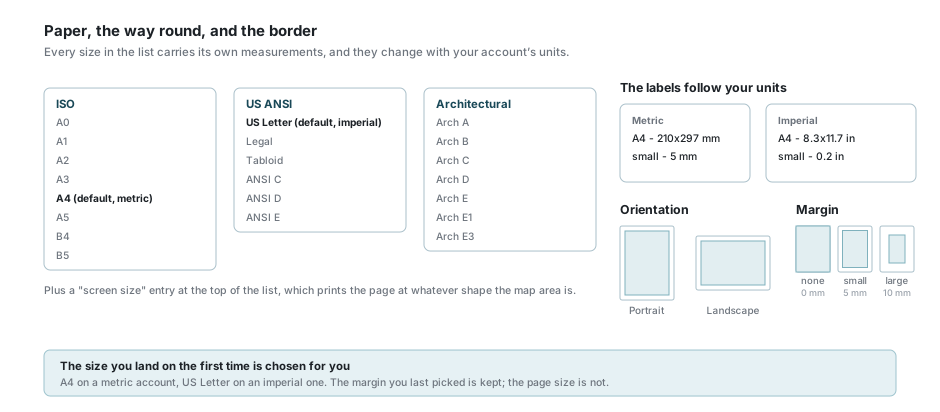
| Orientation | Portrait or landscape. The preview turns as you pick, and so does the paper the browser is asked for. |
| Page size | The list runs from A0 down to B5, then the US ANSI sizes, then the Architectural ones. |
| Margin | The white border left around the map: none, small (5 mm) or large (10 mm). |
Every entry in the size list carries its measurements, and those follow your account: A4 - 210x297 mm on a metric account, A4 - 8.3x11.7 in on an imperial one. The margins are labelled the same way.
At the top of the size list there is also a screen size entry, which prints the page at whatever shape the map area happens to be rather than at a paper size.
What you start on
A metric account opens on A4, an imperial one on US Letter. That is chosen for you each time the dialog opens, so a page size you picked last time is not remembered. The margin is.
Scale
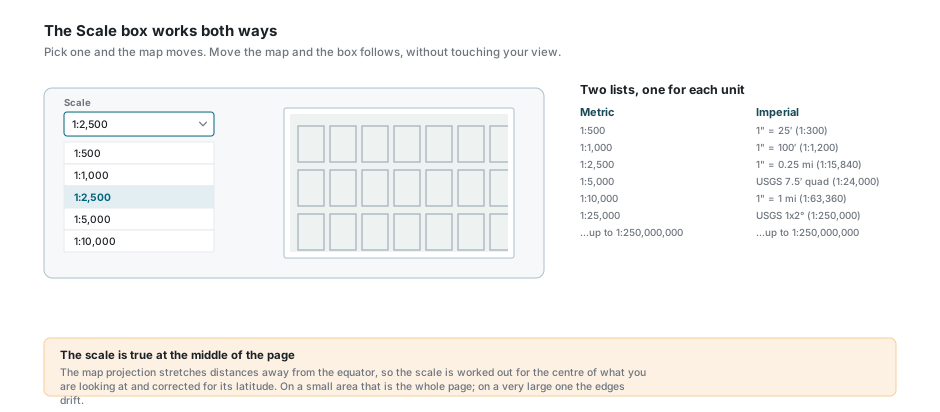
The Scale box works both ways, and it is worth knowing which way round you are using it:
- Pick a scale and the map zooms to exactly that scale. The paper does not change; the amount of ground on it does.
- Move the map yourself and the box quietly snaps to whichever listed scale is nearest. Your view is left alone, so the number you see is an approximation of where you are until you pick one.
The list depends on your account's units:
| Units | What the list holds |
|---|---|
| Metric | Plain ratios, from 1:500 up to 1:250,000,000. |
| Imperial | US nomenclature: 1" = 25' through 1" = 1 mi, the USGS quad sheets (7.5', 15', 30x60', 1x2°), then plain ratios to 1:250,000,000. |
Where the scale is true
The map projection stretches distances the further you are from the equator, so the scale is worked out for the centre of what you are looking at and corrected for its latitude. Over a town that holds across the whole page. Over a country the edges drift.
Title, north arrow and scale bar
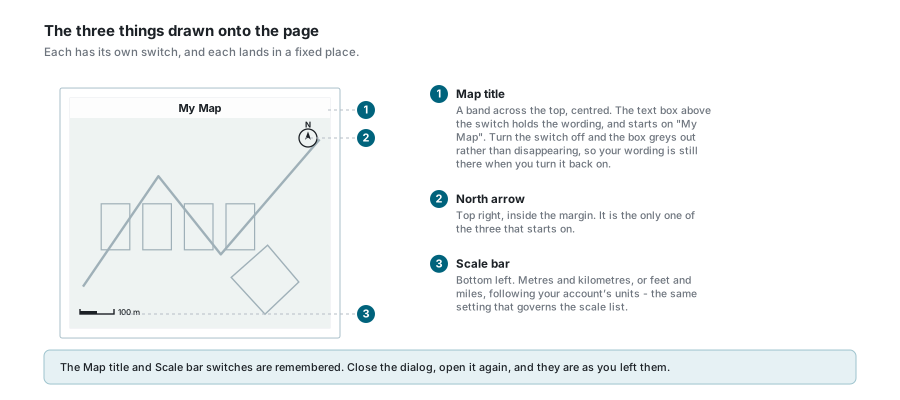
| Switch | Where it lands |
|---|---|
| Map title | A band across the top of the page, centred. The text box above the switch holds the wording and starts on My Map. |
| North arrow | Top right, inside the margin. It is the only one of the three that starts on. |
| Scale bar | Bottom left. Metres and kilometres, or feet and miles, following your account's units. |
Turn the title switch off and the text box greys out rather than emptying, so your wording is still there when you turn it back on.
The Map title and Scale bar switches are remembered. Close the dialog, open it again, and they are as you left them.
Getting the page out
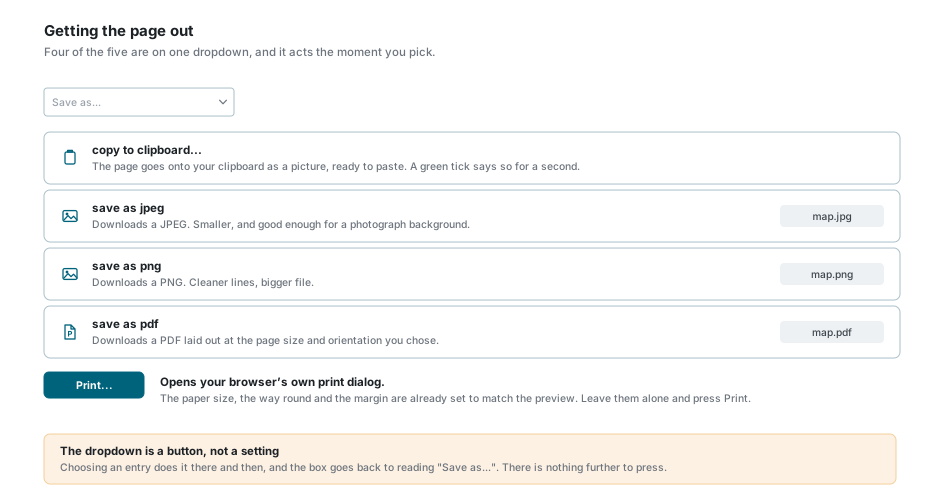
| Way out | What happens |
|---|---|
| copy to clipboard... | The page goes onto your clipboard as a picture, ready to paste. A tick confirms it for a second. |
| save as jpeg | Downloads map.jpg. Smaller, and good enough over aerial photography. |
| save as png | Downloads map.png. Cleaner lines, bigger file. |
| save as pdf | Downloads map.pdf, laid out at the page size and orientation you chose. |
| Print... | Opens your browser's own print dialog, with the paper size, the way round and the margin already set to match the preview. |
The dropdown is a button, not a setting
Choosing an entry does it there and then, and the box goes back to reading Save as.... There is nothing further to press, and nothing to undo.
Leave the browser's own settings alone
The browser dialog opens already matching your preview. Changing its paper size, its margins or its own "Scale" percentage there will pull the print away from the scale you chose here.
What the print view puts away
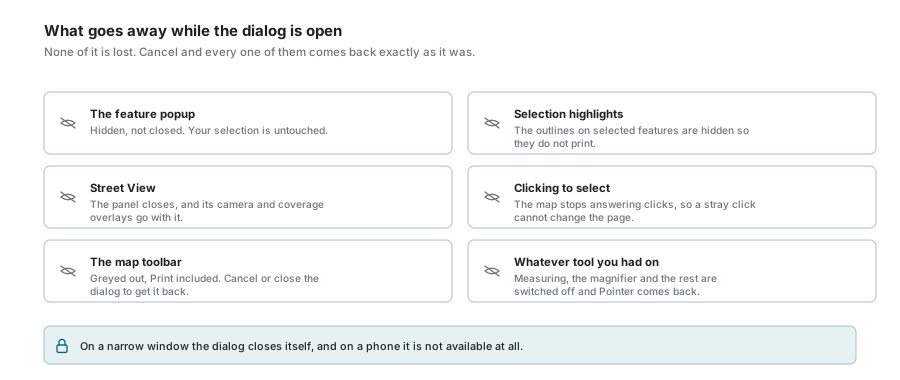
Opening the dialog puts several things away so they cannot end up on the page. None of them is lost, and closing the dialog restores every one:
- the feature popup is hidden rather than closed, and your selection is untouched;
- the highlights on selected features are hidden, so they do not print;
- Street View closes, along with its camera and coverage overlays;
- the map stops answering clicks, so a stray click cannot move the page off what you lined up;
- the toolbar greys out, Print included;
- whatever tool you had running is switched off and Pointer comes back.
If something looks wrong
| What you see | What it means |
|---|---|
| No Print button on the toolbar | Either the dialog is already open, or the window is too narrow and the button has moved into More tools. |
| The dialog closed by itself | The window was made too narrow. Widen it and open it again. |
| Half the map is missing from the page | Only what is inside the page outline prints. Pan and zoom inside the preview until it is all there. |
| A layer is on the map but not on the page | Check it is switched on, and in its zoom range, in the Layers panel beside the dialog. |
| No legend anywhere | This dialog does not draw one. |
| The scale in the box is not one I picked | It snapped to the nearest listed scale after you moved the map. Pick one from the list to set it exactly. |
| The scale bar is in the wrong units | Units follow your account. The setting is shown in the strip under the map; ask your administrator to change it. |
| The title says "My Map" | That is the starting wording. Type over it in the box above the switch. |
| The title box is greyed out | The Map title switch is off. Turn it on and the box comes back. |
| Nothing happened when I picked from Save as... | It did happen. Look for the download, or paste from your clipboard. |
| The printed page is at the wrong scale | Check the browser's own dialog is not scaling: it should be at 100%, with the paper size and margin left as they came. |
| My selection disappeared | It is hidden while the dialog is open so it does not print. Cancel and it is back. |
| The map ended up somewhere else afterwards | Cancel returns the map to where it was. Pressing an export does not move it. |
See also
- Map Tools - the toolbar the Print button sits on
- Layer Control - deciding what is on the page
- Map Navigation - the strip under the map, where the units are shown
- Reports - printing your layer data rather than the map