
Appearance
Layer Repository
The Layer Repository is where you choose which layers your workspace holds. It lists everything you are allowed to use, and you move rows in and out.
Open it with the Add Layers button () in the layers panel toolbar, or by right-clicking a layer and choosing Add new layers.
Two panes and a pair of arrows
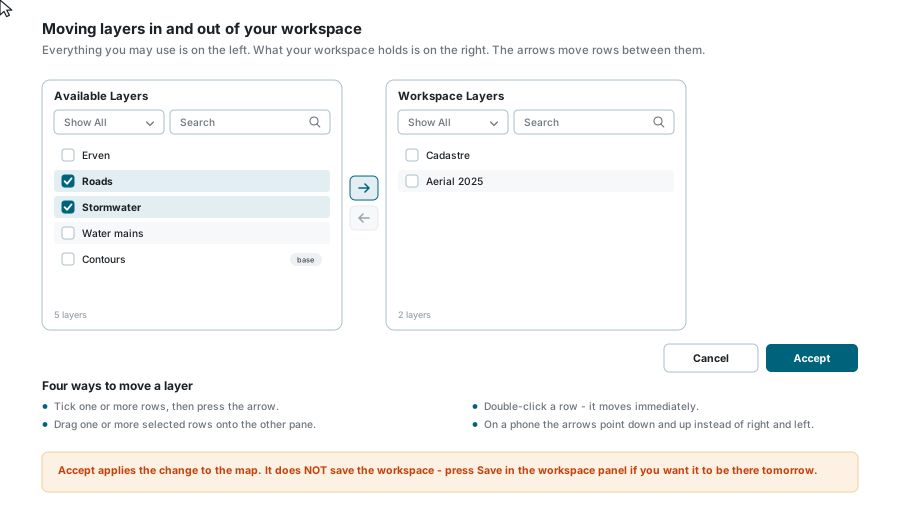
- Available Layers on the left - everything you have access to on the current tab.
- Workspace Layers on the right - what your workspace holds now.
- The arrows between them move rows across.
There are four ways to move a layer, and they all do the same thing:
- Tick one or more rows, then press the arrow.
- Double-click a row - it moves immediately.
- Drag one or more selected rows onto the other pane.
- On a phone the arrows point down and up instead of right and left, because the panes stack.
Each pane has its own type filter (Show All / Normal Layers / Base Layers), its own search box, and a refresh button.
Accept is not Save
Accept applies the change to the map and the layer tree. It does not save the workspace. If you want the layers to still be there tomorrow, press Save in the workspace panel afterwards.
The five tabs
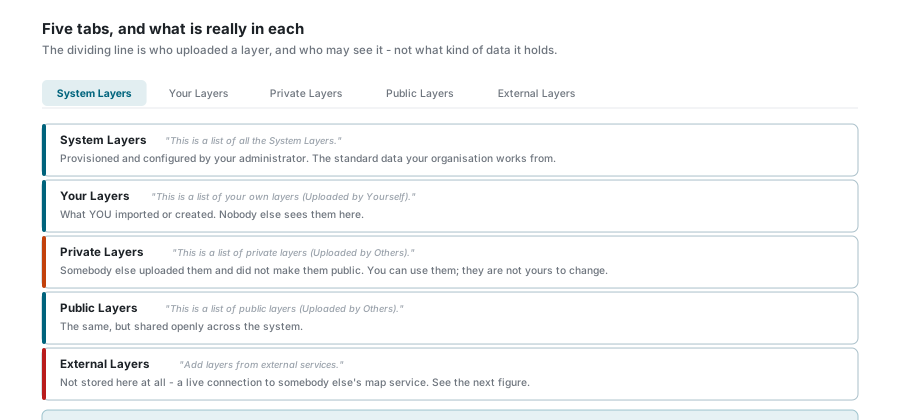
| Tab | What is in it |
|---|---|
| System Layers | Provisioned and configured by your administrator. The standard data your organisation works from. |
| Your Layers | "Uploaded by Yourself." What you imported or created. |
| Private Layers | "Uploaded by Others." Somebody else's upload that was not made public. You may use it; it is not yours to change. |
| Public Layers | "Uploaded by Others." The same, but shared openly across the system. |
| External Layers | Not stored here at all - a live connection to somebody else's map service. |
Can't find a layer?
Your Layers, Private Layers and Public Layers all hold uploaded data. The only thing separating them is who uploaded it and whether it was published. Check the other two tabs before concluding a layer is missing.
External layers
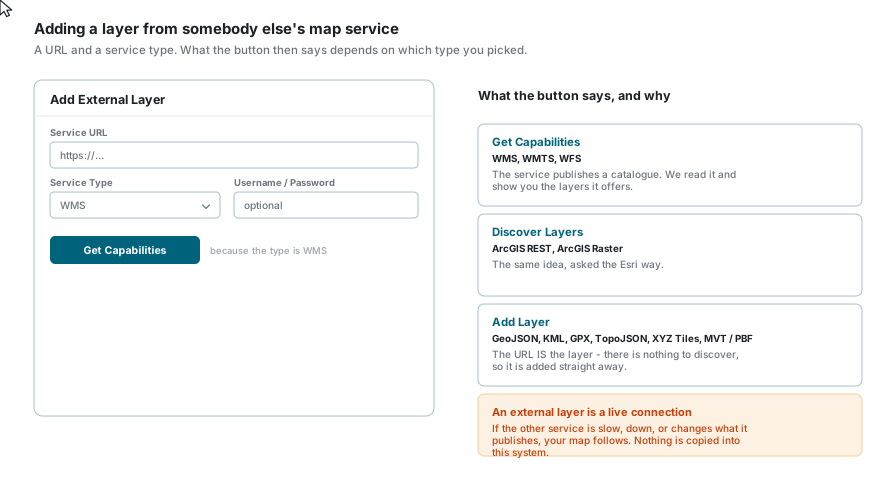
On the External Layers tab, Add External Layer connects to a map service somebody else runs.
- Enter the Service URL.
- Choose the Service Type.
- Optionally enter a Username and Password for a service that needs them.
- Press the action button. Its label changes with the type you picked:
| Button | Service types | What happens |
|---|---|---|
| Get Capabilities | WMS, WMTS, WFS | The service publishes a catalogue. It is read and the layers it offers are listed for you to pick from. |
| Discover Layers | ArcGIS REST, ArcGIS Raster | The same idea, asked the Esri way. |
| Add Layer | GeoJSON, KML, GPX, TopoJSON, XYZ Tiles, MVT / PBF | The URL is the layer. There is nothing to discover, so it is added straight away. |
- For the first two, tick the layers you want from the discovered list and press Add Selected Layers.
The full list of supported types:
| Type | What it is |
|---|---|
| WMS | Web Map Service - rendered map images |
| WMTS | Web Map Tile Service - pre-cached tiles |
| WFS | Web Feature Service - vector features |
| XYZ Tiles | Plain tile URLs, such as OpenStreetMap |
| GeoJSON | A GeoJSON feature collection |
| KML | Keyhole Markup Language |
| GPX | GPS Exchange Format tracks |
| TopoJSON | Topology-encoded GeoJSON |
| MVT / PBF | Mapbox Vector Tiles |
| ArcGIS REST | An Esri ArcGIS REST feature service |
| ArcGIS Raster | An Esri ArcGIS map/image service |
External layers you have added can be edited or deleted from the same tab.
An external layer is a live connection
Nothing is copied into this system. If the other service is slow, offline, or changes what it publishes, your map follows it. A layer that worked last week can stop working without anybody here changing anything.
Finishing up
Press Accept. The layers appear in your layer tree and on the map, and you can then set their visibility, opacity and order from Layer Control.
Then save the workspace if you want the change to last.
If something looks wrong
| What you see | What it means |
|---|---|
| A layer you expected is not in Available Layers | Check the other tabs first - it may be somebody else's upload. If it is genuinely absent, it has not been granted to your account. |
| The right arrow is greyed out | Nothing is ticked in the left pane. |
| The left arrow is greyed out | Nothing is ticked in the right pane. |
| The list looks stale | Press the pane's refresh button. |
| Your layers were gone after signing in again | Accept applies; only Save on the workspace keeps. |
| An external layer shows nothing on the map | The other service may be down, or the URL may point at a service that publishes nothing at this scale. Try the service URL in a browser. |
| Get Capabilities returns an error | Check the URL and the service type match, and whether the service needs a username and password. |
| A base layer will not move across | Use the type filter to switch between Normal Layers and Base Layers - the pane may simply be filtered. |
See also
- Workspaces - saving what you have added
- Layer Control - visibility, opacity and order once the layers are in
- Import Layers - uploading your own data, which then appears under Your Layers