
Appearance
Layer Control
The Layers panel is the list of everything on your map. It is on the right-hand side, on the Workspaces & Layers tab, underneath the workspace box.
Everything on this page is about what is already in your workspace. To put more layers in, see the Layer Repository.
The panel
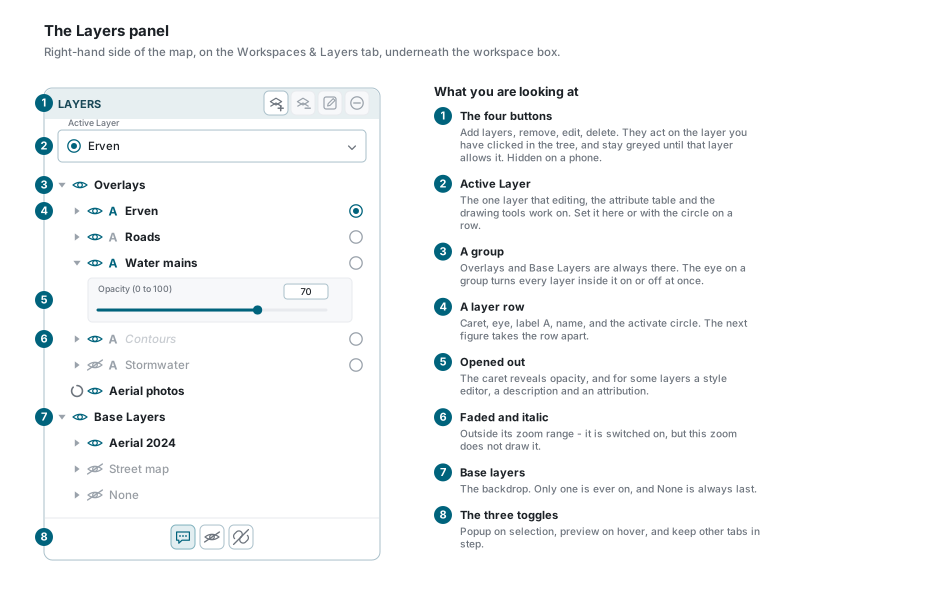
Two groups are always there:
- Overlays - your data. Any number can be on at once, and they stack.
- Base Layers - the backdrop underneath them. Only one is ever on.
Either group can hold folders, and folders can hold folders. The caret beside a group opens and closes it.
Give it more room
On a wide screen the small arrow in the panel's blue header undocks the whole thing into a window you can move and resize. The caret at the far right collapses the panel back to a strip when you want the map to yourself.
One layer, five controls
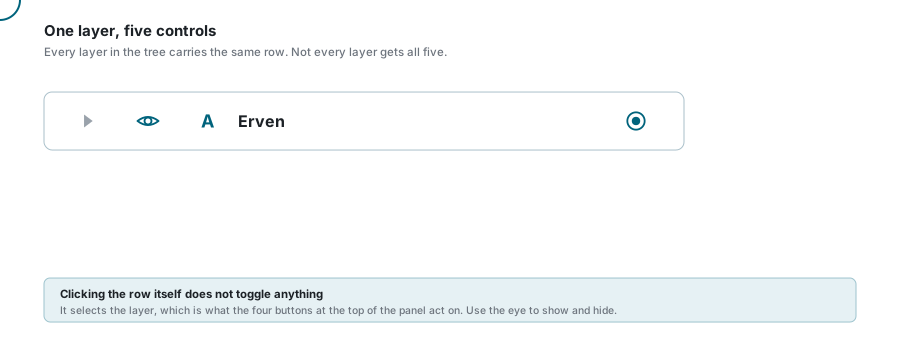
| Control | What it does |
|---|---|
| The caret | Opens the layer out, showing its opacity and, where the layer has them, a style editor, a description and an attribution. |
| The eye | Shows or hides the layer on the map. |
| The A | Shows or hides that layer's labels. |
| The name | Tells you the state at a glance, and clicking it selects the layer for the four buttons at the top. |
| The circle | Makes this the active layer. |
Some rows are missing some of these, and that is normal:
- The A is only on vector layers that actually have labels configured. A base layer never has one.
- The circle is only on vector layers that are your own data. Base layers, raster and map-image layers, external layers, and any layer an administrator has marked as not selectable do not get one.
Reading the list
The panel tells you what each layer is doing without you having to open anything.
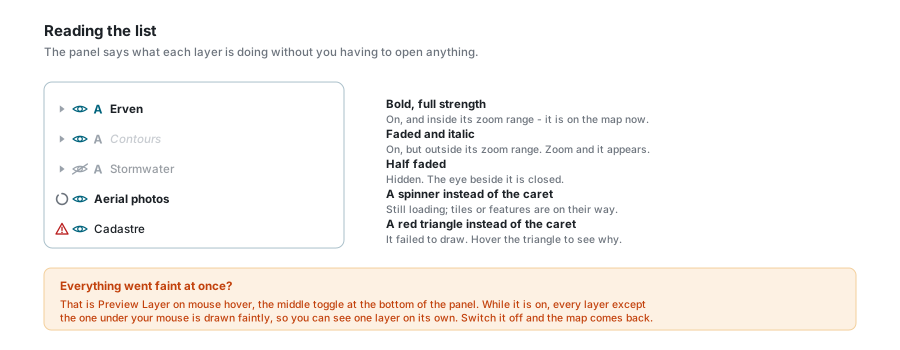
| Appearance | What it means |
|---|---|
| Bold, full strength | On, and inside its zoom range. This is on the map right now. |
| Faded and italic | On, but outside its zoom range. Zoom in or out and it appears. |
| Half faded | Hidden. The eye beside it is closed. |
| A spinner instead of the caret | Still loading. Tiles or features are on their way. |
| A red triangle instead of the caret | It failed to draw. Hover the triangle to see why. |
About zoom ranges
Layers are often set up to draw only between certain zoom levels, because at the wrong scale they would be an unreadable smear or a single invisible dot. A faded italic layer is not broken and you do not need to switch it on again. Zoom towards it and it comes back by itself.
Showing and hiding
Click the eye beside a layer to turn it on or off. Nothing is removed from the list, so you can put it straight back.
The eye on a group heading works on everything inside that group at once, which is the quickest way to clear the map down to one thing.
Hiding the active layer clears it
Close the eye on the layer you are editing and it stops being the active layer, which also puts the drawing tools away. Switch the layer back on and set it active again to carry on.
Labels
The A beside a layer shows and hides that layer's labels: street names, erf numbers, whatever the layer is set up to print on the map.
It goes faint when the layer itself is hidden, because there is nothing to label.
What is under the caret
Open a layer with its caret and you get, depending on the layer:
- Opacity (0 to 100) - a number box and a slider. Drag left to see through the layer to whatever is underneath it. This is how you read a survey diagram against an aerial photo.
- Layer Style - for external vector layers, a small style editor: fill and outline colour, line width, point size, and a labels section with font, size, colour, halo, placement and offset. Vector tile layers also have a Use built-in style switch that hands styling back to the service.
- Description - whatever the person who set the layer up wrote about it.
- Attribution - who the data belongs to, where that has to be shown.
The active layer
One layer at a time can be the active layer. It is the one the tools work on.
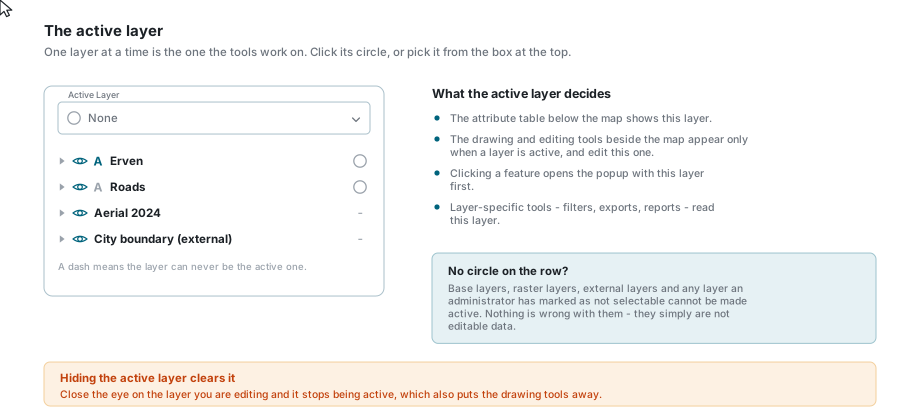
| What it decides | |
|---|---|
| The attribute table | The table below the map shows the active layer's records. |
| Editing | The drawing and editing tools beside the map only appear once a layer is active, and they edit that layer. |
| The popup | Clicking a feature opens the popup with the active layer's record first. |
| Layer tools | Filters, exports and reports that work on one layer read this one. |
Set it either way round: click the circle on the row, or pick the layer from the Active Layer box at the top of the panel. The box has a search field, which is faster when the tree is long. Click the filled circle again, or choose None, to have no active layer at all.
You do not need an active layer to look at things
With nothing active, clicking the map still finds features and still opens the popup, showing every visible layer under the click. What you lose is editing and the tools that need to know which layer you mean.
Base layers
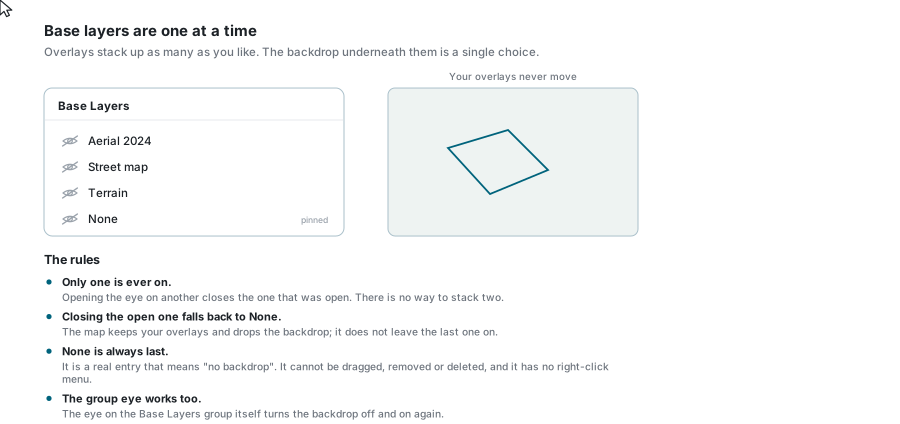
- Only one is ever on. Opening the eye on another closes the one that was open.
- Closing the open one falls back to None. The map keeps your overlays and simply drops the backdrop.
- None is always last. It is a real entry meaning "no backdrop". It cannot be dragged, removed or deleted, and right-clicking it does nothing.
- The eye on the Base Layers heading turns the backdrop off and on again.
Order
The top of the list is the top of the map.
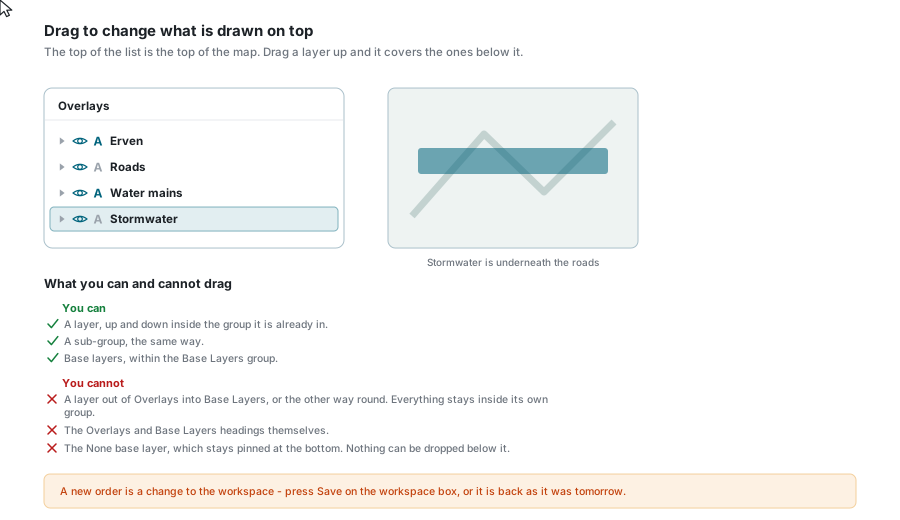
Click and hold a layer, drag it where you want it, and let go. A line shows where it will land.
You can move a layer or a folder up and down inside the group it is already in, base layers included.
You cannot:
- move a layer out of Overlays into Base Layers, or the other way round - everything stays inside its own group;
- drag the Overlays and Base Layers headings themselves;
- move the None base layer, or drop anything below it.
Right-click
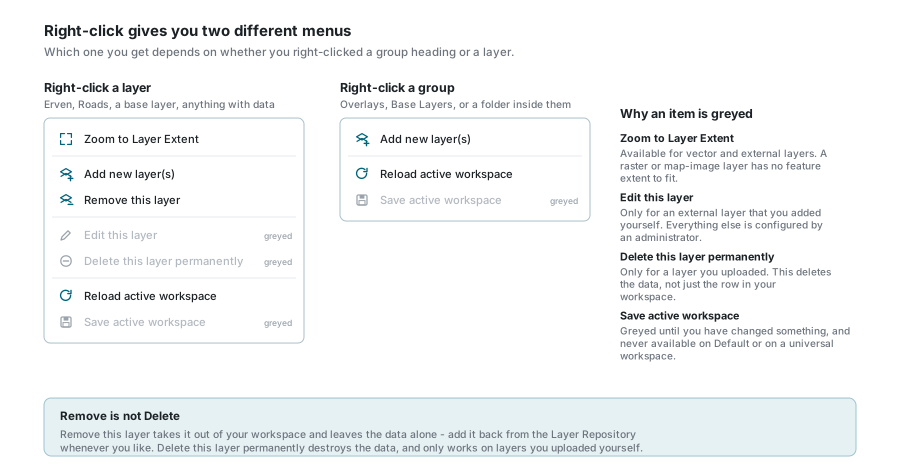
Right-clicking a layer:
| Item | What it does |
|---|---|
| Zoom to Layer Extent | Moves the map to fit the whole layer. Greyed for raster and map-image layers, which have no feature extent to fit. |
| Add new layer(s) | Opens the Layer Repository. |
| Remove this layer | Takes it out of your workspace. The data is untouched. |
| Edit this layer | Only for an external layer you added yourself. |
| Delete this layer permanently | Destroys the data. Only for a layer you uploaded. |
| Reload active workspace | Fetches the workspace again, throwing away unsaved changes. |
| Save active workspace | Greyed until something has changed, and never available on Default or on a universal workspace. |
Right-clicking a group gives you the short menu: Add new layer(s), Reload active workspace and Save active workspace.
Remove is not Delete
Remove this layer takes a layer out of your workspace and leaves the data alone - add it back from the Layer Repository whenever you like. Delete this layer permanently destroys the data, and only works on layers you uploaded yourself.
The four buttons at the top
The buttons in the panel's heading do the same jobs as the right-click menu, on whichever layer you have clicked in the tree.
| Button | What it does | When it is greyed |
|---|---|---|
| Add Layers | Opens the Layer Repository | never |
| Remove Layer | Takes the selected layer out of the workspace | nothing selected, or the selection is the None base layer |
| Edit Layer | Opens an external layer's settings | unless exactly one external layer that you added is selected |
| Delete Layer | Permanently deletes the layer and its data | unless you uploaded the selected layer yourself |
They are hidden on a phone. Use the right-click menu there, which is reached with a long press.
The three toggles at the bottom
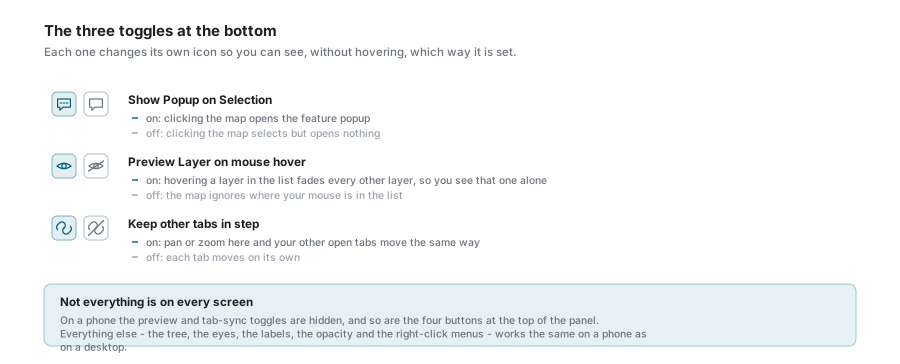
| Toggle | On | Off |
|---|---|---|
| Show Popup on Selection | Clicking the map opens the feature popup. | Clicking still selects, but nothing pops up. |
| Preview Layer on mouse hover | Moving the mouse down the list fades every layer except the one you are pointing at, so you can see it on its own. | The map ignores where your mouse is in the list. |
| Keep other tabs in step | Pan or zoom here and your other open tabs move the same way. | Each tab moves on its own. |
On a phone the last two are hidden.
Saving
Everything on this page changes the workspace: which layers are in it, which are on, their opacity, their labels and their order.
None of it is written down until you press Save in the workspace box above the panel. Sign out without saving and you get the workspace back as it was.
If something looks wrong
| What you see | What it means |
|---|---|
| A layer is faded and in italics | It is outside its zoom range. Zoom in or out. Nothing is broken. |
| Everything went faint at once | Preview Layer on mouse hover is on. It fades every layer except the one under your mouse. Switch it off. |
| A layer is on but nothing is drawn | Check its opacity is not at 0, that a layer above it is not covering it, and that you are looking in the right place. Zoom to Layer Extent settles the last one. |
| A red triangle beside a layer | It failed to load. Hover the triangle for the reason, then try the panel again in a moment. |
| A spinner that will not stop | The layer is large or the connection is slow. External layers depend on somebody else's service. |
| The drawing tools have gone | There is no active layer. Hiding the active layer clears it, so switch the layer on and set it active again. |
| A layer has no circle | It cannot be made active: base, raster, external, or marked not selectable. |
| A layer will not drag where you want | Layers stay inside their own group, and None stays pinned at the bottom of the base layers. |
| Turning off the base layer left the map blank | That is None doing its job. Open the eye on the backdrop you want. |
| Your changes were gone the next day | They were never saved. Press Save on the workspace box. |
| The four buttons at the top are missing | You are on a phone. Long-press a layer for the same options. |
See also
- Layer Repository - adding and removing layers
- Workspaces - saving what you have set up
- Column Filters - narrowing down the records in the active layer
- Import Layers - bringing your own data in