
Appearance
Background Jobs
Some work is too slow to make you sit and watch it. Importing a layer, exporting one, running a report over thousands of records, warping a scanned plan onto the map - each of these is written down as a job and done by a separate program on the server. The dialog you started it from can be closed. Your browser can be closed. The job carries on.
What you get back is a list. Every job has a number, a status and a history, and the list is where you go to see how far it has got, fetch what it produced, or find out why it stopped.
What a job is
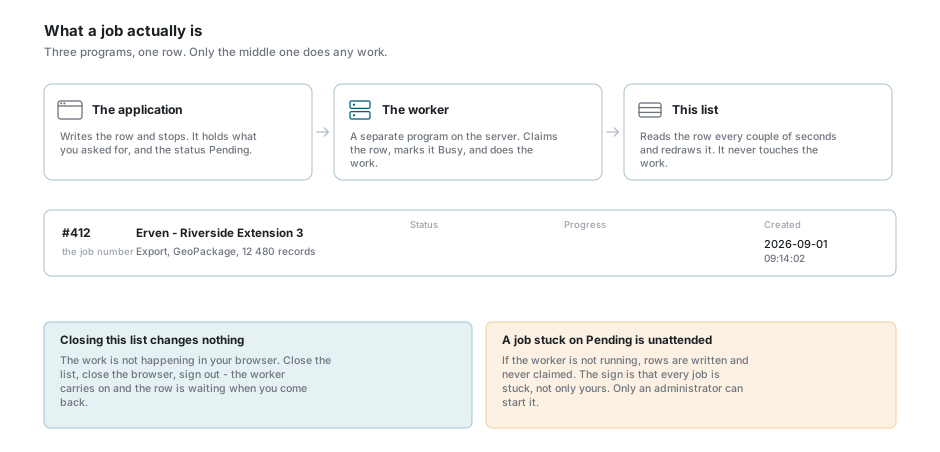
Three separate pieces of software are involved, and knowing which is which explains most of what the list does.
- The application writes a row. It holds what you asked for and the status Pending. That is all it does. It does not do the work.
- The worker is a program running on the server whose only task is jobs. It looks for pending rows, claims one, marks it Busy, and gets on with it.
- The job list you have open reads that row every few seconds and redraws it.
So closing the list does not stop a job, and leaving it open does not make one go faster. Two people looking at the same job see the same row.
A job stuck on Pending is not slow, it is unattended
The worker is a separate process from the application. If it is not running, jobs are written and never picked up: they sit on Pending indefinitely, and nothing in the list will say why. The sign is that every job is stuck, yours and everybody else's, not just yours. Tell your administrator - it is not something the list can fix.
A job is not lost if the worker stops in the middle of one. While a job runs, its row is touched about once a minute. A row that has not been touched for five minutes is treated as abandoned, put back to Pending and picked up again, carrying the note Worker stopped heartbeating; job re-queued for processing.
The four lists
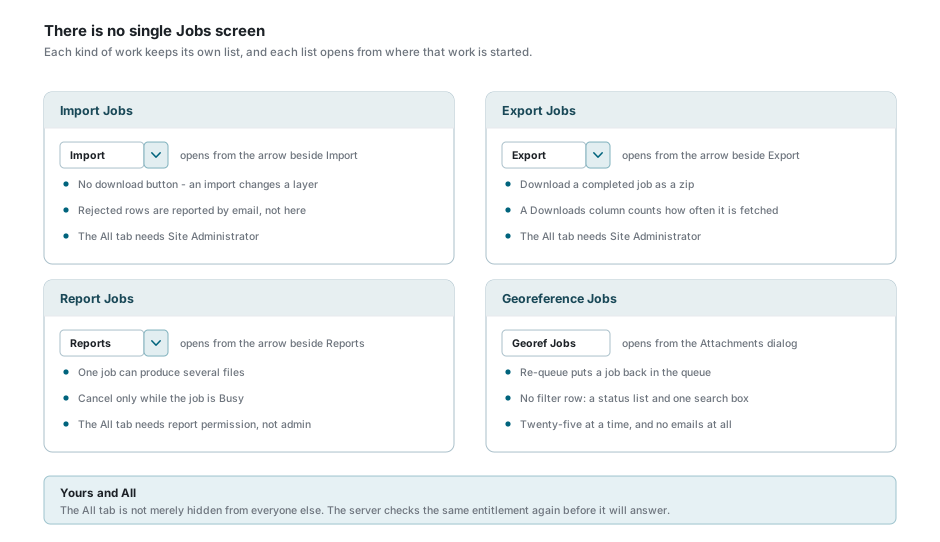
There is no single Jobs screen. Each kind of work keeps its own list, and each one opens from where that work is started.
| List | Where it opens | The work itself |
|---|---|---|
| Import Jobs | The small arrow beside Import on the map toolbar | Import Layers |
| Export Jobs | The small arrow beside Export | Export Layers |
| Report Jobs | The arrow beside Reports, and the Jobs button in the reports list and the report preview | Reports |
| Georeference Jobs | The Georef Jobs button in Attachments, and the georeferencing panel | Georeferenced Images |
Imports and exports share one dialog, so those two lists are the same list with a few columns swapped. Report jobs and georeference jobs each have their own, and they differ in ways worth knowing - see Report jobs and Georeference jobs.
Every list has two tabs. Yours is what you started. All is everybody's, and it only exists for people entitled to it: Site Administrators on the import, export and georeference lists, and anyone with report-viewing permission on the report list. The tab is not merely hidden from everyone else - the server checks the same entitlement again before it will answer, so there is nothing to be had by going around the tab.
Reading the list
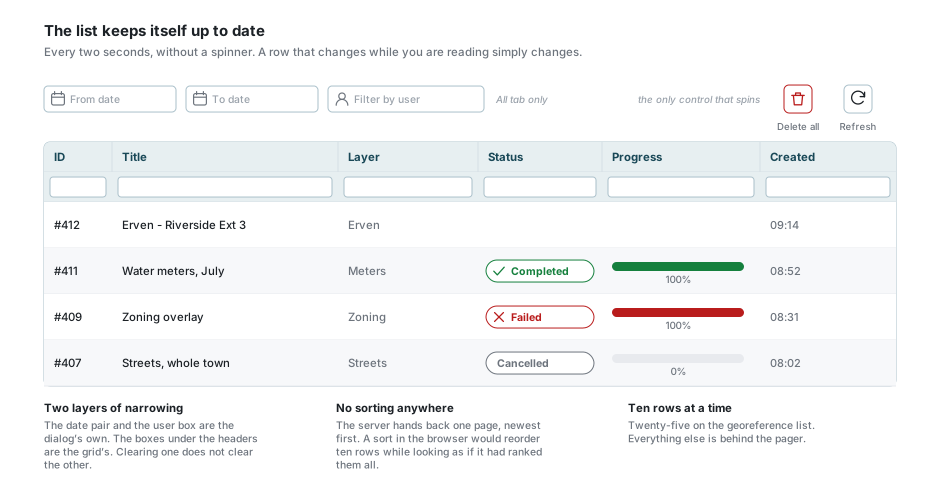
The list refreshes itself while it is open: the import and export lists every two seconds, report jobs every five, georeference jobs every four. It is deliberately quiet about it - no spinner, no flicker - so a status that changes while you are reading simply changes. The Refresh button is there for when you want to force it, and that one does spin.
Ten jobs are shown at a time, newest first. The georeference list shows twenty-five.
The columns do not sort, and that is deliberate
The server hands back one page in one order, newest first. A sort applied in the browser would reorder the ten rows on screen while looking as though it had ranked all of them, which is worse than no sort at all. Narrow the list instead.
Two kinds of narrowing sit on top of one another:
- The toolbar across the top: a From date and To date pair, which filter on when the job was created, and a Filter by user box that only appears on the All tab. All three are cleared each time the dialog opens.
- The filter row under the column headers, on the import, export and report lists. Each column filters on its own terms and its tick list offers the values actually present. See Column Filters. The georeference list has no filter row; it has a status dropdown and one search box instead.
The two are independent on purpose. Clear filters in the toolbar clears the toolbar's own three and leaves the column filters standing; the eraser in the filter row does the opposite.
A filter that could not be applied is reported, never swallowed
If the server cannot translate one of your column filters into a query, a warning names the columns it could not use and stays on screen until you dismiss it. That matters more than it sounds. A filter that quietly did nothing would leave you looking at more rows than you asked for, with the list giving no sign of it.
The Progress column on the import and export lists is worth reading with a pinch of salt. On an export it is real: it comes from the conversion tool as it writes the file. On an import it is a set of milestones - staged, loaded, published - so it can sit still for a long time at one number and then jump. A failed job has its bar filled to the end rather than left at 50%, so a failure never looks like a job that is still going.
Statuses
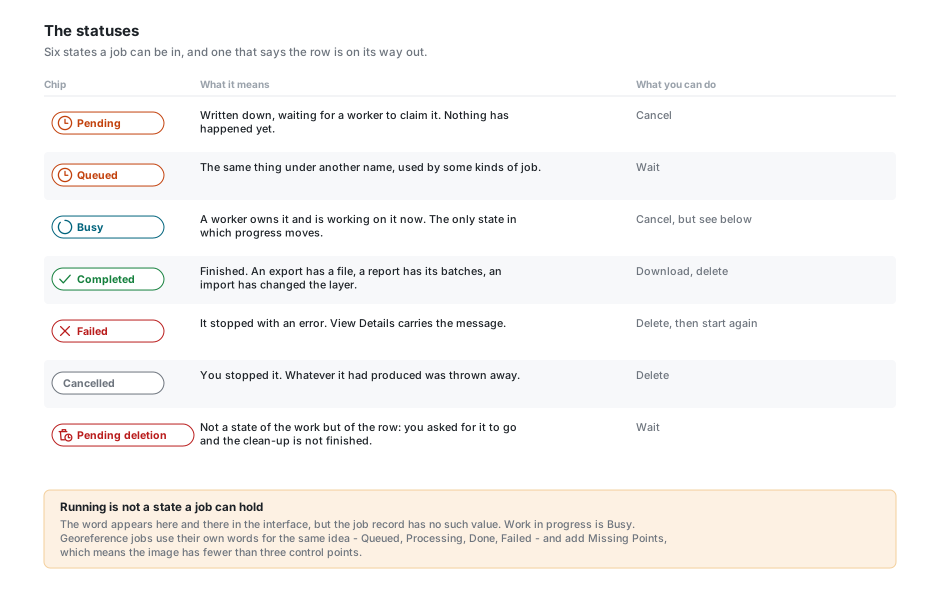
| Status | What it means |
|---|---|
| Pending | Written down, waiting for a worker to claim it. Nothing has happened yet. |
| Queued | The same thing under a different name, used by some kinds of job. A worker will claim it. |
| Busy | A worker owns it and is working on it now. This is the only state in which progress moves. |
| Completed | Finished. Exports can be downloaded from here, reports have their files, imports have changed the layer. |
| Failed | It stopped with an error. View Details carries the message. |
| Cancelled | You stopped it. Anything it had produced was thrown away. |
| Pending deletion | Not a state of the work but of the row: you asked for it to be deleted and the clean-up has not finished. See Deleting a job. |
Running appears here and there in the interface, but it is not a state a job can actually hold. Work in progress is Busy.
Georeference jobs use their own words for the same idea - Queued, Processing, Done, Failed - and add one of their own, Missing Points, which means the image has fewer than the three control points a warp needs.
What you can do to a job
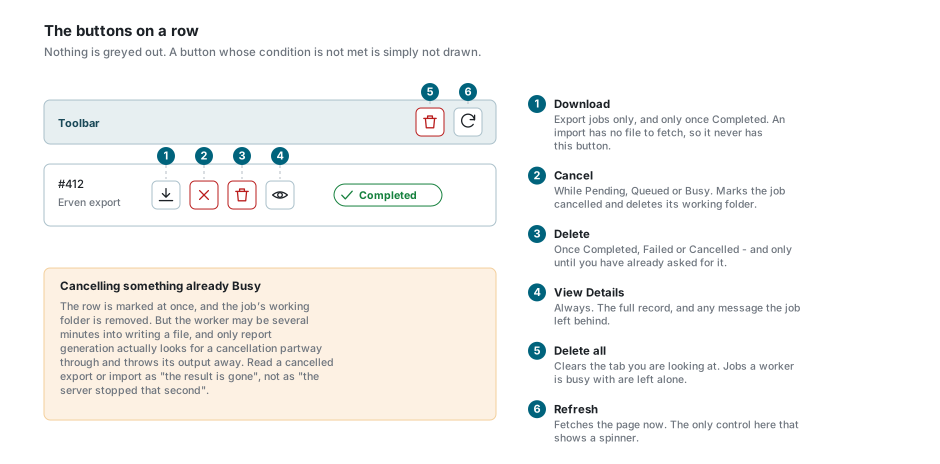
The buttons at the left of each row appear and disappear according to what the job is. Nothing is greyed out; it is simply not there.
| Button | When it is there, and what it does |
|---|---|
| Download | Export jobs only, and only once they are Completed. It saves the result as a zip named after the job's title. An import has nothing to download, so it never has this button. |
| Cancel | While the job is Pending or Busy. It marks the job cancelled and deletes its working folder. |
| Delete | Once the job is Completed, Failed or Cancelled, and only until you have already asked for it to be deleted. |
| View Details | Always. It opens the job's full record: what it was asked to do, when it started and finished, how many times the result has been downloaded, and any message the job left behind. |
| Delete all | The bin at the right of the toolbar. It clears the tab you are looking at - on the All tab, as an administrator, that means every user's jobs. Jobs a worker is busy with are left alone. |
Cancelling a job that has already started is not always instant
Cancelling something still Pending is clean: it is never picked up. Cancelling something already Busy marks the row at once, but the worker may be several minutes into writing a file, and only report generation actually checks for a cancellation partway and throws its output away. Take a cancelled export or import as "the result is gone", not as "the server stopped that second".
Deleting a job
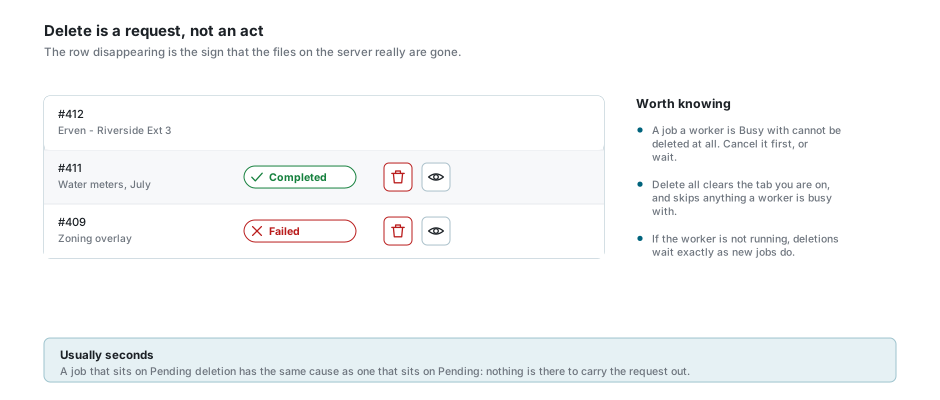
Deleting does not remove the job there and then. It flags the row, the status chip changes to Pending deletion, and the delete button goes away so you cannot ask twice. The worker then removes the job's folder from the server and only afterwards removes the row, so the row disappearing from your list is the sign that the files really are gone.
Usually that takes seconds. If the worker is not running, a job can sit on Pending deletion for as long as it sits on Pending - the same cause, the same fix.
A job a worker is currently Busy with cannot be deleted at all. Cancel it first, or wait.
A job can finish and still have something to tell you
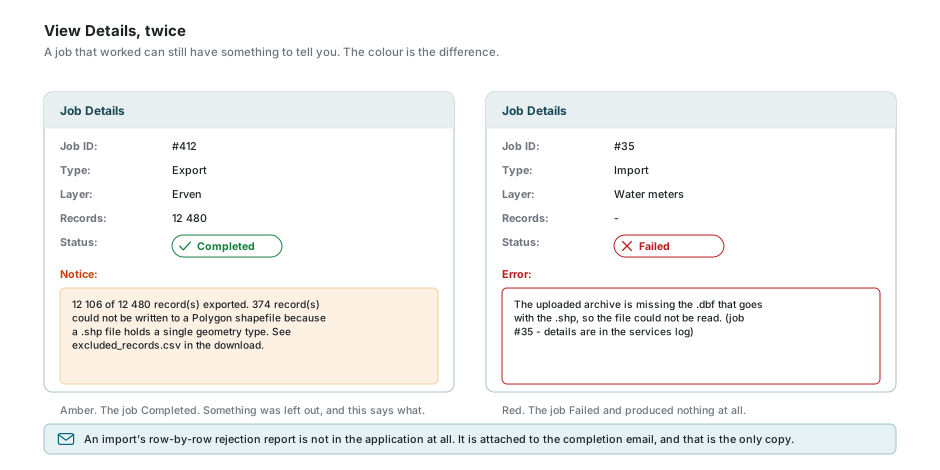
A job does not only either work or break. It can do most of what you asked and report what it could not do, and the details dialog draws that difference:
- Amber, headed Notice. The job Completed. Something in it was left out, and this says what.
- Red, headed Error. The job Failed and produced nothing.
The two most common notices are worth recognising.
An export to a format that can only hold one shape at a time - a shapefile is the usual one - exports the records that match the layer's own geometry type and leaves the rest out. The notice says how many, and a file called excluded_records.csv inside the download names them one by one, with the reason. Choosing a format that stores mixed geometry, such as GeoPackage, GeoJSON or KML, avoids the problem entirely.
An import that had rows rejected still completes, and brings in everything that was good. The notice says how many rows were turned away. The row-by-row report is not in the application at all - it is attached to the completion email, and that is the only copy, because the staging folder it came from is cleared as soon as the import succeeds. If you plan to fix the rejected rows and try again, keep that email.
The emails
Imports, exports and reports each send you an email when they start and another when they finish, so you do not have to watch the list. Georeference jobs send nothing.
The completion email for an export carries a download link that works without signing in. That is what makes it convenient, and it is also why the email should be treated like the file itself: anyone you forward it to can fetch the data.
When a job fails
The message on a failed job is written for you rather than for the server. Paths, host names, settings and stack traces are stripped out before it is stored, so what survives says what kind of thing went wrong without saying where. It ends with the job's number, in the form (job #35 - details are in the services log).
That number is the point. The full story of the failure is on the server, and quoting the job number is what lets an administrator find it in one step. When you report a failed job, give the number.
Common causes you can act on yourself:
- A file the import could not read. An unsupported format, a zip missing one of the pieces a shapefile needs, or text in an encoding the reader did not expect.
- A format that cannot hold the data. See the notice above - though if nothing in the layer matches, the export fails outright rather than finishing with a notice.
- A monthly limit. Exports are counted against an allowance that depends on your subscription. Over it, the job is refused at the moment you start it, with a message giving the allowance and how much of it you have used, rather than failing later.
There is no retry button on an import or export. Start the work again from its own wizard. Georeference jobs are the exception: they have one, described below.
Report jobs
The report list is a different dialog with the same shape, and three differences that matter:
- A report job can produce several files. A long report is broken into batches, so View Details lists the files with their sizes and a download beside each one, rather than offering one button on the row.
- Cancel only appears while the job is Busy. A report still waiting cannot be cancelled - delete it instead.
- The All tab is governed by report permissions rather than by being a Site Administrator.
The columns describe the report rather than a file: which report was run, on which layer, the filter and sort order it used, how many records it covered, and how many batches it came out in.
Georeference jobs
Georeferencing has its own list, opened from Attachments or from the georeferencing panel. It is the only one with a Re-queue button, which puts a job back in the queue to be warped again. It appears when the job is Done, Failed or Missing Points and the image has at least three control points - fewer than three and there is nothing to retry with, so add points first.
The Error column shows a failure message inline, shortened, with the whole of it in the tooltip. It is shown only for Failed and Missing Points: a successful job can also carry a note from the warping step, and that is a diagnostic, not a fault.
There is no download here. What a georeference job produces is the rectified image itself, which appears on the map. See Georeferenced Images.
If something looks wrong
| What you see | What it means |
|---|---|
| Every job sits on Pending and nothing moves | The worker that does the jobs is not running. This affects everyone, not only you, and only an administrator can start it. |
| One job has been Busy for a long time | Large or complicated data. Watch the progress column; on an import it moves in steps rather than smoothly. |
| A job went from Busy back to Pending on its own | The worker handling it stopped. The job was reclaimed and will run again. The message on it says so. |
| No Download button on a completed job | It is an import. Imports change a layer; there is no file to fetch. |
| No Delete button on a job | Either a worker is busy with it, or you have already asked for it to be deleted and the chip now reads Pending deletion. |
| A row that reads Pending deletion and stays | The clean-up runs in the worker. If it is not running, deletions wait with everything else. |
| Completed, with an amber Notice | The job worked and something was left out. Read the notice - for an export the detail is in excluded_records.csv inside the download, for an import it is attached to the email. |
| An error message that names no file or server | Deliberate. Server detail is stripped out. Quote the job number in the message to your administrator. |
| The export was refused as soon as you started it | The monthly record allowance on your subscription is used up. The message gives the numbers. |
| Column headers that will not sort | There is no sorting in these lists. Use the filter row and the date range. |
| A warning naming columns that could not be filtered | Those filters were not applied. The rows on screen are wider than what you asked for - narrow them another way. |
| No All tab | It is only there for Site Administrators, or, for reports, for people with report permissions. |
See also
- Import Layers - where an import job comes from
- Export Layers - where an export job comes from, and what the formats can hold
- Reports - running a report, and the batches it comes back in
- Georeferenced Images - control points, warping, and the re-queue
- Column Filters - the filter row under the headers