
Appearance
Editing Records & Spatial Data
This is the page where you change data, so it is also the page where you can get it wrong. Read the part about saving before you start.
Two kinds of editing
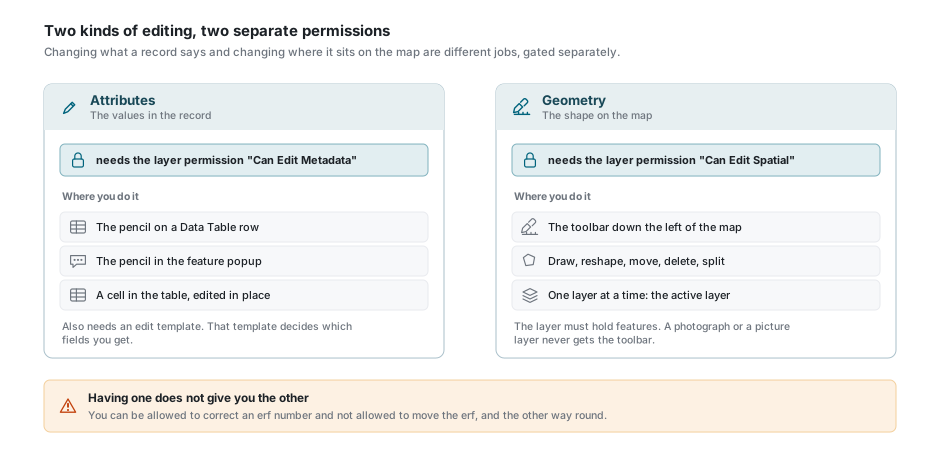
Attribute editing changes what the record says: the erf number, the owner, the date of a site visit. Spatial editing changes where the feature sits and what shape it is.
They are two different permissions on the layer, and neither implies the other. You can be allowed to correct an erf number and not allowed to move the erf, and the other way round.
Before you can edit anything
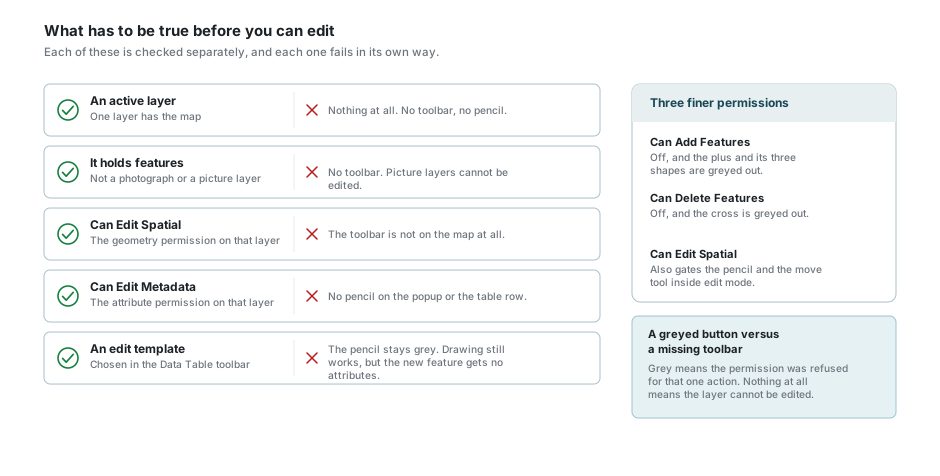
| What you need | Why | Without it |
|---|---|---|
| An active layer | Editing always happens on one layer. See the active layer. | Nothing. No toolbar, no pencil. |
| A layer that holds features | Aerial photography and other picture layers have no shapes to edit. | The toolbar is not on the map. |
| Can Edit Spatial | The geometry permission on that layer. | The toolbar is not on the map. |
| Can Edit Metadata | The attribute permission on that layer. | No pencil in the popup or on the table row. |
| An edit template | It decides which fields you are allowed to fill in. | The pencil stays grey and says so. |
Two finer permissions sit inside geometry editing. Can Add Features greys out the plus and the three shapes under it. Can Delete Features greys out the cross. Both are separate from Can Edit Spatial.
A grey button and a missing toolbar mean different things
A grey button means the permission was refused for that one action. Nothing at all on the map means the layer cannot be edited, or is not the active layer. Ask your administrator which of the two it is.
The edit template
An edit template is a list your administrator writes: which fields appear when you edit this layer, in what order, which are required, which are read-only, and what each one starts out as on a new record. Without one, there is nothing to fill in, and the application will not let you into edit mode at all.
Pick it from the Edit Template box in the Data Table toolbar. On a narrow window that box moves into the Options menu at the end of the toolbar, which is where people usually go looking for it.
A layer can have several templates - a short one for the field, a full one for the office. The list you see is filtered: some templates are set up to appear only on a phone, and some only when you are looking at a sub-layer's records rather than the layer's own.
"No Edit Template" is a real entry, not an empty box
It is the choice that means "do not let me change anything", and it is often what a layer starts on. If the pencil is grey, look at that box first.
Editing attributes
There are three ways in, and they all end up on the same form:
- the pencil on a row in the Data Table;
- the pencil in the feature popup;
- a cell in the table, changed where it stands. See inline cell editing.
The dialog opens on the record, showing only the fields the template lists. A red star marks a field you have to fill in. A Show all fields switch at the top brings the rest of the record into view, read-only, when you need to see something the template left out.
Fields are drawn as what they are: a tick box for yes and no, a date picker for a date, a colour swatch for a colour, a list you choose from where the field has one, and a photograph you can replace. Some lists are looked up on the server as you type, and some narrow themselves down once you have answered an earlier field. The geometry field is never shown here - that is what the map toolbar is for - and the record's own key can never be changed.
What happens when you save
The form checks your answers only when you press Save. If something is wrong you get a warning listing each problem, the form scrolls to the first one, and a message appears under the field itself. Nothing is sent and nothing you typed is lost.
Common checks are a required field left empty, text longer than the column allows, a number outside its range, and the specific formats: an email address, a web address, a telephone number, a South African ID number, a colour. Photographs must be JPEG, PNG, WebP or GIF and no larger than 5 MB.
If the save itself fails, a red message names the reason, the dialog stays open in edit mode, and everything you entered is still there.
If you changed nothing, Save simply closes edit mode without asking the server anything.
Where you are asked about unsaved changes, and where you are not
Moving to another record while the dialog is open asks first, and so does changing the edit template mid-edit. Cancel does not ask: it drops straight back to read-only and your changes are gone. Neither does switching the active layer, which closes the dialog outright, nor reloading the page.
Editing geometry
The toolbar
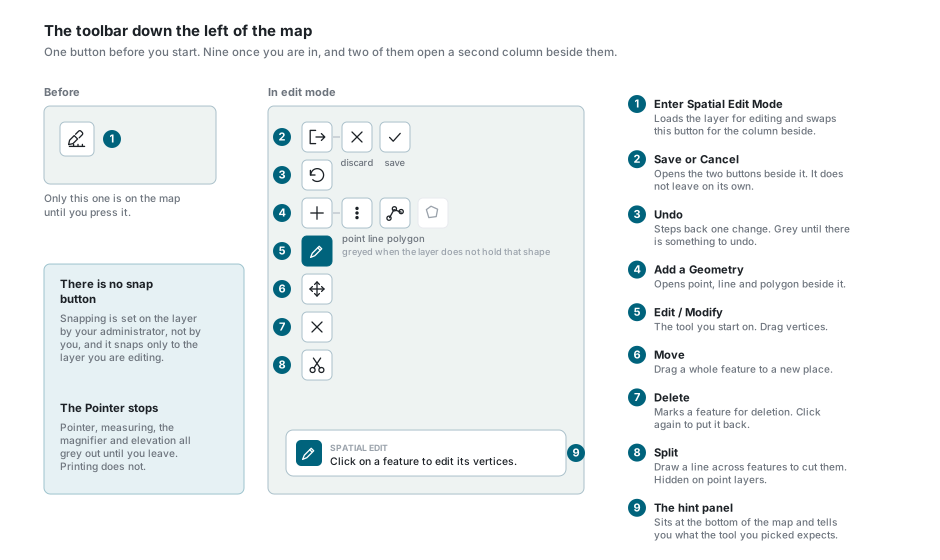
The toolbar is a column down the left edge of the map. Before you start there is one button on it: Enter Spatial Edit Mode. Press it and it is replaced by the working column.
| Button | What it does |
|---|---|
| Save or Cancel | Opens a cross and a tick beside it. It does not leave on its own. |
| Undo | Steps back one change. Grey until there is something to undo. |
| Add a Geometry | Opens point, line and polygon beside it. |
| Edit / Modify | The tool you start on. Reshape a feature by dragging its vertices. |
| Move | Drag a whole feature somewhere else. |
| Delete | Mark a feature for deletion, or take the mark off again. |
| Split | Draw a line across features to cut them in two. |
Not every button is live. The three add shapes follow the kind of geometry the layer holds: a polygon layer offers only polygon, a line layer only line, a point layer only point. Split is hidden altogether on a point layer, because a point cannot be cut.
A small panel at the bottom of the map tells you what the tool you picked is waiting for. It changes every time you switch tools.
Entering and leaving edit mode
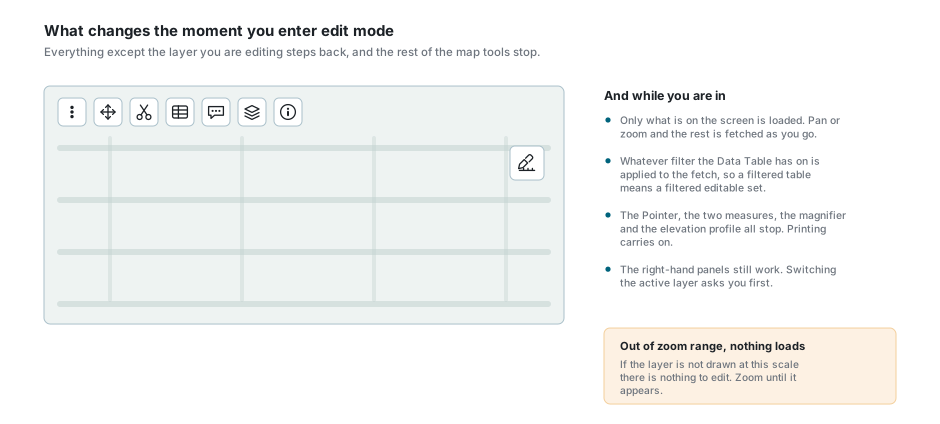
Pressing the pen does four things at once:
- every other layer, backdrop included, drops to a third of its strength, so the layer you are editing is the only thing you can see clearly;
- the features of that layer are redrawn as editable shapes with their vertices shown;
- the tool starts on Edit / Modify;
- the hint panel appears at the bottom of the map.
Only what is on the screen is loaded. Pan or zoom and the rest is fetched as you go, so a feature you cannot see yet is not yet yours to edit. If the layer is outside its zoom range nothing loads at all, and there is nothing to edit until you zoom to where it draws.
The fetch also honours whatever filter the Data Table has on. A filtered table means a filtered set of editable features, which is a useful way of protecting the rest of the layer from yourself, and a confusing one if you have forgotten the filter is there.
While you are in edit mode the Pointer, both measuring tools, the magnifier and the elevation profile all switch off and grey out. Printing does not. Clicking the map no longer opens the feature popup: a click selects a feature for the tool you are holding.
The right-hand panels keep working
You can still switch layers on and off, change the backdrop, and use the Data Table. Making a different layer active, or changing workspace, asks you about your unsaved edits first and puts the change back if you say no.
What the colours mean
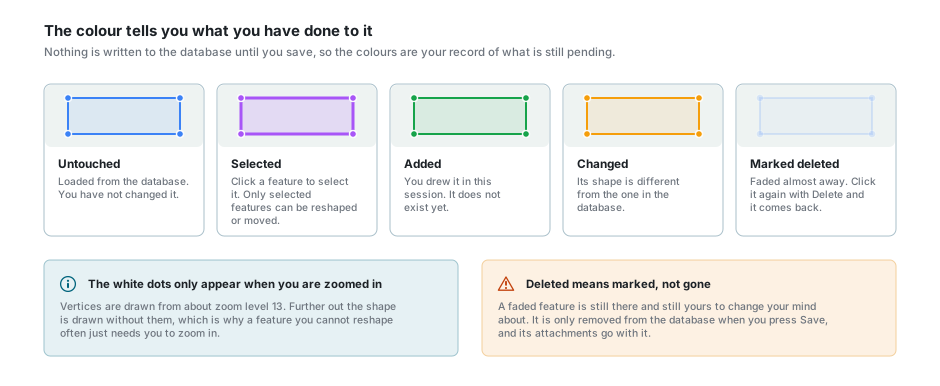
| Colour | What it means |
|---|---|
| Blue | Loaded from the database, untouched. |
| Purple, heavier outline | Selected. Only a selected feature can be reshaped or moved. |
| Green | Added in this session. It does not exist in the database yet. |
| Amber | Its shape is now different from the one in the database. |
| Nearly invisible | Marked for deletion. |
The white dots on the outline are the vertices, and they are only drawn from about zoom level 13. A feature you cannot seem to reshape usually just needs you to zoom in.
Click a feature to select it. Shift + Click adds another to the selection, Ctrl + Click adds or takes one back out, and a click on empty map clears the selection.
Adding a feature
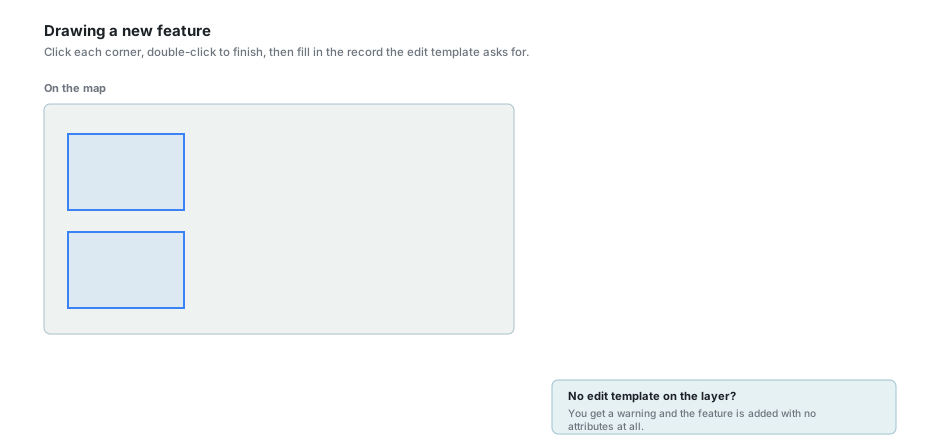
Choose Add a Geometry, then the shape. If the layer offers only one shape it is chosen for you.
- Point - click once on the map.
- Line - click each bend, double-click to finish.
- Polygon - click each corner, double-click to close the shape.
On a layer that holds multi-part geometry a small Add Feature panel appears beside the map. Leave it on Single and each shape becomes its own feature. Switch it to Multiple and the shapes you draw are collected instead: the panel counts them, and Done joins them into one feature with several parts. That is what you want for a farm made of several portions. You cannot switch back to Single once you have drawn a part, and the panel can be dragged out of the way.
The moment the shape is finished, the Add Feature dialog opens on the edit template, with any default values the template carries already filled in. Fill in the rest and press Accept.
Cancel throws away the shape you drew, not just the form
The dialog warns you first. Say yes and the geometry goes with it. There is nothing left to undo.
Two things happen when there is no template to open the dialog with. If the layer has exactly one, it is chosen for you. If it has several and none is marked as the default, you are asked which to use before the dialog opens. If it has none at all, a warning appears and the feature is added with no attributes whatsoever - a shape with an empty record, which somebody will have to fill in later.
Draw a polygon entirely inside an existing one and you are asked whether you meant to cut a hole in it. Say yes and the new shape becomes a hole rather than a new feature.
Changing what is already there
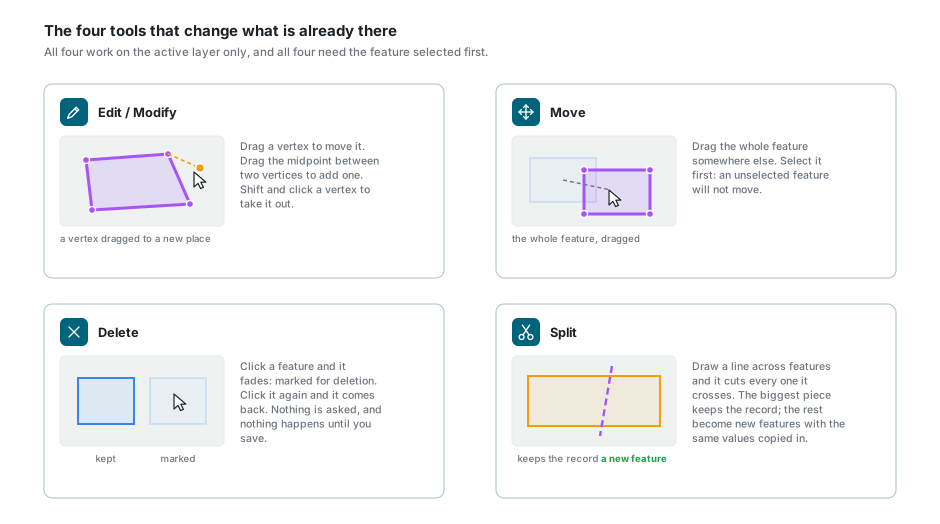
Edit / Modify reshapes a feature. Click it to select it, then drag a vertex to move it. Dragging the midpoint between two vertices adds a new one. Shift + Click on a vertex removes it.
Move drags a whole feature to a new place. Select it first: an unselected feature will not move, and neither will one you have marked for deletion.
Delete is a toggle. Click a feature and it fades to almost nothing: that is "marked for deletion". Click it again and it comes back. Nothing is asked, and nothing is actually deleted until you save. On a touch screen you can also tap a hole inside a polygon, or one part of a multi-part feature, and remove that piece on its own. With a mouse the cursor changes over a hole, but the click does nothing.
Split draws a line across the map and cuts everything the line crosses.
Split cuts every feature the line touches, not the one you selected
The largest piece of a polygon, or the longest piece of a line, stays as the original record. Every other piece becomes a new feature with the original's field values copied into it. Two records now claim the same erf number, and you have to correct them yourself. Keep the line short and check what changed colour before you save.
Snapping
There is no snap button on the toolbar. Snapping is a setting on the layer, turned on by your administrator with a tolerance in pixels, and it is on by default on most layers.
What it snaps to is worth knowing: only the features of the layer you are editing. It does not snap to other visible layers, whatever else you may have been told. To follow an existing boundary on another layer exactly, that boundary has to be in the layer you are editing.
Undo
Undo steps back one change at a time: a reshape, a move, a delete, an add, a split. It is grey until there is something to step back through, and it works on the last thing you did rather than on the feature you have selected.
Undo is not the same as discarding. It walks back through your session one change at a time; the cross throws the whole session away at once.
Saving, and coming out again
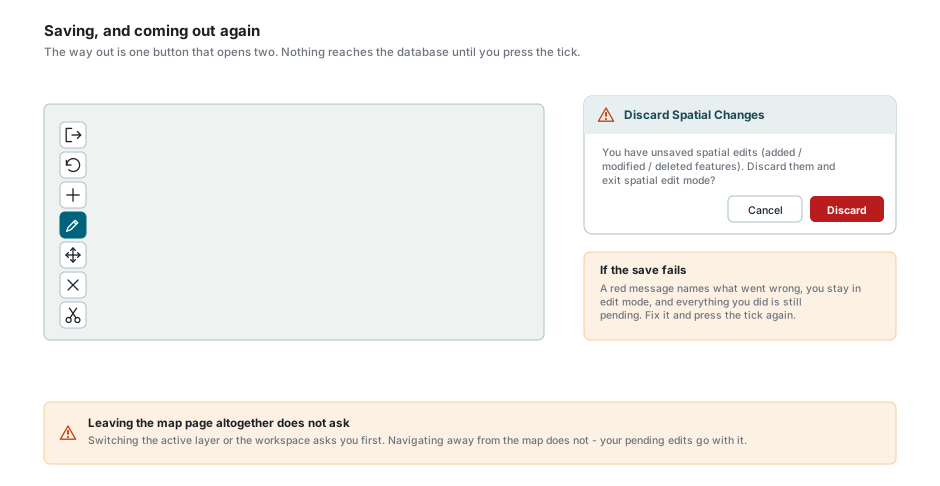
Nothing you have done reaches the database until you press the tick. Everything - added, changed and deleted - goes in one save.
- Press the Save or Cancel button. It opens a cross and a tick beside it, and the hint panel says which is which.
- The tick saves everything pending and leaves edit mode. A message confirms it.
- The cross discards everything, after asking you once.
If there is nothing pending, the tick says so and leaves without asking the server anything.
If the save fails, a red message names the reason, you stay in edit mode, and everything is still pending. Fix whatever it named and press the tick again.
Where the layer carries them, the fields recording who last changed a record and when are filled in for you.
Deleting a feature deletes its attachments
If the save would delete features that have photographs or documents attached, it stops and tells you how many, and asks you to confirm. Nothing is saved at all until you answer, so a save you abandon at that point leaves everything pending.
Leaving the map page altogether does not ask
Switching the active layer or the workspace asks about unsaved edits first. Navigating away from the map does not - the edits go with it, in silence. Finish your save before you go anywhere else.
If something looks wrong
| What you see | What it means |
|---|---|
| No toolbar on the left of the map | No active layer, a layer that holds pictures rather than features, or no Can Edit Spatial on that layer. |
| The toolbar vanished while I was working | The active layer changed to one that cannot be edited, or was switched off. |
| The pencil is grey | No edit template is chosen, or you do not have Can Edit Metadata on that layer. |
| "Select an Edit Template to modify features" | Choose one in the Data Table toolbar. On a narrow window it is in the Options menu. |
| The plus is grey | You have Can Edit Spatial but not Can Add Features. |
| Only one of the three shapes can be pressed | The layer holds one kind of geometry. That is the one it holds. |
| There is no split button | Points cannot be split, so it is hidden on point layers. |
| Nothing at all loaded when I entered edit mode | The layer is outside its zoom range, or the Data Table filter is excluding everything here. |
| Half the features are missing | Only what was on screen is loaded. Pan and they arrive. |
| I cannot see any vertices | You are zoomed too far out. They appear from about zoom level 13. |
| Dragging does nothing | The feature is not selected. Click it first. |
| It will not snap to the neighbouring layer | It never does. Snapping only reaches the layer you are editing. |
| A feature went faint on its own | You clicked it with Delete. Click it again to bring it back. |
| Splitting made records I did not ask for | The line cut every feature it crossed, and each extra piece copied the original's values. |
| "Failed to save spatial edits" | Read the rest of the message. You are still in edit mode and nothing was lost. |
| A warning about attachments when I save | The save would delete features that have files attached. Confirm, or cancel and unmark them. |
| My attribute changes disappeared | Cancel in the record dialog does not ask, and neither does switching the active layer. |
| The Pointer will not switch on | You are in spatial edit mode. Come out of it first. |
See also
- Data Table - the edit template box, the record dialog and inline cell editing
- Feature Selection & Popup - the pencil on the popup
- Layer Control - setting the active layer
- Attachments - the files that go with a record, and go with a deletion
- Map Tools - the toolbar that greys out while you edit