
Appearance
Data Table
The Data Table fills the North panel above the map. It holds the active layer's records, a page at a time, and it is where almost everything you can do to a record starts: read it, find it on the map, change a value, attach a photograph, or delete it.
Set an active layer in the Layers panel and the table fills itself. Without one it says so and waits.
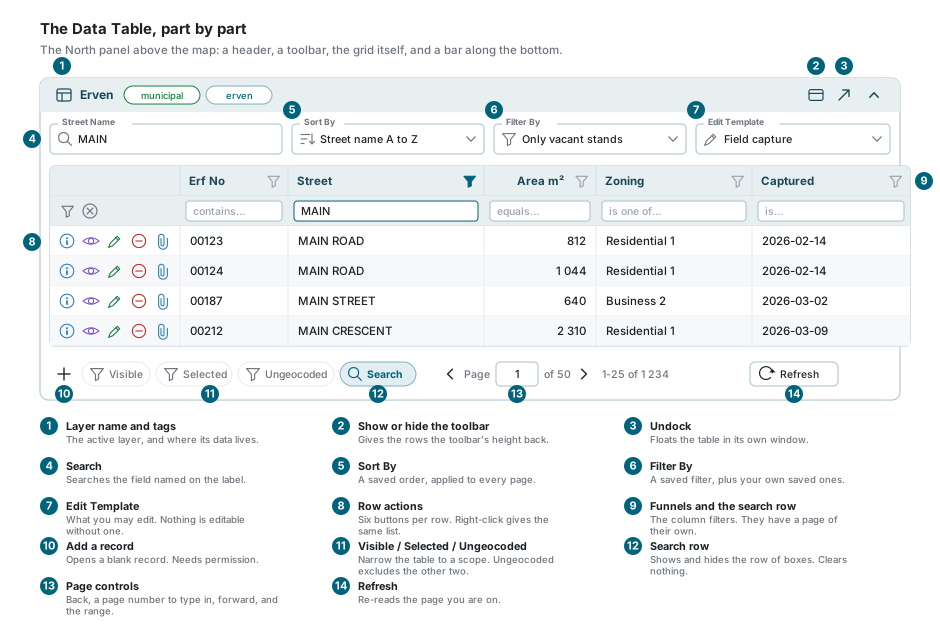
The panel header
The strip along the top names the active layer. Beside the name, two small tags say which database and which table the records come from. Those tags are part of the administrator's view of the world, so they only appear for accounts that may add accounts.
At the right-hand end:
| Button | What it does |
|---|---|
| Show or hide the toolbar | Folds the row of controls away and gives its height back to the records. Nothing you set in it is lost. |
| Undock | Floats the table in a window of its own. Only offered on a wide screen. |
| Caret | Collapses and expands the panel. The whole header works as the same switch, so a click anywhere on it will do. |
Undocking
Undocked, the table becomes a movable, resizable window, and the North panel closes behind it. It is the way to read a wide layer without giving up the map. Escape does not close it - use the dock button in its header, which puts it back where it came from. It remembers its size and position for next time.
One table, two places
Docked and undocked are the same table, not a copy of it. Your search, your sort, your filters and your selection follow it across.
The toolbar
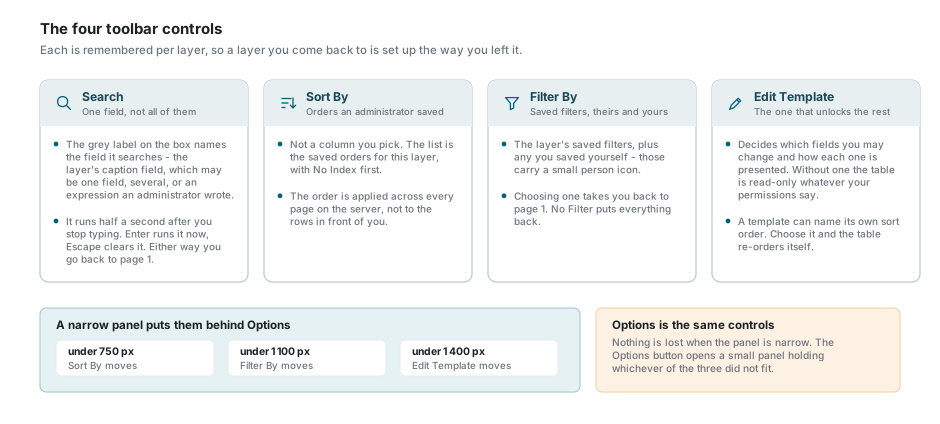
Four controls, in this order: Search, Sort By, Filter By, Edit Template. All four are remembered per layer, so a layer you come back to is set up the way you left it, and all four are captured by bookmarks and saved into workspaces.
If the panel is too narrow to hold them, they move into an Options button rather than disappearing: Sort By leaves below about 750 pixels of panel width, Filter By below 1 100, and Edit Template below 1 400. The Options panel holds whichever ones did not fit.
Search
The grey label on the box is not decoration. It names the field the box searches - the layer's caption field, which an administrator sets and which may be one field, a list of fields, or an expression built from several.
This is worth being plain about, because it is easy to assume otherwise: the toolbar search does not look at every column. To search a column that is not part of the caption field, use that column's box in the search row instead.
The box runs itself about half a second after you stop typing. Enter runs it at once and Escape clears it. Either way you land back on page 1.
Sort Orders
Sort By is a list of orders an administrator saved for this layer - Street name A to Z, Newest first, and so on. It is not a list of columns: the table asks the server for a saved order by name.
You can also sort from a column heading, where your administrator has marked that field sortable. Click the heading to sort by that column, click again for the other direction, and hold Shift while clicking to add a second or third column. Sort By then reads Custom, and choosing a saved order again clears your heading sort. A heading sort is not saved with the layer or the workspace - it lasts until you leave the layer.
The order applies to the whole set of records on the server, not to the rows in front of you, so page 2 continues where page 1 left off. No Index is the first entry and puts the layer back in its own default order.
An edit template can re-order the table
A template may name a sort order of its own. Choose that template and the table re-orders itself to match, unless you have already chosen a sort yourself for this layer - your own choice wins.
Filter By
Filter By holds the saved filters for the layer, plus any filter you saved yourself. Your own are marked with a small person icon so you can tell them apart. Choosing one narrows the table, updates the record count, and takes you back to page 1. No Filter puts everything back.
Saved filters, the funnels on the column headings and the advanced expression editor are all views of one filter - see Column Filters.
If the layer has a Radial Select Filter configured, that filter also decides which features a Ctrl + Drag radial selection picks up on the map.
Edit Templates
An edit template decides what you may change: which fields are editable, which are required, and what control each one gets - a list, a date picker, a photograph, a colour. Templates are built by an administrator.
Choose one and four things become possible at once:
- editable cells get a pencil and inline editing works;
- the Modify button on each row wakes up, and so does the record edit dialog;
- the spatial editing tools become available for the layer;
- copy and paste works for the fields the template marks for it.
Without an edit template the table is read-only, whatever your permissions say. That is the single most common reason a pencil is missing.
Not every template in the layer is offered to you. A template can be marked for sub-layer records only, for top-level records only, or for phones only, and one that does not apply is simply not in the list.
Columns
The columns are the layer's fields, in the order and the widths an administrator gave them, banded under the layer's own headings where it defines any.
Reordering. Drag a heading sideways to move the column. On a very wide layer - forty columns or more - dragging is switched off, because the table is doing enough work already.
Resizing. Drag the right edge of a heading. Double-click that edge, or use Autosize column in the column menu, to size it to its contents.
Pinning. Pin to left or Pin to right in the column menu freezes a column so it stays put while you scroll sideways. Two rules apply and neither is announced:
- a column that sits under a heading band cannot be pinned, because it would come out from under its own heading;
- pinning stops once the frozen columns would take up more than half the panel's width. Pin more than that and the extra ones quietly stay where they are. Widen the panel and they take.
Your column order, widths and pins are remembered per layer, and they are saved into a workspace along with everything else.
No hiding in the column menu
The menu on a heading offers pinning, autosize, sorting where the field is marked sortable, and everything to do with filtering. It has no Hide column, because which columns exist is a layer setting rather than a per-session one.
Column filters
Every heading carries a funnel, and under the headings there is a search row with one box per column. Between them they cover almost anything you would otherwise write a query for.
This is a subject of its own - see Column Filters for the complete guide, including what each field type lets you ask and how filtering interacts with Visible and Selected.
Row actions
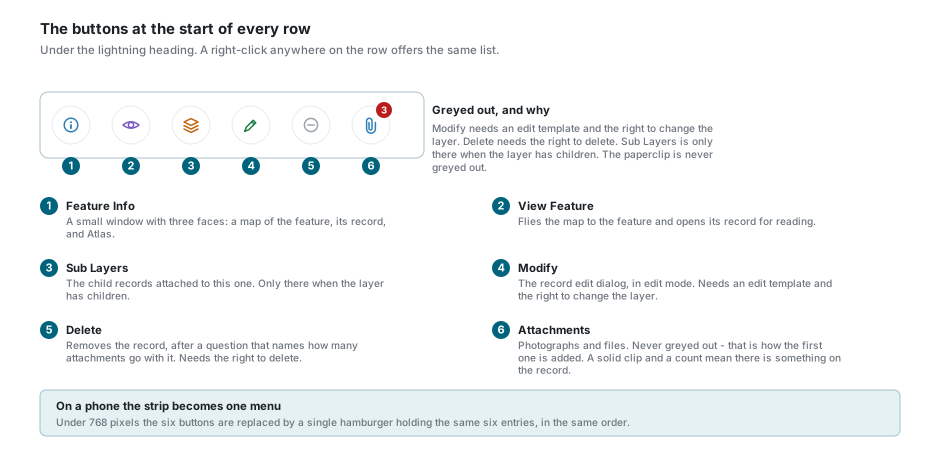
The first column of every row is a strip of buttons. It has no heading, it cannot be filtered, pinned or moved, and the arrow keys step straight over it - it holds buttons, not a value.
| Button | What it does |
|---|---|
| Feature Info | Opens a small window with three faces: a map of the feature, its record as a form, and Atlas. |
| View Feature | Flies the map to the feature and opens its record for reading. On a phone it collapses the panel first so you can see where it went. |
| Sub Layers | The child records attached to this one. Only there when the layer has children. A feature you open from one of its tabs closes, and comes off the map, when you switch tabs or pick another record in this table; with unsaved changes you are asked first. |
| Modify | The record edit dialog, in edit mode. Needs an edit template and the right to change the layer. |
| Delete | Removes the record. Needs the right to delete. |
| Attachments | Photographs and files. See Attachments. |
The paperclip is never greyed out, because adding the first file is how a record stops having none. It tells you what is there before you open it: a solid clip with a small count means the record has attachments, a plain outline means it has none. Until the counts have arrived it stays neutral rather than claiming there is nothing.
Right-click anywhere on a row for the same six entries as a menu. If you have text selected, the right-click gives you the browser's own menu instead, so you can still copy what you highlighted.
On a phone the strip is replaced by a single menu button holding the same six entries.
Selecting rows
Selection is done with the tick boxes, and only with the tick boxes. Clicking a row does not select it - a click moves the cell highlight, which is a different thing.
- Tick a box to select one record.
- Shift and a tick box selects everything between it and the last box you ticked.
- Space ticks the row the highlight is on.
- The box in the heading ticks or unticks every row on the current page.
A record with no geometry cannot be ticked at all. Its row is dimmed and its box refuses, because a selection is something the map has to be able to show.
The table and the map keep one selection between them. Selecting on the map fills the table, and the counter at the bottom counts the same features.
The scope toggles
Along the bottom of the panel, beside the page controls:
| Toggle | Shows |
|---|---|
| Visible | Only records inside the current map view. Pan or zoom and the set changes. |
| Selected | Only records currently selected on the map. |
| Ungeocoded | Only records with no geometry at all - useful for finding what still has to be placed. |
They do more than trim the table. They decide which records exist as far as everything else is concerned, so a funnel only ever offers values that are inside the scope you are in. See Column Filters.
Three behaviours that surprise people:
- Ungeocoded is exclusive. Switching it on switches Visible and Selected off, and switching either of those on switches Ungeocoded off. A record with no geometry cannot be in view or selected.
- Selecting on the map turns Selected on for you. Clearing the map selection turns it off again.
- Turning Selected on ticks every row on the page, ready for a copy, a paste or a delete.
The Search toggle beside them shows and hides the search row under the headings. Hiding it clears nothing.
Feature Info
The information button on a row opens a small window that flips between three faces. Buttons in its header take you from one to the next.
| Face | What is on it |
|---|---|
| Map | A small map of the feature's own geometry. A record with no geometry says so here. |
| Form | The record, laid out as a form. With an edit template and the right to change the layer, it edits and saves from here too. |
| Atlas | An account of the feature written for you. Only there where Atlas is switched on for your deployment and your role. |
This is not the same window as the popup a click on the map opens - that one belongs to the map and is described in Feature Selection.
Atlas
The Atlas face does nothing until you ask it to: press Analyze and it fetches a summary of the feature and what is around it. It reloads on request, says so plainly when the service is not configured, and shows the feature's own attributes underneath when the write-up cannot be produced. Some deployments also carry Atlas chat, where you can ask follow-up questions.
Moving around the table
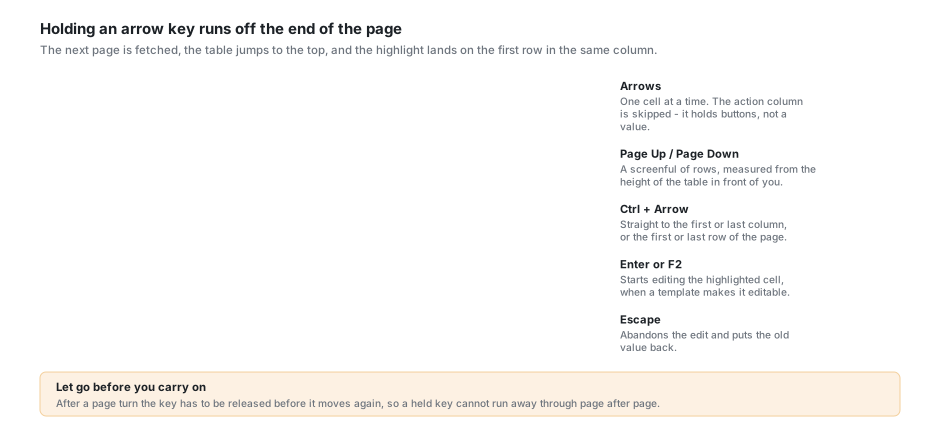
The table works like a spreadsheet. The highlight moves with the keyboard and always lands somewhere you can see.
| Key | What it does |
|---|---|
| Arrow keys | One cell in that direction. The action column is skipped. |
| Page Up / Page Down | A screenful of rows, measured from the height of the table in front of you. |
| Ctrl + Arrow | Straight to the first or last column, or the first or last row of the page. |
| Enter or F2 | Starts editing the highlighted cell, when a template makes it editable. |
| Escape | Abandons the edit and puts the old value back. |
| Alt + G / Alt + R | Copy and paste designated fields between records. See Copy and Paste. |
| Ctrl + C | Copies the highlighted cell to the clipboard. It is not the copy that Alt + R pastes. |
These are the keys you need at the table itself. The complete list, grouped by where each key works, is on Keyboard Shortcuts.
Crossing between pages
Press Down on the last row of a page and the next page is fetched, the table scrolls to the top, and the highlight lands on the first row in the same column. Press Up on the first row and the previous page arrives scrolled to the bottom, with the highlight on its last row. Page Up and Page Down spill over the same way.
After a page turn the key has to be released before it moves again, so a held arrow cannot run away through page after page while the pages are still arriving.
The paginator
The controls along the bottom are deliberately few: a back arrow, a page number you can type into, a forward arrow, the record range, and Refresh.
- There are no first and last page buttons. To jump, type the page number.
- There is no rows-per-page picker. The table asks for 25 records at a time.
- The range reads 1-25 of 1 234. On a very large layer the total can start as of about 1 234 while the exact count is still being worked out, and it corrects itself when the count arrives.
- The records on the first page arrive before their count, so the range can be missing for a moment and appears when the count is ready. If the count cannot be worked out, no range is shown; the forward arrow still works while a page is full.
- Refresh re-reads the page you are on and puts the highlight back where it was, if the row is still there.
Clicking forward or back behaves like the arrow keys: forward starts at the top on the first row, back starts at the bottom on the last row, and a jump of several pages always starts at the top.
Inline cell editing
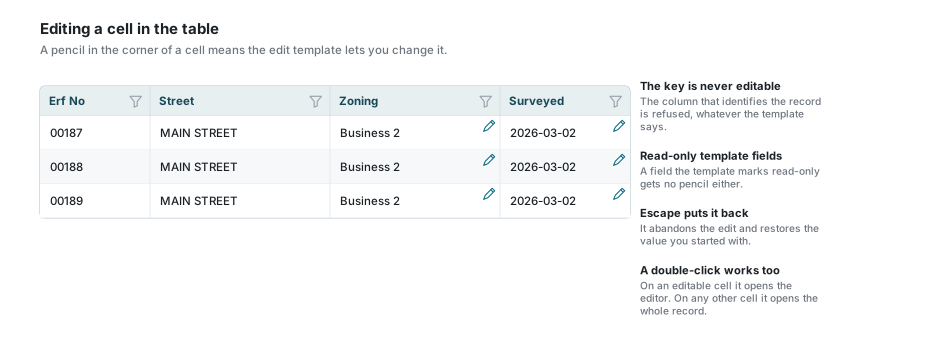
With an edit template chosen and the right to change the layer, editable cells carry a small pencil in the top corner. A cell with no pencil cannot be edited from the table.
Starting an edit
- Click the pencil.
- Or move the highlight to the cell and press Enter or F2.
- Or double-click the cell.
All three routes behave the same, including on a list field: the list opens itself, so the next click can be the value. Double-clicking a cell that is not editable opens the whole record instead.
The editors
The cell turns into whatever the field type calls for.
| Field type | Editor |
|---|---|
| Text, memo | Text box |
| Number, money | Number box |
| Date, timestamp | Date picker |
| Yes/No | Tick box |
| Colour | Colour picker |
| A list of values | Dropdown |
| Several values from a list | Multi-select |
| Photograph | Photograph upload |
| Password | Password box |
Two fields are refused whatever the template says: the column that identifies the record, and any field the template itself marks read-only.
Saving
The value is written when you click away or move to another cell. The pencil becomes a spinner while it goes, and comes back when it is done. Escape abandons the edit and restores the value you started with. Nothing is written if you did not actually change anything.
Copy and Paste
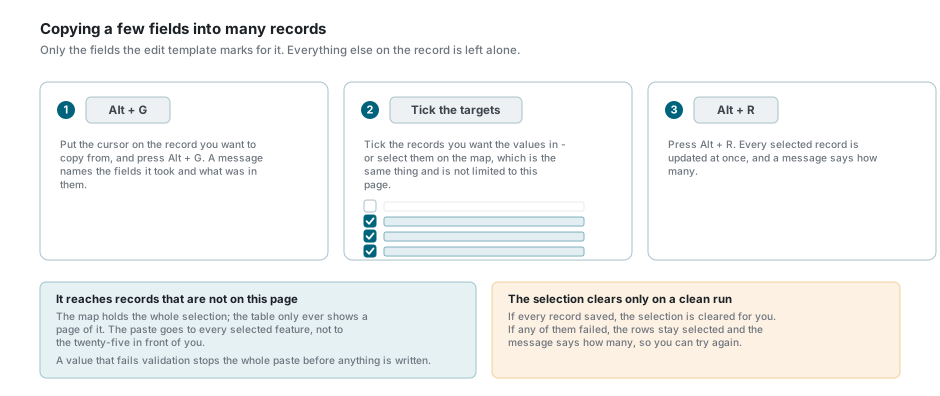
An edit template can mark some of its fields as copy and paste fields. That gives you a way to stamp the same few values onto many records without opening any of them.
- Put the cursor on the record you want to copy from and press Alt + G. A message names the fields it took and what was in them.
- Tick the records you want the values in, or select them on the map.
- Press Alt + R. Every selected record is updated, and a message says how many.
Worth knowing:
- It reaches records that are not on this page. The map holds the whole selection while the table only ever shows a page of it, and the paste goes to every selected feature.
- There is no undo. Every selected record is written at once, and nothing puts the old values back. Check what is selected before you press Alt + R.
- A value that fails validation stops the whole paste before anything is written, and tells you which field.
- The selection is only cleared on a clean run. If any record failed, the rows stay ticked and the message says how many, so you can try again.
- The keys are ignored while you are typing in a box or working in a menu, so they never fire by accident.
Adding and deleting records
The plus at the bottom left opens a blank record. It picks the layer's default template for new records if there is one, and otherwise opens with every field you are allowed to set. It needs permission to add.
Delete on a row asks first, and the question names how many attachments will go with the record, so a delete never quietly takes photographs with it. Select more than one record and a second, red button appears beside the plus that deletes all of them at once.
A delete is not undoable
The record and its attachments are gone. If you are clearing up rather than deleting on purpose, the Ungeocoded toggle is usually the safer way to find what you were looking for.
Record Edit Dialog
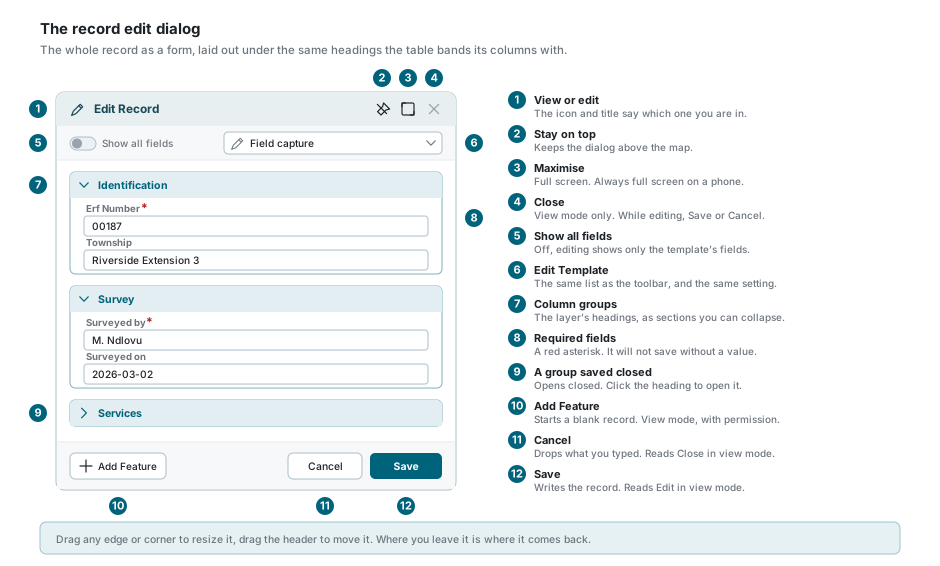
Modify on a row, the pencil in the map popup, or a double-click on a row that is not on an editable cell all open the same dialog: the record as a full form.
- Fields are laid out under the layer's column groups - the same headings the table bands its columns with - as sections you can collapse, nested where the groups nest. A group an administrator saved closed opens closed.
- A field holding a long value - a memo, a consent text, a paragraph of notes - takes the full width of the form instead of half of it, so the short field that would have sat beside it keeps its own height. The form decides by the saved value, so a field you are typing into stays where it is until you save.
- A required field carries a red asterisk. The record will not save until each one has a value.
- Show all fields is the switch that matters most. Off, editing shows only the fields the template covers. On, it shows the rest as well, so you can read them while you work.
- The Edit Template list is repeated here, and it is the same setting as the toolbar's - change it in one place and the other follows.
- The pin in the header keeps the dialog above the map while you work on it. Drag the header to move it, drag any edge or corner to resize it, and it comes back where you left it. It never opens past the edge of the browser window: if the window is smaller than when you left it, the dialog is moved in, or made smaller, to fit.
In view mode the buttons read Close and Edit, with Add Feature on the left when you may add records. In edit mode they read Cancel and Save.
No way out but Save or Cancel
While you are editing, the dialog has no close cross and Escape does nothing. That is deliberate - it is what stops a stray key throwing away a form you have filled in. Use Cancel.
If something looks wrong
| What you see | What it means |
|---|---|
| The panel says no active layer is selected | Nothing is active. Pick a layer in the Layers panel and make it active. |
| No pencils anywhere, and Modify is grey | No edit template is chosen, or you do not have the right to change the layer. |
| The pencil is missing on one column only | The template does not cover that field, marks it read-only, or it is the column that identifies the record. |
| A row is dimmed and its tick box will not tick | The record has no geometry. Find it with the Ungeocoded toggle. |
| Clicking a row does not select it | Selection is the tick boxes. A click only moves the cell highlight. |
| The table is empty but you expected records | Check Visible, Selected and Ungeocoded, then Filter By, then the column filters. They all narrow the table at once. |
| Searching finds nothing you can see on screen | The toolbar box searches the field named on its label, not every column. Use that column's own box in the search row. |
| Sort By has only No Index in it | No sort orders have been set up for this layer. An administrator adds them. |
| The table re-ordered itself when you chose a template | That template names a sort order of its own. Choose a different order in Sort By and your choice sticks. |
| A column will not pin | It sits under a heading band, or the pinned columns already take up half the panel. |
| Column headings will not drag | The layer has forty columns or more, and reordering is switched off on a table that wide. |
| The total reads of about | The exact count is still being worked out on a large layer. It corrects itself. |
| There is no range beside the arrows | The count is still being worked out, or could not be. The records shown are correct, and the forward arrow works while a page is full. |
| A held arrow key stops at the end of a page | Let the key go and press it again. The pause is there so the pages can keep up. |
| Alt + G or Alt + R does nothing | The template has no copy and paste fields, nothing is selected, or the cursor is in a box. |
| Escape will not close the record dialog | You are in edit mode. Press Cancel, or Save. |
See also
- Column Filters - the funnels, the search row and the advanced filter
- Feature Selection - where the table's selection comes from
- Editing Records & Spatial Data - the whole editing story, including geometry
- Keyboard Shortcuts - every key, grouped by where it works
- Attachments - what the paperclip opens
- Layer Control - setting the active layer the table follows