
Appearance
Column Filters
The Data Table can show hundreds of thousands of records. Column filters are how you get from all of them to the handful you actually came for - without writing a query, and without leaving the table.
There are two ways to ask, and they are two views of the same thing:
- the search row, a box under every column heading, for a quick "show me the ones that say MAIN";
- the funnel on the heading, which opens the full column menu - a tick list of the column's real values, and a list of the questions that kind of column can be asked.
Whatever you set in one shows up in the other. They are never two separate filters fighting each other.
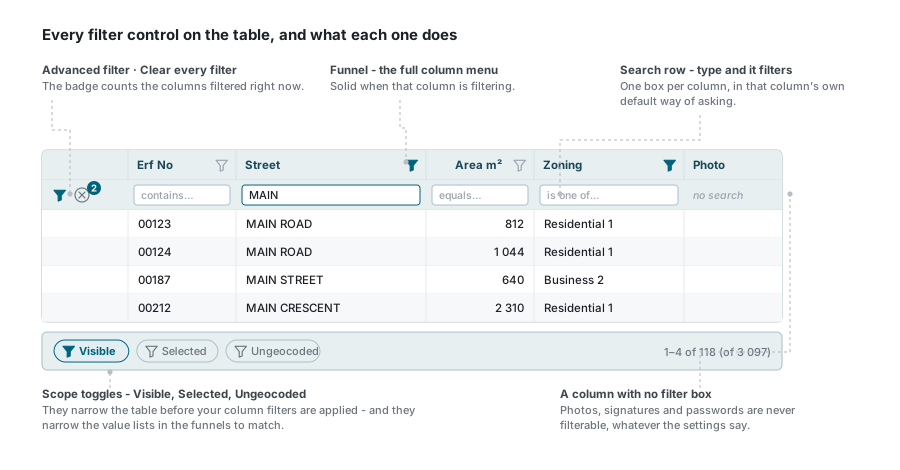
Where they live
The search row sits directly under the column headings. If you cannot see it, turn it back on with the Search button in the paginator bar at the bottom of the table. The funnels are always on the headings.
The search row
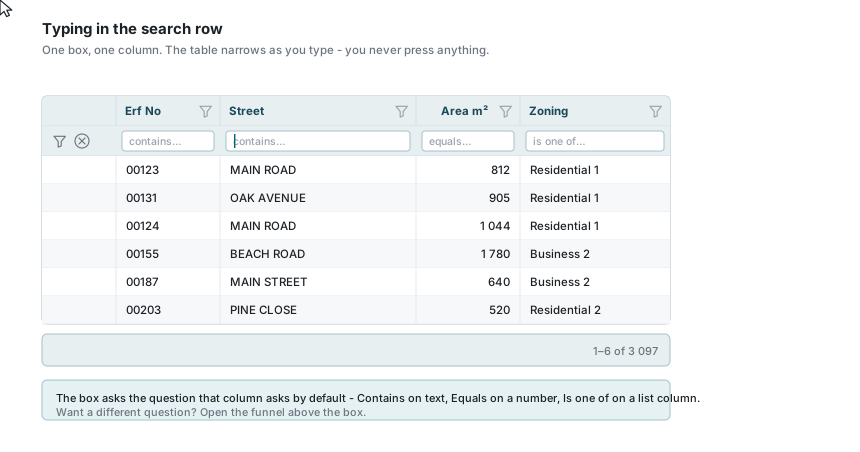
Click a box, type, and stop. You do not press Enter and there is no Apply button - the table refreshes about half a second after you stop typing. Clear the box and the column stops filtering.
Each box asks the question that fits its column, and the faint grey text in the empty box tells you which one:
| The box says | It will | Typical columns |
|---|---|---|
| contains… | find your text anywhere in the value | Street name, description, notes |
| equals… | match the exact number you type | area, length, value, GPS readings |
| is… | open a small calendar and match that day | captured, surveyed, last modified |
| is one of… | let you tick values from a list | zoning, status, any column with a short list of answers |
| no search | nothing - this column cannot be filtered | photos, signatures, passwords |
Text matching ignores capitals: main, Main and MAIN all find the same rows.
"value filter" in a box
If a box shows value filter and will not accept typing, it means you ticked values in that column's funnel. The two cannot be combined in one box - clear the funnel's filter and the box comes back to life.
Turning the row off
The Search toggle in the paginator bar hides the whole row when you would rather have the extra height for records. Hiding it does not clear anything you set - the funnels stay solid and the badge keeps counting. The advanced-filter and clear-all buttons move up into the toolbar so you can still reach them.
The funnel: the column menu
Click the funnel on any column heading and the column's own menu opens.
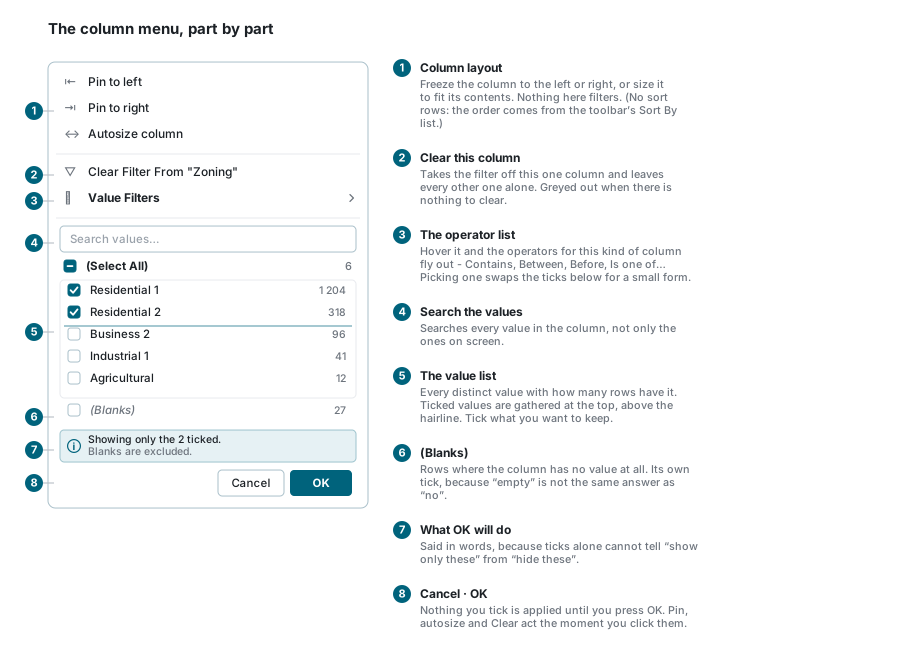
| Part | What it does |
|---|---|
| Pin to left / Pin to right | Freezes the column so it stays in view while you scroll sideways. Not offered for a column that sits inside a heading band. |
| Autosize column | Sizes the column to fit what is in it. |
| Clear Filter From "…" | Takes the filter off this one column and leaves every other one alone. Greyed out when there is nothing to clear. |
<Type> Filters ▸ | Hover it and the operators for this kind of column fly out. See Asking a different question. |
| Search values… | Searches the column's values. It looks at every record in the table, not only the ones on this page of the list. |
| The tick list | Every distinct value in the column, with how many records have it. |
| (Blanks) | Records where this column has no value at all. |
| The summary line | What pressing OK will actually do, said in words. |
| Cancel / OK | Nothing you tick is applied until you press OK. |
No sort here
There are no Sort A → Z rows in this menu. On the Data Table the order comes from the Sort By list in the toolbar, which is described in Data Table.
Ticking values
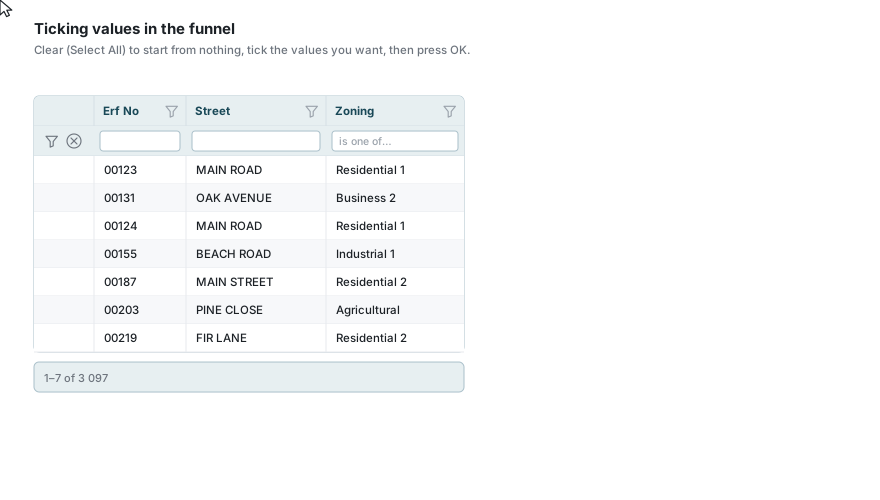
The list opens with everything ticked, because "everything ticked" is this menu's way of saying no filter on this column.
The usual way to work is:
- Click (Select All) once to clear the lot.
- Tick the values you want to keep.
- Press OK.
You can also work the other way round - leave everything ticked and untick the two values you want rid of. The summary line at the bottom tells you which of the two you are doing:
| The summary says | Meaning |
|---|---|
| Showing every value - no filter on this column. | Nothing is filtered here. |
| Showing only the 3 ticked. | Only records with one of those three values. |
| Showing everything except the 2 unticked. | Everything but those two. |
| Showing only the rows where this column is blank. | Only the empty ones. |
| Blanks are included / excluded. | Whether empty values come along. |
| Values the search hides are not included. | You searched inside the list, so the values the search is hiding are not part of what you are keeping. |
Read that line before pressing OK. On a long list, "keep these three" and "drop these three" look almost identical in ticks and are very different filters.
The values you ticked move to the top
Ticked values are gathered at the top of the list, above a thin line. That order is fixed when the list loads and does not reshuffle while you click, so a value never jumps out from under the pointer.
Counts
The number on the right of each value is how many records have it, within what the table is currently showing - not how many exist in the layer. Turn a scope toggle on or filter another column and the counts move to match.
If the column is too big to count in reasonable time you will see Counts unavailable instead. The values are still correct; only the numbers are missing.
Long lists
A column with thousands of distinct values cannot show them all at once:
- a small pager appears under the list - every value is reachable by stepping through the pages;
- a note tells you how many distinct values exist in total;
- the Search values… box searches the whole column, so you can jump straight to what you want instead of paging.
Some very large columns take a while. The menu will say Loading… and keep loading rather than refuse - a list that takes a long time is worth knowing about, and your administrator can add an index for that column.
Very occasionally you will see Too many different values to list. Use a filter rule below instead. That is not an empty column - it means this particular column cannot be enumerated, and you should use the operator list instead. It is a different message from No items match your search, which means exactly what it says.
(Blanks)
Empty values get their own tick, separate from every real value. That matters more than it sounds: on a Yes/No column, a record where nobody answered is not a record that answered no, and only the (Blanks) tick can tell them apart.
One combination the tick list cannot hold
"None of these values, but keep the blanks" is the one shape a single column's filter cannot express. If you ask for it, a message tells you so and the filter is not applied - rather than quietly giving you more records than you asked for. Untick (Blanks), or build the same idea in the operator list.
Asking a different question
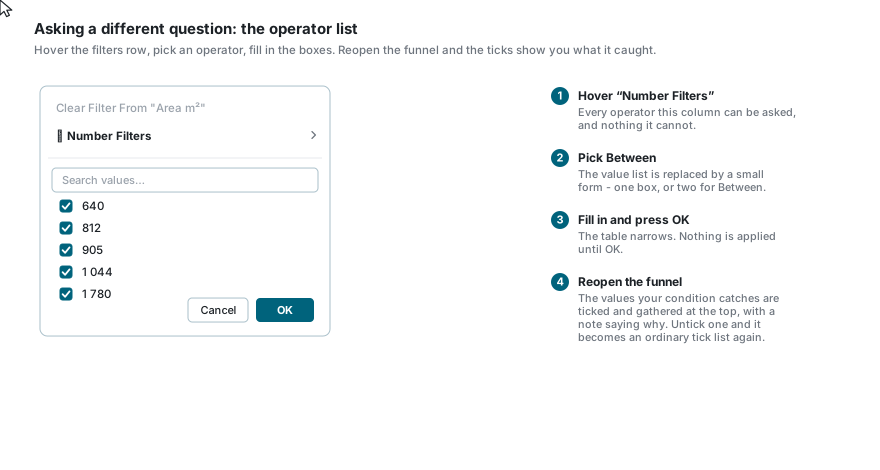
Ticking values is fine when the column has a handful of answers. For bigger than, before, between and friends, hover the <Type> Filters row and pick from the flyout.
Picking an operator swaps the tick list for a small form:
- most operators take one box;
- Between takes two, and includes both ends;
- Is empty and Is not empty take none - just press OK;
- Add Rule adds a second condition on the same column (up to four), with Match All / Match Any to say whether a record must satisfy all of them or any one.
Back to values returns you to the tick list without losing anything.
Reopening a column you filtered with a condition
Open the funnel again on a column filtered by, say, Between 800 and 1 100, and the tick list shows you what that condition is catching: the matching values are ticked and gathered at the top, with a note reading Ticked to match Between 800 and 1 100.
The ticks are a picture of the condition, not a selection somebody made. The moment you click one, it becomes an ordinary tick list and the condition is replaced by what you ticked.
What each kind of column lets you ask
The operators on offer come from the field type, not from the column's name or from what happens to be in it. That is why a reference number stored as text offers Starts with while a measurement offers Greater than.
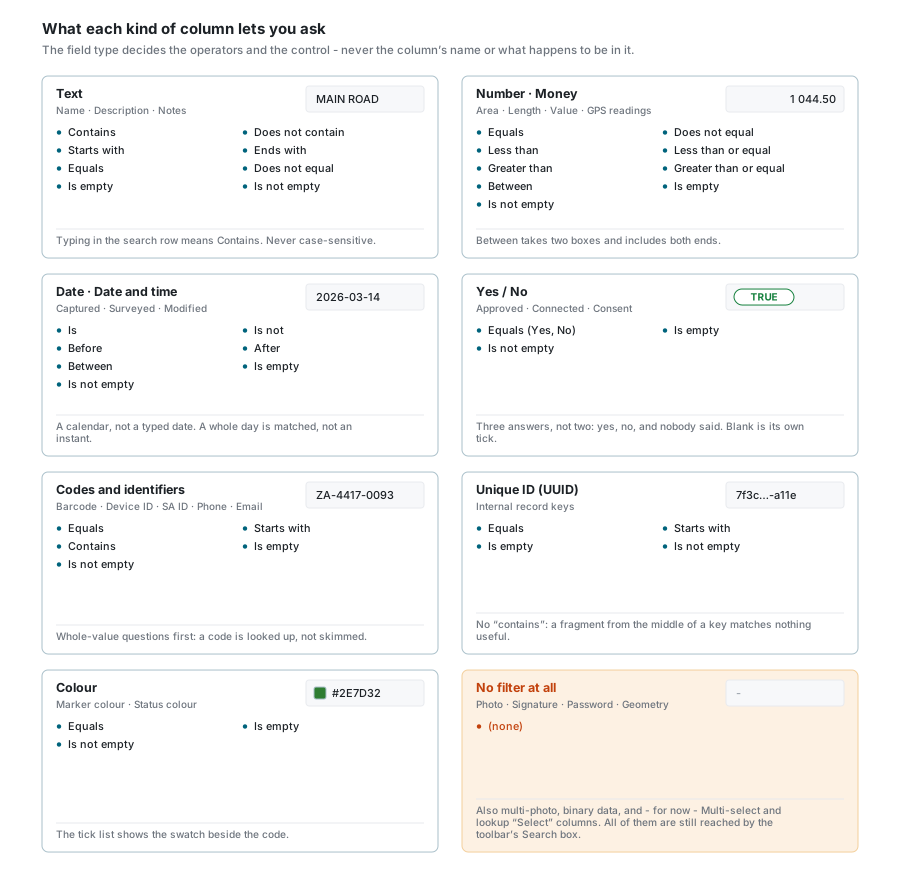
A few consequences worth knowing:
- Number-like text keeps its leading zeros. A code such as
007is text, so it gets text operators and sorts as text. It is not turned into7. - Codes ask whole-value questions first - Equals, then Starts with. A barcode or an ID number is looked up, not skimmed.
- A unique ID has no contains. A fragment from the middle of a key matches nothing useful.
- Dates match a whole day, not an instant, so Is 14 March finds everything captured that day.
- A lookup column offers its list. The box under the heading is a dropdown of the lookup's values, and the funnel's tick list shows every value on the list by name, with how many rows hold each, rather than the code stored in the column.
- Some columns can never be filtered, whatever the settings say: photos, multi-photos, signatures, passwords, geometry and raw binary data. Multi-select columns are not in the column filters yet either - they are still reached through the toolbar's Search box.
A column with no funnel and no box
Your administrator marks each field as searchable or not. A field that has not been marked searchable gets no filter box and no funnel - it is a settings decision, not a fault. If a column you need cannot be filtered, ask your administrator to make that field searchable.
Filters add up
Nothing you set replaces anything else. A record has to satisfy all of it at once to appear in the table.
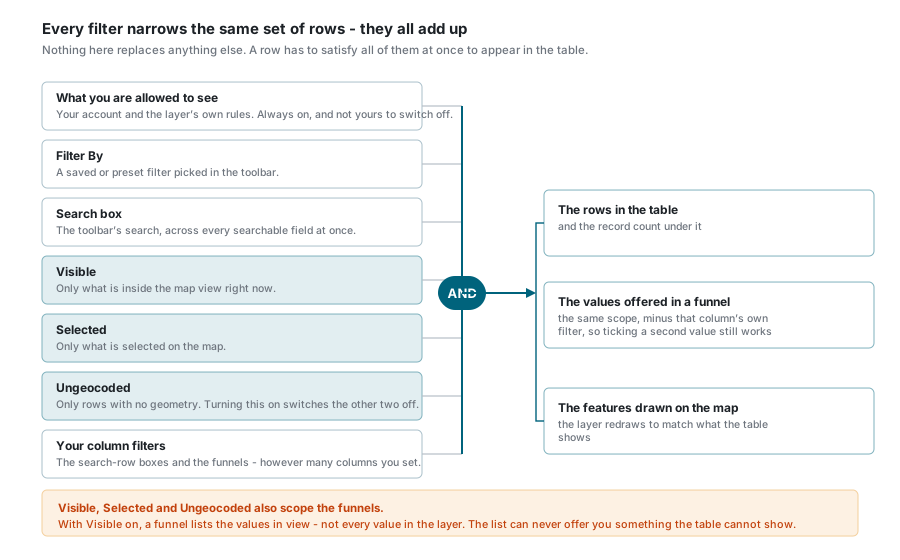
That includes:
- what your account and the layer's own rules allow you to see - always on;
- the Filter By preset or saved filter in the toolbar;
- the toolbar's Search box, which looks only at the layer's caption field;
- the Visible, Selected and Ungeocoded toggles;
- every column filter you have set, however many columns.
The map keeps up too: the layer redraws to show the same features the table is showing.
Filtering within Visible and Selected
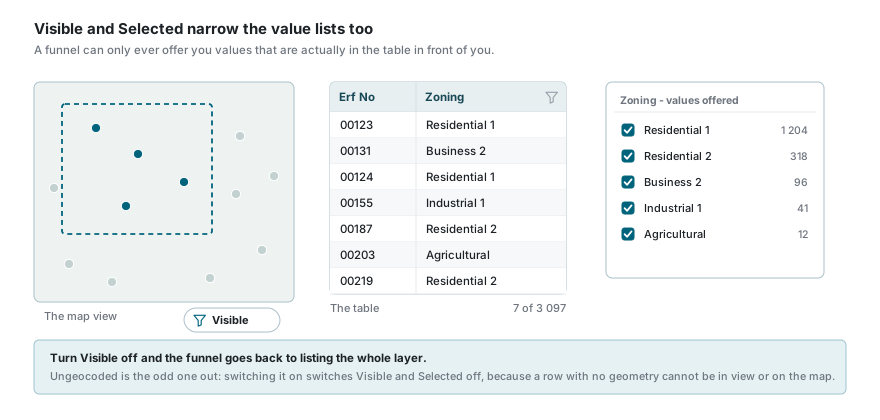
The three toggles in the paginator bar decide which records exist as far as the rest of the filtering is concerned:
| Toggle | Shows |
|---|---|
| Visible | Only records inside the current map view. Pan or zoom and the set changes. |
| Selected | Only records currently selected on the map. |
| Ungeocoded | Only records with no geometry at all - useful for finding what still needs to be placed. |
Ungeocoded is exclusive: switching it on switches Visible and Selected off, because a record with no geometry cannot be in view or selected on the map.
The important part is that these also narrow the funnels. With Visible on, a funnel lists the zonings that exist inside the map view - not every zoning in the layer - and the counts beside them are counts within the view. A value list can never offer you something the table in front of you cannot show.
Turn the toggle off and the list goes back to the whole layer.
The one thing a funnel does not narrow itself by
A funnel ignores its own column's filter when it builds its list. If it did not, ticking one zoning would leave you looking at a list of exactly one zoning, with no way to add a second. Every other column's filter still applies.
Working across several columns
Set as many columns as you like; they combine. The badge on the leading cell of the search row counts how many columns are filtering right now.
- Clear one column: empty its box, or use Clear Filter From "…" in its menu.
- Clear everything: the ⊗ button beside the badge. It drops every column filter, the advanced expression and the saved-filter selection in one go.
- Advanced filter: the funnel button beside it opens the full expression editor, where you can combine conditions across columns with AND and OR. Whatever you build there comes back into the boxes and funnels, and whatever you set in the boxes and funnels is there when you open it. It is one filter seen two ways. This button appears only if your administrator has granted advanced filtering on the layer.
They do not follow you to the next layer
Column filters last for as long as you stay on the layer. Switch the active layer and they are cleared, so you always start a new layer with everything in front of you. Filter By, Sort By and Edit Template behave differently - those are remembered per layer.
If something looks wrong
| What you see | What it usually means |
|---|---|
| No boxes and no funnels anywhere | None of the layer's fields have been marked searchable. Ask your administrator. |
| A box says no search | That field type can never be filtered (photo, signature, password, geometry, binary). |
| A box says value filter and will not type | The column carries a tick-list filter. Clear it from the funnel first. |
| The menu says Loading… for a long time | A very large column with no index for this purpose. It will finish; mention the column to your administrator. |
| Too many different values to list | The column cannot be enumerated. Use the operator list instead. |
| No items match your search | Your search inside the value list found nothing. Clear the search box. |
| Filter not applied appears as a message | Either no values were ticked, or you asked for "none of these but keep the blanks", which one column cannot express. |
| The table is empty but you expected rows | Check the Visible, Selected and Ungeocoded toggles and the Filter By dropdown - they narrow the table before your column filters do. |
| The counts look too small | They are counts within what the table is showing, so a scope toggle or another column's filter is in force. |
See also
- Data Table - the rest of the table: toolbar, columns, row actions, editing
- Searching - the toolbar search box and map search
- Feature Selection - how the Selected toggle gets its records
- Workspaces - saving the layers and settings you work with