
Appearance
Sign In
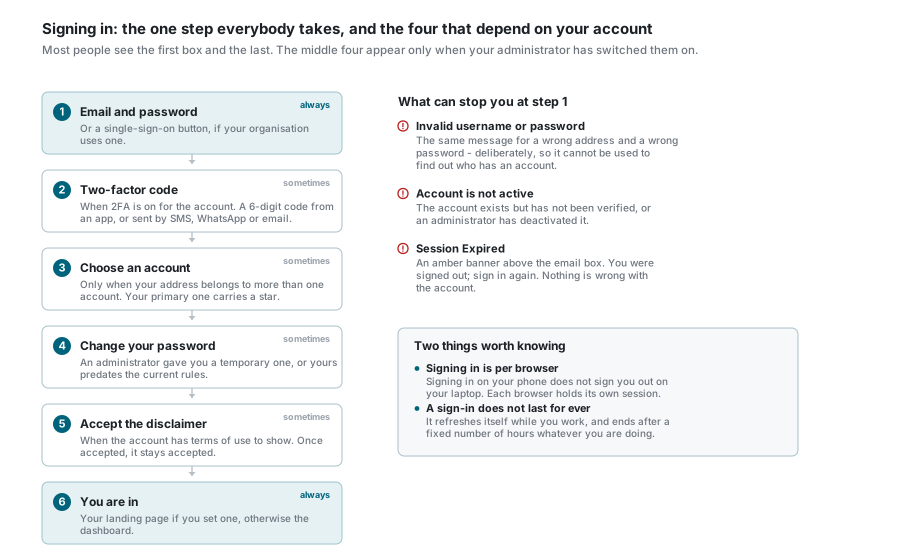
Go to the address your administrator gave you, type your email and password, and press Sign In. That is the whole thing for most people.
Between the form and the map there are four more steps that may or may not appear, depending entirely on how your deployment is set up. None of them are things you switch on yourself.
The sign-in card
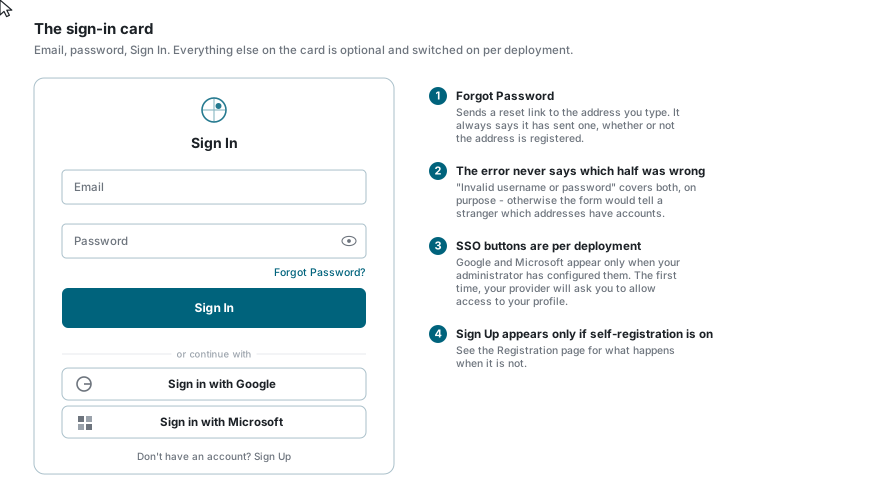
- Type your Email. This is the address your account was created with.
- Type your Password. The eye icon at the end of the box reveals what you have typed.
- Press Sign In.
Three things can come back at you:
| Message | What it means |
|---|---|
| Invalid username or password | Either the address or the password is wrong. It deliberately does not say which - otherwise anyone could use the form to find out whose addresses have accounts. |
| Account is not active | The account exists but is not usable yet: you have not clicked the verification link from Registration, or an administrator has deactivated it. |
| Session Expired (amber banner) | Nothing is wrong. You were signed out - see How long a sign-in lasts - and the banner waits there to tell you why. |
Forgot Password
The link under the password box sends a reset link to whatever address you type. It always says a link has been sent, whether or not that address has an account - for the same reason the error message above is vague. See Forgot Password.
Single sign-on
No Google or Microsoft buttons?
Single sign-on is a setting your administrator controls, and it is off unless they have configured it. When it is off, the buttons under the sign-in form are simply not there, and email and password is the only way in. Which providers appear is also their choice - a deployment can offer Google, Microsoft, both, or neither.
If the buttons are there, click the one for your organisation and follow the prompts from Google or Microsoft. The first time, they will ask you to allow the application to see your profile - that is the provider asking, not us.
Signing in this way still lands you in the same place, and the optional steps below still apply.
Two-factor verification
Never asked for a code?
Two-factor authentication is switched on per account by your administrator, and it is off by default. If your account does not use it you will go straight from the password to the app, and nothing on this page applies to you. You cannot turn it on for yourself.
When it is on, the password is followed by a second card asking for a six-digit code.
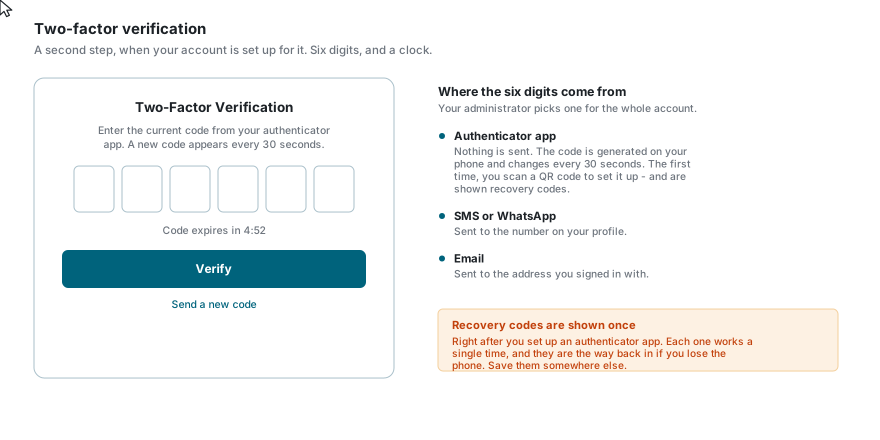
Where the code comes from is also your administrator's choice, and it is the same for everyone on the account:
| Delivery | What happens |
|---|---|
| Authenticator app | Nothing is sent to you. The code is generated on your phone by an app such as Google Authenticator, Microsoft Authenticator or Authy, and changes every 30 seconds. |
| SMS or WhatsApp | Sent to the mobile number on your profile. If there is no number there, sign-in cannot complete - ask your administrator to add one. |
| Sent to the address you just signed in with. |
- The code expires, and the card counts down. When it runs out it says This code has expired. Request a new one.
- Send a new code re-sends it, after a short cooldown, a limited number of times.
- Too many wrong codes and the attempt is stopped. Start again from the sign-in page.
The first time, with an authenticator app
If your account uses an authenticator app and you have not set one up yet, the card shows a QR code instead. Scan it with the app (or type the key underneath it by hand), then enter the six digits the app shows.
Recovery codes are shown once, and only once
Straight after setting up the app you are given a short list of recovery codes. Each one signs you in a single time, and they are the only way back into your account if you lose the phone. Copy them somewhere safe before closing that dialog - they cannot be shown again.
Choosing an account
Only when your address belongs to more than one account
Most people go straight past this. It appears when the same email address has been added to several accounts - for instance if you work across two departments.
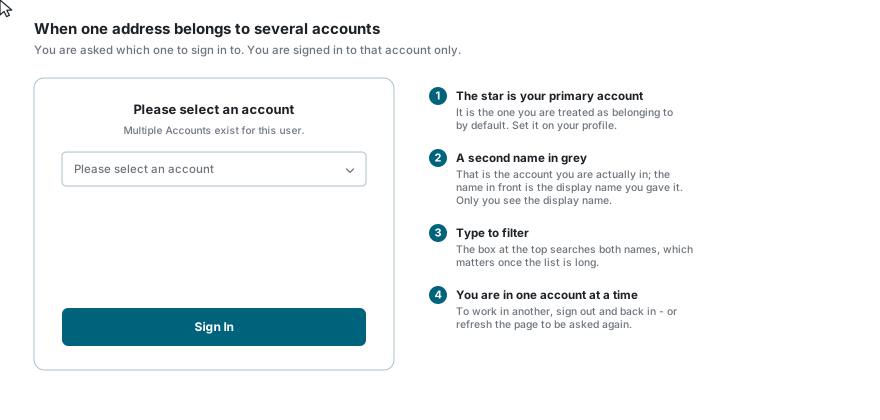
- Your primary account carries a star. Set which one that is on your profile.
- A name in grey beside an account is the real account name; the one in front is a display name you gave it, and only you see it.
- Type in the box at the top of the list to filter it, which matters once the list is long.
- You are signed in to one account at a time. To work in another, sign out and back in, or reload the page to be asked again.
Steps that can appear once
Change your password. If an administrator created your account with a temporary password, you are asked to replace it before going any further. The new one must meet the password rules in full - twelve characters, a letter, a number and a symbol.
We upgraded our security. If your password predates the current rules, sign-in stops and a dialog explains that a reset link has been emailed to you. Follow it, choose a new password, and sign in again. This happens once.
Accept the disclaimer. Some accounts show terms of use after signing in. Read it and press to acknowledge; tick the box if you would rather not be shown it again.
Where you land
Once you are through, you go to whichever of these applies first:
- Your landing page, if you have set one. Click the star on any tile in the dashboard to make it your landing page.
- The dashboard, showing the applications you have access to.
- Straight into an application, if the dashboard would only have shown one tile.
How long a sign-in lasts
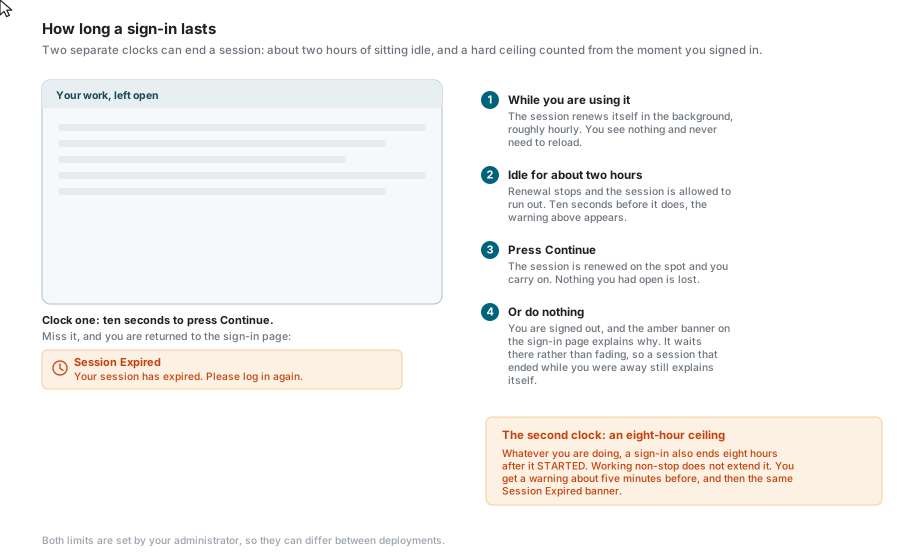
While you are actually using the application, nothing happens. The session renews itself in the background about once an hour. You will not see it and it never needs a page reload.
Leave it alone for about two hours and it starts running out. Ten seconds before it does, a warning appears over whatever you had open:
Session Expiring SoonYour session is about to expire. Select Continue to keep your session alive.
- Press Continue and the session is renewed on the spot. Nothing you had open is lost and you carry straight on.
- Do nothing for those ten seconds and you are signed out, and returned to the sign-in page with an amber Session Expired banner above the email box. The banner waits there rather than fading, so a session that ended while you were away from your desk still explains itself when you come back.
Continue keeps the session, not your work
Pressing Continue does not save anything. If you were part-way through editing a record when you walked away, save it - session expiry never saves work in progress.
The second clock: an eight-hour ceiling
The idle timeout is not the only thing that can end a session. A sign-in also ends eight hours after it started, counted from the moment you signed in and regardless of how busy you have been in between. Working non-stop does not extend it.
- You get a warning about five minutes before this one, not ten seconds.
- There is no Continue to press. When it runs out you are signed out and land on the same Session Expired banner.
- Sign in again and a fresh eight hours starts.
Side by side:
| Idle timeout | Eight-hour ceiling | |
|---|---|---|
| Counted from | the last thing you did | the moment you signed in |
| Typical length | about 2 hours of doing nothing | 8 hours, whatever you are doing |
| Warning | 10 seconds, with a Continue button | about 5 minutes, no button |
| Can you extend it? | Yes - press Continue, or simply carry on working | No |
| How often you meet it | Often - a long meeting, lunch, overnight | Only on a full day in one browser tab |
Both lengths are set by your administrator, so they can differ between deployments.
Signing in elsewhere
Each browser holds its own sign-in. Signing in on your phone does not sign you out on your laptop, and signing out of one does not sign out the other.
If you think somebody else has your password, change it from your profile - and tell your administrator, who can end every one of your sessions at once.
If something goes wrong
| What you see | What to do |
|---|---|
| Invalid username or password | Check the address for typos, then try Forgot Password. |
| Account is not active | You have not clicked the verification link from Registration, or the account was deactivated. |
| No Sign Up link | Self-registration is off. See Registration. |
| No Google or Microsoft buttons | SSO is not configured for this deployment. Use email and password. |
| The two-factor code never arrives | For SMS or WhatsApp, check the number on your profile; for email, check junk. Use Send a new code, and if it still does not arrive, tell your administrator. |
| Your authenticator app is on a lost phone | Use one of your recovery codes. If you did not save them, your administrator has to reset the second factor for you. |
| This code has expired | Press Send a new code, or read the current one from your app. |
| Signed out while still working | You most likely missed the ten-second Session Expiring Soon warning while away from the screen. If you really were working the whole time, you reached the eight-hour ceiling. Neither is a fault. |
| Signed in, but the dashboard is empty | The account works but has no applications granted to it yet. Ask your administrator. |
See also
- Registration - creating an account in the first place
- Forgot Password - resetting a password you cannot remember
- Profile Settings - your primary account, password and details
- Dashboard - choosing a landing page