
Appearance
Registration
If your organisation allows self-registration, you can create your own account from the sign-in page. It takes two sittings: fill in the form, then open your email and click the link. The account does not work until you have done the second part.
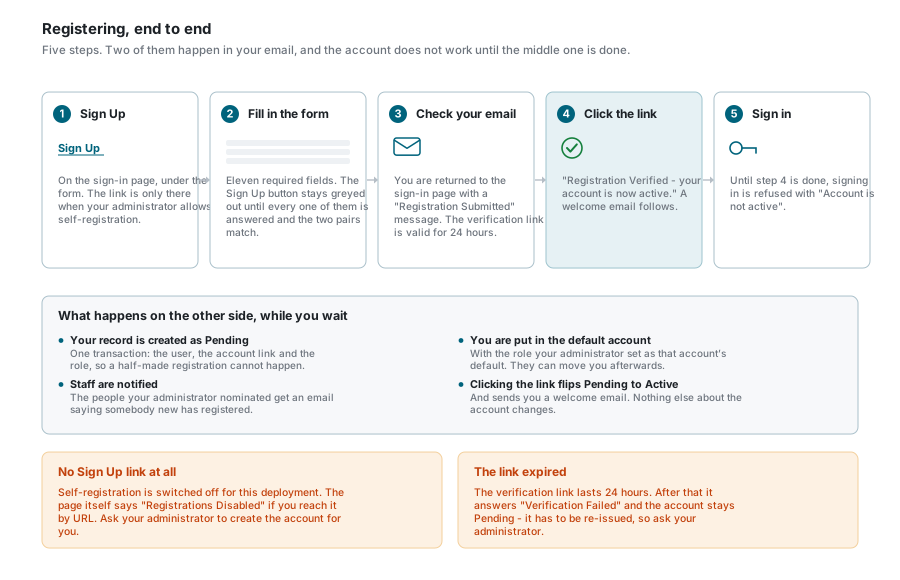
No Sign Up link?
Self-registration is a setting your administrator controls. When it is switched off, the link under the sign-in form is simply not there, and the registration page itself says Registrations Disabled if you reach it by typing the address. Ask your administrator to create the account for you.
Filling in the form
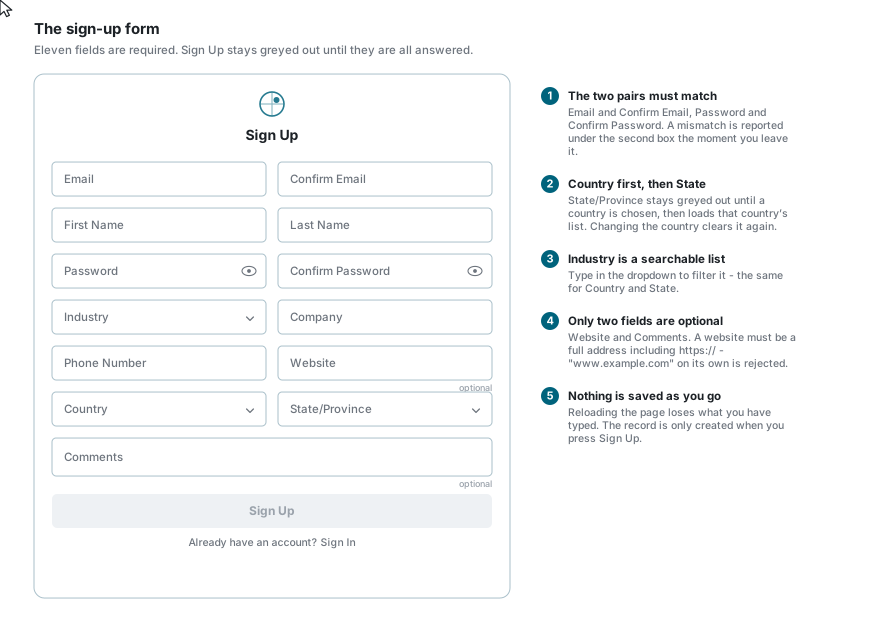
Click Sign Up under the sign-in form. Everything marked with an asterisk is required, and the Sign Up button stays greyed out until all of it is answered:
| Field | Required | What to know |
|---|---|---|
| Yes | This becomes your username. Must be a real address - the verification link goes there | |
| Confirm Email | Yes | Must match exactly |
| First Name | Yes | |
| Last Name | Yes | |
| Password | Yes | At least 12 characters - see below |
| Confirm Password | Yes | Must match exactly |
| Industry | Yes | A searchable list. Start typing to filter it |
| Company | Yes | Your organisation's name |
| Phone Number | Yes | 7 to 20 characters. Digits, spaces, +, - and brackets are all accepted |
| Website | No | Must be a full address including https:// if you fill it in |
| Country | Yes | A searchable list |
| State / Province | Yes | Greyed out until you pick a country, then loads that country's list |
| Comments | No | Anything you want the administrator to know |
A few things that catch people out:
- Country before State. State/Province cannot be opened until a country is chosen, and changing the country afterwards clears it again.
www.example.comis rejected as a website. It has to behttps://www.example.com.- Nothing is saved as you go. Reloading the page loses what you have typed - the record is only created when you press Sign Up.
- An address that already exists is refused, and capitals make no difference: if
Jane@example.comis registered,jane@example.comis the same person as far as the check is concerned.
Terms and privacy notice
If the site asks for it, a tick-box for each document you must accept sits above the Sign Up button, such as its terms of service or its privacy notice, each with a link that opens the document in a new tab. Every box must be ticked before the button comes to life, and your acceptance is recorded with the version and the date. Anyone whose account was created by an administrator, or who signs in with Google or Microsoft, is asked to accept the same documents the first time they sign in, and everyone is asked again when one of them changes in a way that matters. Every document shows its version and the date it applies from, and earlier versions stay readable from the foot of its page.
The password
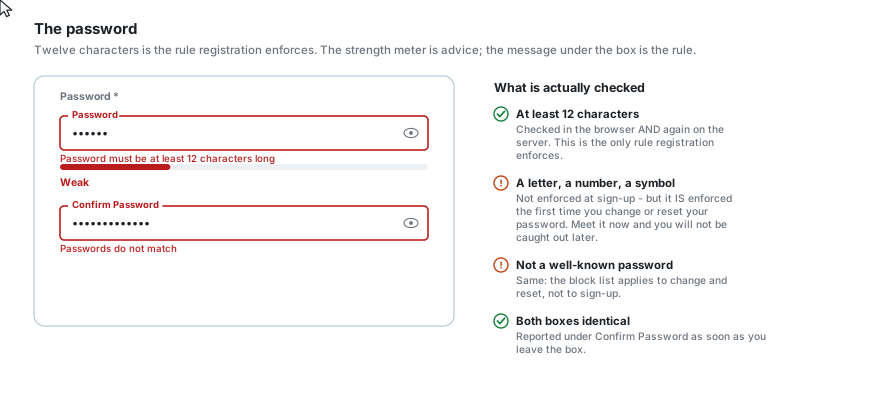
Registration enforces one rule: at least 12 characters. The coloured strength meter under the box is guidance, not a gate - a long password of only letters will be accepted at sign-up.
It is still worth including a letter, a number and a symbol now, because the full policy applies the first time you change or reset your password:
| Rule | At sign-up | When changing or resetting |
|---|---|---|
| At least 12 characters | Required | Required |
| At least one letter | - | Required |
| At least one number | - | Required |
At least one symbol (!@#$%^&* …) | - | Required |
| Not a well-known password | - | Required |
Both password boxes must be identical; a mismatch is reported under the second one as soon as you leave it.
Verifying your email
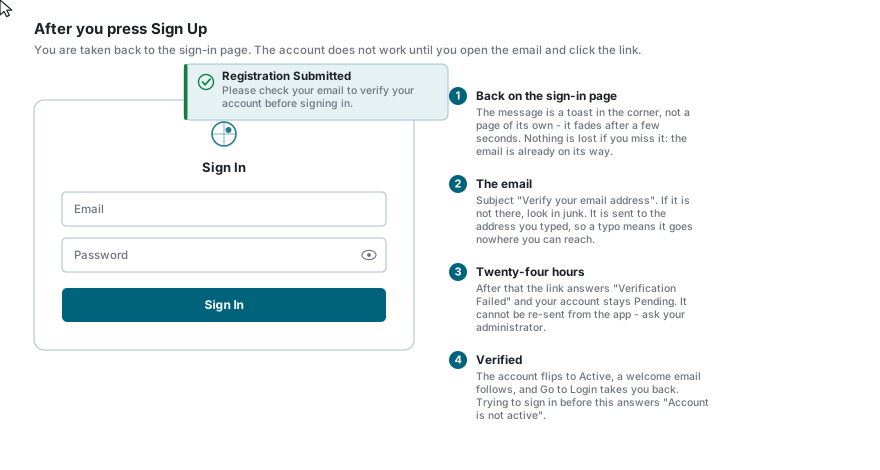
When the form is accepted you are taken back to the sign-in page, and a short message appears in the corner:
Registration SubmittedPlease check your email to verify your account before signing in.
It fades after a few seconds. Nothing is lost if you miss it - the email is already on its way.
Open your inbox (check junk and spam too) and look for Verify your email address. Click the Verify Email button in it. A page opens saying "Verifying your account" for a moment, then:
Registration VerifiedYour account is now active. You can sign in.
Click Go to Login and sign in with the email address and password you chose. A short welcome email follows.
The link is good for 24 hours
After that it answers Verification Failed and your account stays unverified. The app has no way to send you a new link, so you will need your administrator to help. Verify as soon as the email arrives.
What happens while you wait
You do not have to do anything with this, but it explains a few things you might notice:
- Your record is created straight away, marked Pending. The user, the link to an account and your role are all written in one go, so a half-made registration cannot happen.
- You are placed in the deployment's default account, with whatever role your administrator set as that account's default. They can move you to a different account or role afterwards.
- Staff are notified. The people your administrator nominated get an email telling them somebody new has registered.
- Clicking the verification link flips Pending to Active. That is the only thing it changes.
If something goes wrong
| What you see | What it means |
|---|---|
| No Sign Up link on the sign-in page | Self-registration is switched off. Ask your administrator for an account. |
| Registrations Disabled on the sign-up page | The same thing, seen from the page itself. |
| This email address is already registered | An account already exists for that address. Try Forgot Password instead. |
| Password must be at least 12 characters long | Exactly that. Length is the only rule at sign-up. |
| Passwords do not match / Emails do not match | The two boxes in that pair differ. |
| The Sign Up button will not light up | Something required is still blank. Scroll back through - the empty ones show their label inside the box rather than above it. |
| No email after several minutes | Check junk and spam. If it is genuinely missing, the address may have a typo, or your deployment's email service may be down - tell your administrator. |
| Verification Failed | The link is older than 24 hours, or it has already been used. Ask your administrator. |
| Account is not active when signing in | You have not clicked the verification link yet. |
| Signed in, but you cannot see any map or layer | Registration only creates the account. Which data you can reach is up to your administrator - ask them to grant access. |
See also
- Sign In - signing in once your account is active
- Forgot Password - if you already have an account
- Profile Settings - changing your details and password later