
Appearance
Profile Settings
Your profile holds who you are and how the application behaves for you: your name and contact details, the language and time zone it uses, and your password.
The panel behind your avatar
Click the circle with your initials at the right of the top bar. Almost everything on this page starts here.
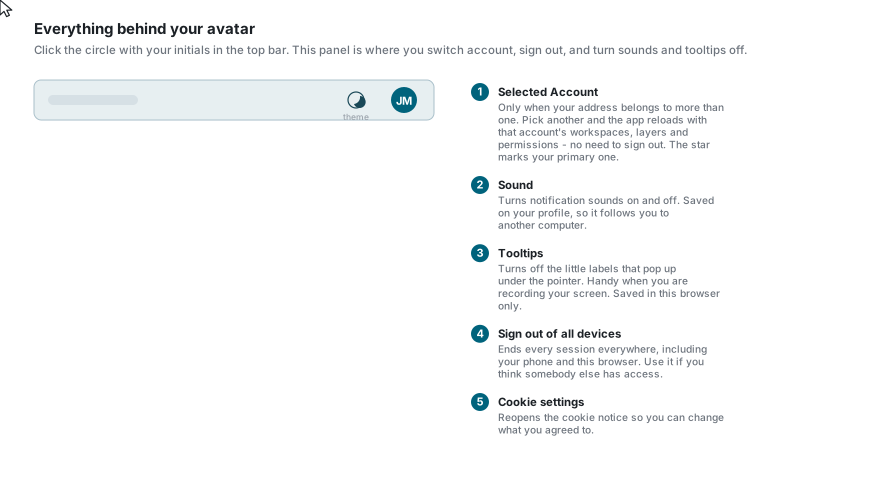
| Item | What it does |
|---|---|
| Selected Account | Only appears when your address belongs to more than one account. Pick another and the application reloads with that account's workspaces, layers and permissions - no need to sign out. The star marks your primary account. |
| Profile | Opens the profile page described below. |
| Cookie settings | Reopens the cookie notice so you can change what you agreed to. |
| Sign Out | Ends this session and returns you to the sign-in page. |
| Sign out of all devices | Ends every session you have anywhere, including your phone and this browser. |
| Sound | Turns notification sounds on and off. Saved on your profile, so it follows you to another computer. |
| Tooltips | Turns off the small labels that appear under the pointer. Saved in this browser only. |
| Version | The application version, at the very bottom. |
Tooltips off for screen recordings
The tooltip toggle exists mainly for recording and presenting, where the little labels would otherwise pop up all over the capture. It takes effect immediately.
Sign out of all devices
This asks you to confirm, and then retires every session the account has - including any copied off a device. It is the right answer to "I think somebody else is in my account". You will have to sign in again everywhere, including here.
The theme toggle (moon / sun) sits in the same top bar, beside the avatar. It switches between light and dark immediately and remembers your choice.
The profile page
The page opens on Details and shows your email, first and last name, language, time zone, industry, company, phone, website, country and province.
Depending on your deployment there may be more tabs - Subscription, Widgets and Widget Stats. Only Details and Widgets can be edited; the other two are read-only and have no Edit button.
Editing your details
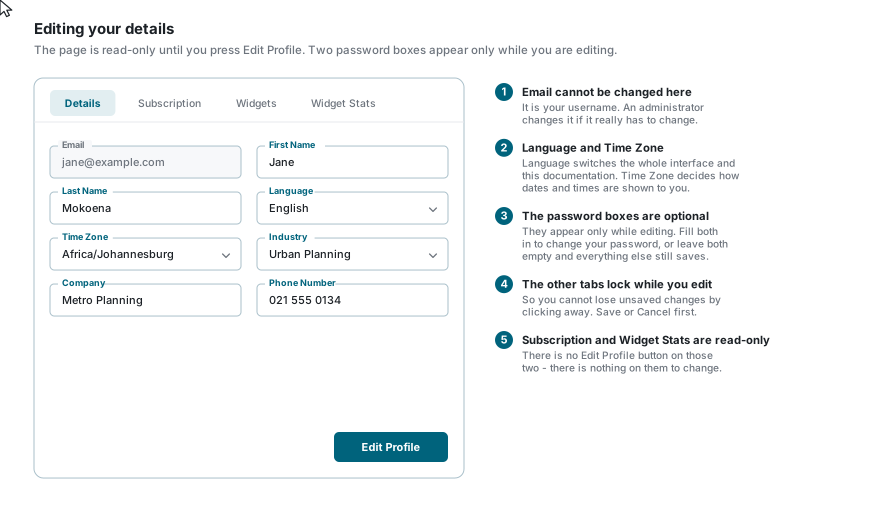
- Press Edit Profile at the bottom of the page.
- Change what you need to.
- Press Save, or Cancel to throw the changes away.
Two things to know:
- Your email cannot be changed here. It is your username; an administrator changes it if it genuinely has to change.
- The other tabs lock while you are editing, so you cannot lose unsaved changes by clicking away. Save or cancel first.
Changing your email address
Your email address is read-only on the profile; use Change email address beneath it. You enter the new address twice and your current password, and two emails go out: a confirmation link to the new address, and a notice to the current one saying the change was requested. Nothing changes until you follow the link, which is valid for a day; if you did not ask for the change, the notice tells you to change your password and sign out of all devices. An account that signs in only with Google or Microsoft manages its address there.
Changing your password
While you are editing, a Password and Confirm Password pair appears under the other fields. They are optional:
- Fill in both to change your password.
- Leave both empty and everything else still saves normally.
The new password must meet the full policy - twelve characters, a letter, a number and a symbol, and not a well-known password. See Registration.
If you cannot remember the current one
You do not need it here - this page never asks for your old password. But if you cannot sign in at all, use Forgot Password instead.
Changing your language
Set Language and save. The interface and this documentation both switch. Some deployments also put a quick language picker in the top bar.
Content that has not been translated yet stays in English.
Time zone
Time Zone decides how dates and times are shown to you - captured dates, last-modified stamps, job times. It changes how they are displayed, not what is stored.
Widget token
Only if you see a Widgets tab
The widget token is for embedding 1map widgets in your own pages. If your deployment does not offer widgets there is no Widgets tab, and none of this section applies to you.
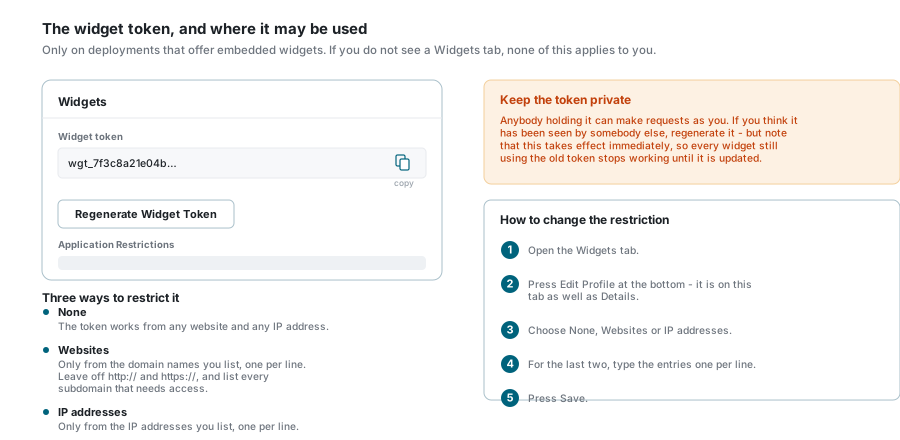
The Widgets tab holds the token an embedded widget uses to identify you, and the Application Restrictions that say where it may be used.
- Copy puts the token on the clipboard.
- Regenerate Widget Token issues a new one. This takes effect immediately - any widget still using the old token stops working until you update it.
Keep the token private
Anybody holding it can make requests as you. If you think it has been seen by somebody else, regenerate it.
To change where it may be used, press Edit Profile at the bottom of the Widgets tab, choose an option and press Save:
| Option | Meaning |
|---|---|
| None | The token works from any website and any IP address. |
| Websites | Only from the domain names you list, one per line. Leave off http:// and https://, and list every subdomain that needs access. |
| IP addresses | Only from the IP addresses you list, one per line. |
Downloading your data
Download my data at the foot of the profile page gives you everything the application holds about you as one file: your profile details, the accounts you belong to and your roles in each, your consent and acceptance records, and the sessions open right now. Passwords, tokens and other secrets are never included. Modules added by your provider, such as billing, may hold more; ask your provider for those.
Deleting your account
Delete my account at the foot of the profile page deactivates your profile at once and signs you out everywhere. It asks for your current password first (or, on an account without one, for your email address typed out). For a retention period an administrator can still restore the profile if it was a mistake; after that your personal details are replaced with placeholders for good, while records you created keep their history without identifying you. A site administrator cannot delete their own account this way.
Switching accounts
If your address belongs to more than one account you do not need to sign out to move between them. Open the panel behind your avatar and pick a different one under Selected Account. The application reloads with that account's workspaces, layers and permissions.
See also Choosing an account for how this appears at sign-in.
Signing out
- Sign Out - from the avatar panel, or the button in the greeting area of the dashboard. Ends this session only.
- Sign out of all devices - from the avatar panel. Ends every session everywhere.
Either way you land back on the sign-in page.
If something looks wrong
| What you see | What it means |
|---|---|
| No Selected Account in the panel | Your address belongs to exactly one account. Nothing to switch between. |
| No Widgets tab | Widgets are not offered on this deployment. |
| Edit Profile is missing | You are on Subscription or Widget Stats, which are read-only. Switch to Details. |
| The other tabs will not open | You are in edit mode. Save or Cancel first. |
| The new password is refused | It must meet the full policy - twelve characters, a letter, a number and a symbol. |
| Tooltips came back on another computer | The tooltip setting is stored in the browser, not on your profile. Turn it off there too. |
| A date looks like it is out by hours | Check your Time Zone on the Details tab. |
| You were signed out unexpectedly after saving | Changing your password ends your other sessions. |
See also
- Sign In - accounts, two-factor, and how long a session lasts
- Forgot Password - when you cannot sign in at all
- Dashboard - choosing a landing page